

For many people, the Notion backup question has a simple answer: the native export is probably enough. That's not a hedge. It's the honest answer for anyone using Notion as a personal notes app, a light project tracker, or a solo knowledge base. The question worth asking is which side of that line you're on.
We run Notion backups every day for thousands of workspaces. The pattern we see is consistent: teams don't think about whether their protection is sufficient until they need data back. The discovery usually costs something. This article moves that question to now, when it costs nothing.
After reading this, you'll know exactly what Notion's native features cover, when they're enough, when they aren't, and how to evaluate any tool if you decide you need more.
Why trust this article
We run Notion backups every day. We've also tested every major Notion backup tool on the market. The gap between what those tools advertise and what they actually deliver is significant. It's the kind of thing you find out at restore time, not setup time. We're writing this because we'd rather you know it now.
Is the Notion export enough?
For many Notion users, yes. It's worth saying plainly, because most content in this space skips straight to selling you a solution.
Notion lets you export your entire workspace as Markdown, CSV, or HTML. You do it manually from Settings. You get a zip file with your pages, databases, and content. You store it somewhere. If your workspace were ever lost, you'd re-import it.
That covers a real set of scenarios. If you're using Notion alone, editing occasionally, and storing content you could reconstruct in a day or two if you had to: the export is probably a defensible position. Do it monthly. Keep the file somewhere you control.
Where it starts to fail is predictable: the more people who have access, the more complex the data structure, and the faster the workspace changes, the more the export's limitations become relevant. The rest of this article is about drawing that line clearly, so you can make the call yourself.
What Notion's native features actually cover
Notion gives you three mechanisms for recovering data. Understanding what each one actually does makes the line much easier to draw.
Autosave
Notion saves continuously as you work. Content is synced to Notion's servers in real time. In practice: you won't lose unsaved work to a browser crash or a power cut. That's worth something.
What autosave doesn't cover: it records the current state of the workspace, including deletions. If you delete a page, autosave has captured the deleted state. If a team member drops an entire database section, autosave records that too. You're protected against accidental session loss. You're not protected against intentional or accidental deletion.
Trash
Deleted pages, databases, and blocks go to Trash rather than disappearing immediately. From Trash, you can restore them. How long they stay depends on your plan.
| Plan | Trash retention |
|---|---|
| Free | 7 days |
| Plus | 30 days |
| Business | 90 days |
| Enterprise | 90 days |
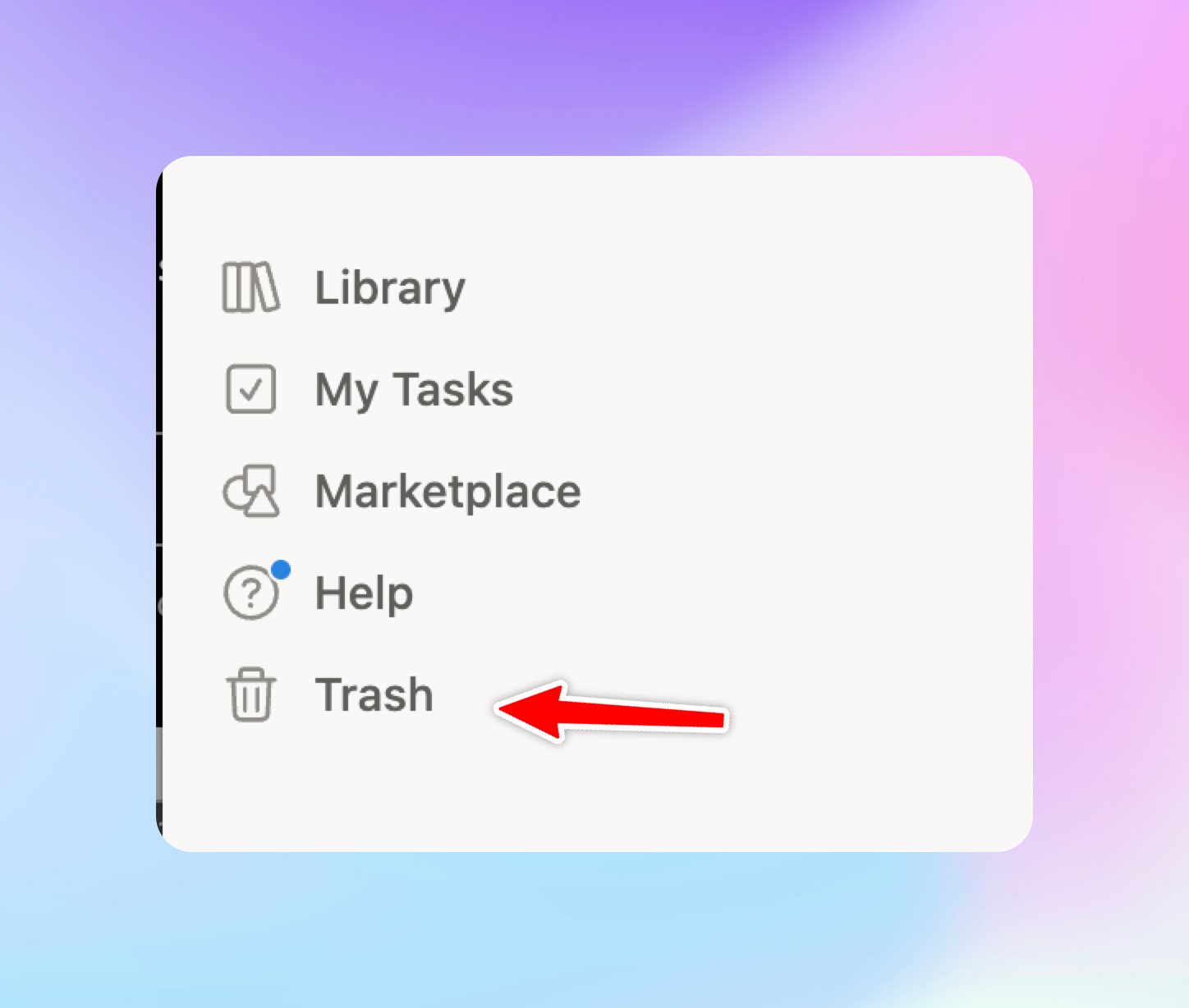
After the window expires, Notion permanently deletes the content. Notion's help article on Trash and deletion confirms there is no recovery path once the window closes. At that point, Notion's support team cannot recover it, and no third-party tool can either. The data is gone.
A few practical details about Trash that matter. It operates at the page level: individual pages, databases, and blocks appear in Trash when deleted. But if a workspace section is cleared in bulk, or if content is modified rather than deleted, Trash doesn't apply. Also, Trash is workspace-specific: if your account is compromised and the workspace is deleted at the account level, Trash goes with it.
Version history
Notion keeps a history of changes to individual pages. You can view previous versions and restore an earlier state. The depth of that history depends on your plan.
| Plan | Version history |
|---|---|
| Free | 7 days |
| Plus | 90 days |
| Business | 90 days |
| Enterprise | Custom ] |
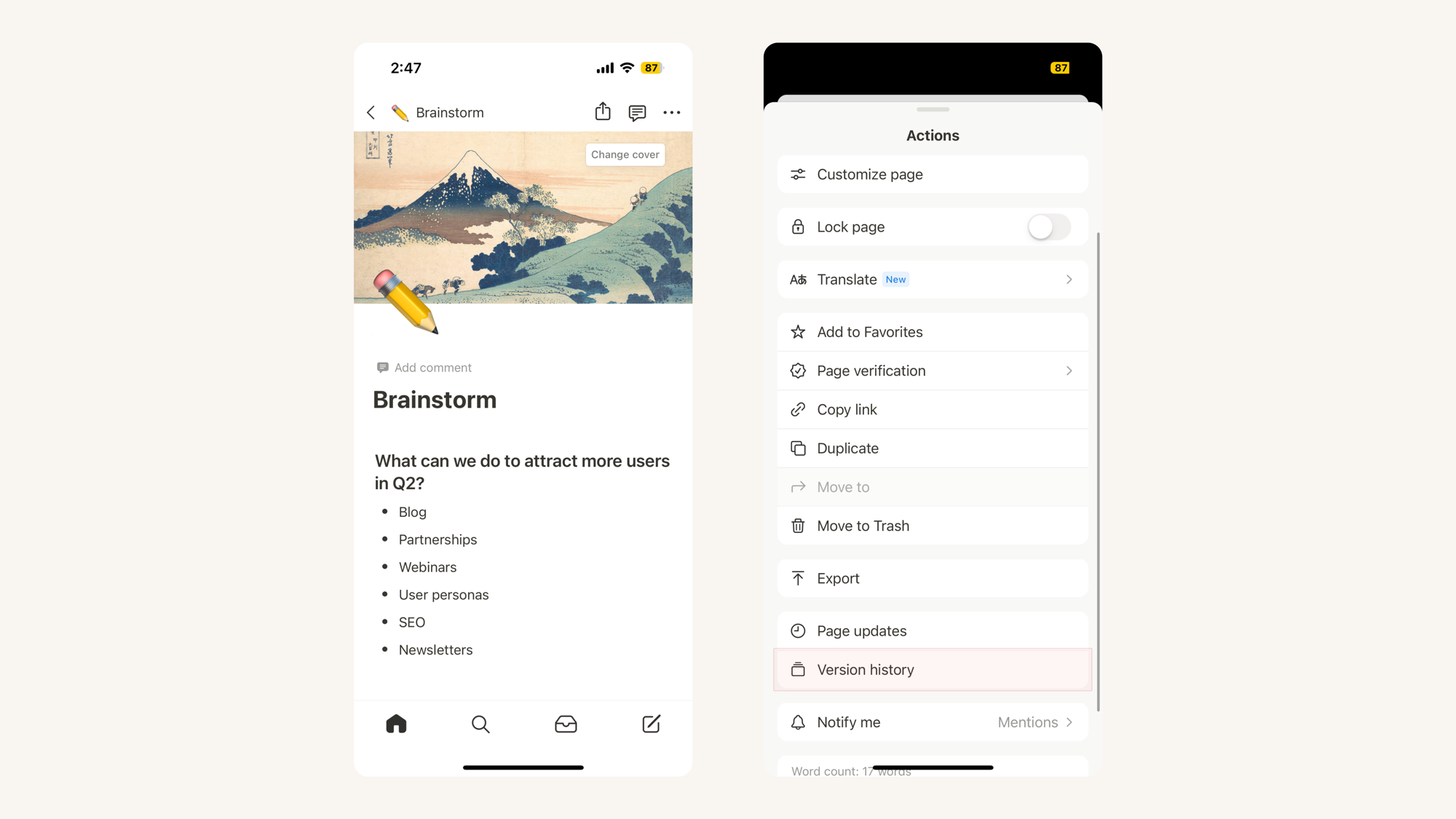
Version history is per-page. It lets you recover from "I edited this page and made it worse" or "someone changed this document and I need the original." It doesn't help if the page itself was deleted (that's Trash), if you need to recover across multiple pages simultaneously, or if you need to restore to a different workspace. It's also plan-limited in a way that's easy to forget: on the Free plan, a change from 8 days ago is unrecoverable, even if you know it exists.
The native export
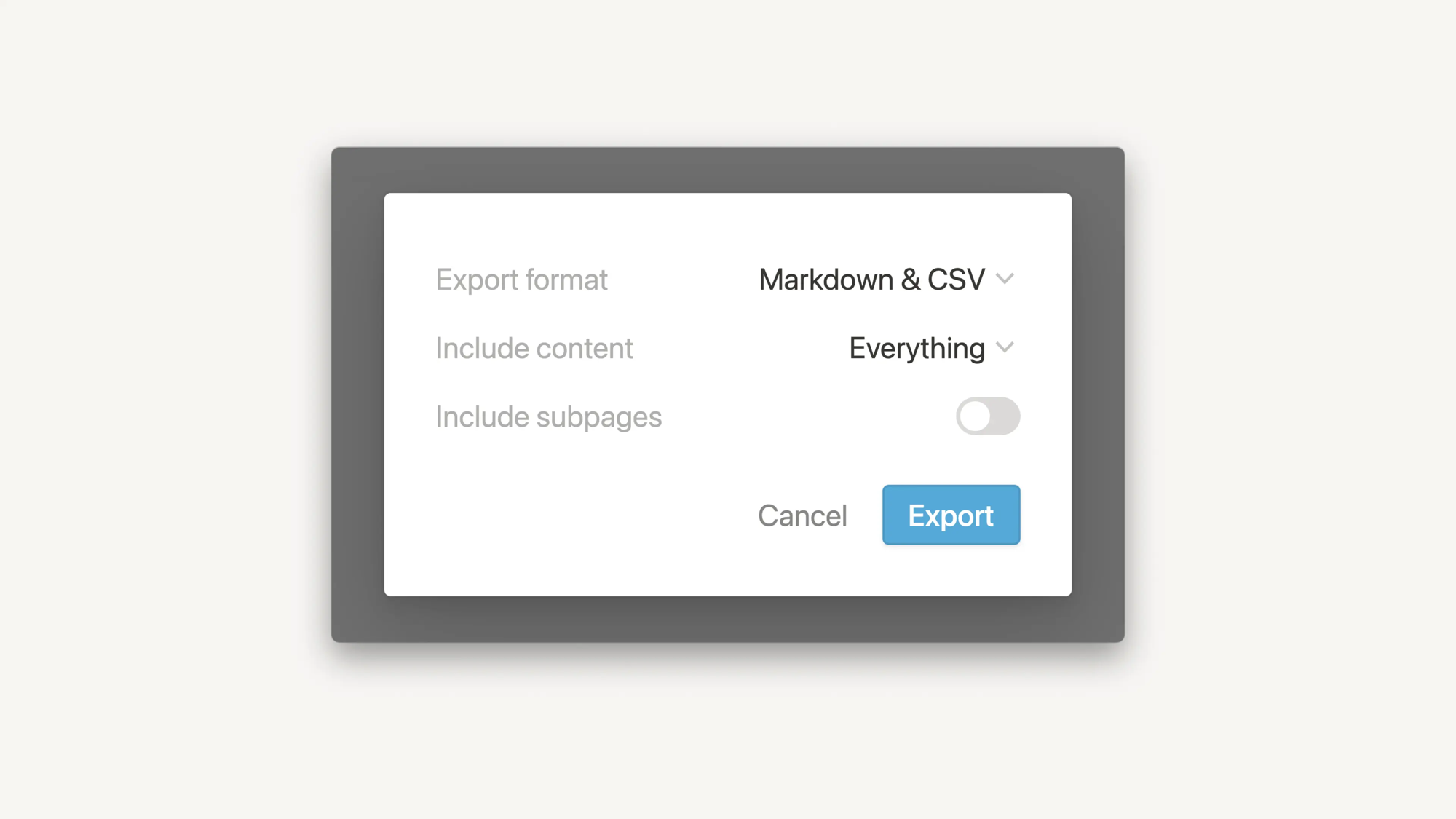
Settings → Export lets you download your workspace as a zip archive. You choose the format: Markdown and CSV, or HTML. The export captures your pages and databases. It's the one Notion mechanism where you end up with something you own, stored somewhere you control, independent of Notion's servers.
The limitations are worth knowing. Databases come out as CSV files, which means relational links between databases don't survive intact. File attachments may or may not be included depending on your export settings. And it's manual: there's no schedule, no alert when you forget to do it, and no way to automate it through Notion's interface.
The terms of service point
Notion's terms of service are clear that they're not responsible for data loss. This is standard SaaS practice, not a sign that Notion is unreliable. But it means the question of protecting your data is your question, not theirs. They provide the tools described above. What you do with them is up to you.
Version history, trash, and export: what's actually different
The three mechanisms do different things. The confusion comes from treating them as equivalent when they're not.
| Version history | Trash | Export | |
|---|---|---|---|
| Scope | Per-page | Workspace-level | Full workspace |
| Duration | 7–90 days, plan-limited | 7–90 days, plan-limited | Indefinite (you keep the file) |
| Recoverable after permanent deletion? | No | No | Yes, from your copy |
| Restorable to a different workspace? | No | No | Yes |
| Covers database relationships? | No | Partial | Partial (CSV only) |
| Automated? | Yes | Implicit | Manual only |
The export is the only mechanism that produces something you own. Version history and Trash exist only within Notion: if your account is inaccessible, they're inaccessible. If your workspace is deleted, they're gone with it. A local copy of your export is the one copy that survives anything happening to your Notion account.
That's the clearest reason to export regularly, even if you never expect to need it: it's the only copy that's actually yours.
When native Notion is sufficient
Here are the cases where the export, combined with Trash and version history, is genuinely adequate.
Personal workspaces with low edit frequency. Solo use, occasional changes, content you'd rate as recoverable if you had to rebuild it. A monthly export covers you. If something goes wrong, you lose at most a month of notes. For most personal use cases, that's an acceptable risk.
Content that's low-stakes if lost. Reading lists, draft ideas, bookmarks, temporary project boards: if losing it would be inconvenient but not damaging, the native tools and a periodic export are proportionate.
7-day Trash is enough if you notice fast. If your edit pace is low enough that a deleted page would surface within a week, Free plan Trash retention covers you. The assumption is that you, or someone on your team, would catch a destructive change before the window expires.
Small teams with controlled access. Fewer editors means fewer accidental deletions. If everyone in the workspace is careful and accountable, the risk profile is lower than a large shared workspace where any editor can make changes you don't see for weeks.
No compliance requirements. If you're not subject to GDPR, HIPAA, ISO 27001, SOC 2, or similar frameworks, there's no external pressure to maintain documented retention schedules, off-site storage, or auditable backup logs. The native tools plus an export give you practical protection without meeting any particular formal standard.
If all of these describe your situation, the native export is the right answer. Export your workspace monthly, store it somewhere you own (a cloud drive or your local machine, not only in Notion), and you have a defensible position. You don't need anything else.
The export option is at Settings → Export in your Notion workspace. Choose "Markdown & CSV" to get the most portable format. Turn on "Include subpages" to capture nested pages. Store the resulting zip somewhere independent of your Notion account.
When it isn't
The same characteristics, inverted, mark the point where native Notion stops being enough.
Databases with relational structure you can't easily reconstruct. If you have a Projects database linked to a Tasks database linked to a Clients database, with months of entries built on top of each other, losing it to accidental deletion is not a "rebuild this afternoon" situation. It might not be fully reconstructable, because the relationships were built incrementally over time and can't be recreated from memory.
Shared workspaces with multiple editors. Every person with editor access can delete pages, databases, or entire workspace sections. This isn't a criticism of your team. It's a statistical reality. The larger the workspace and the more active the editing, the higher the likelihood that something gets deleted or corrupted without immediate notice. The 30-day Trash window helps, but only if someone spots the problem within 30 days.
Slow-burn problems that outlast your retention window. This is the failure mode that catches teams most off-guard. A relational link that broke silently two months ago. A database that's been accumulating incorrect data since a formula was changed. A page that was modified by someone and has been wrong since then. By the time you notice, version history and Trash have both expired. You need a point-in-time copy from before the damage started, which means you need backups older than your retention window.
Any compliance requirement. GDPR, HIPAA, ISO 27001, SOC 2: each has specific things to say about backup. Manual exports don't satisfy requirements for documented retention schedules, audit trails, or off-site storage under separate access control. If your organization is pursuing or maintaining any of these certifications, a manual export process isn't auditable.
Single admin accounts. If one person holds admin access to the workspace and that account is compromised, your data is one delete operation away from gone. Trash and version history are also inaccessible without account access. The off-site copy you own independently is the only protection against this class of failure.
Here's what this looks like in practice.
You open Notion on a Monday morning. A team workspace that your operations team has been building and maintaining for three months is empty. A team member cleared it on Friday. You check Trash: nothing. The workspace was wiped, not individual pages, so individual page Trash entries don't exist. Version history on individual pages doesn't help if the pages themselves are gone. Your last export is from six weeks ago. You're missing six weeks of operational data: processes documented, decisions recorded, running logs updated.
That's not a disaster scenario. It's a plausible Monday for any team that assumed native Notion was sufficient.
What to look for if you decide you need more
If sections 4 and 5 moved you into "I need more than the export" territory, here's how to evaluate any backup tool. These questions apply to any service you consider, not just SimpleBackups.
Can you test a restore before you need it? The most important question on this list. A backup that's never been tested is a file that might work. Any tool worth using should let you trigger a restore to a test workspace and confirm the result before you're in an emergency. If testing a restore is awkward, or locked to a higher plan tier, that's a signal worth noting.
Do you control the schedule and retention? Some tools lock backup frequency and retention periods to plan tiers. One daily backup on a starter plan, no configuration. If your data changes faster than the allowed schedule, or your risk profile requires longer retention than the tier provides, these limits become constraints you'll feel. Know what you're getting before you commit.
Can you store the backup somewhere you own? There's a meaningful difference between a tool that stores your Notion data on its own infrastructure and one that writes to your own S3 bucket, Google Drive, Dropbox, or SFTP destination. Storing to your own destination means you control access independently of the backup tool, you control the retention policy, and you retain the data even if the backup service closes or your account lapses.
Does it alert you when a backup fails? Silent failures are the second most common problem in backup systems, after having no backup at all. If a tool can't notify you that last night's backup didn't run, you'll find out at the moment you try to restore. By then, the window you thought was protected isn't.
Is it honest about what Notion's API can and can't do? Every Notion backup tool works within the same API constraints. Tools that don't mention those constraints aren't doing something technically better. They're not telling you what you'll discover when you need the data back. A tool that's upfront about what it can't do is more trustworthy than one making broad "full backup" claims.
Does it handle databases, not just pages? Pages are the easy case for any backup tool. Databases with structured content, properties, and relational links are harder. Ask specifically whether database content is backed up and whether relational links between databases are preserved. "We back up your workspace" sometimes means "we back up your pages."
Can it restore to a different workspace? Some tools restrict restoration to the same workspace. This matters if you want to run test restores without touching your live workspace, or if you ever need to migrate content between Notion accounts.
What most backup tools get wrong (and what to watch out for)
We've tested the major Notion backup tools available. Three patterns came up consistently. These are worth knowing when you're evaluating any tool, because they're not always visible from the landing page.
Restore is advertised, but it's manual or broken
One tool we evaluated has no restore button. Backups are downloaded as .zip files. Recovery means opening the file, locating the content, and copying it back into Notion by hand. The landing page prominently advertises restore and recovery capabilities.
Another tool's automated restore failed silently when the target "Restore" page hadn't been manually pre-created in the workspace. There was no error message. The restore appeared to succeed. The content didn't come back. We found this only by checking the workspace directly.
A third pattern: restores succeed for simple page content and fail for complex structures, producing no clear feedback about what came back and what didn't.
The practical test: before committing to any tool, run a real restore to a test workspace, not just a setup walkthrough. That's the only way to know what you actually have.
Databases and relational content fail quietly
Complex Notion structures expose the limits of most backup tools quickly. Relational database links (a Projects database linked to a Tasks database linked to a Clients database) fail to parse in most tools we tested. The individual databases come back; the links between them don't. Callout blocks lose formatting. Custom database views can't be restored as views.
The subtler version of this problem: one tool we tested showed database columns in its preview UI, giving the impression the database was fully backed up. The actual backup file contained no database row content at all. The structure was there; the data wasn't.
The raw text of most page content is generally preserved. The structure around it often isn't. For a personal notes archive, that's probably fine. For a team's operational database where the relationships between records are as important as the records themselves, it may not be.
You can't tell if it worked until you need it
Rate limiting during basic backup operations. No progress indicator while a backup runs. Backup status that requires a manual page refresh to update. Restore errors exported to a spreadsheet file rather than surfaced in the app's interface. Unexplained redirects to unrelated pages during setup.
These are UX problems, but they have a practical consequence: if your tool doesn't clearly tell you whether a backup ran and whether it succeeded, you can't verify it without running a restore. Most people don't run restore tests regularly. Which means most people using these tools don't actually know if their backups work.
Whatever tool you use, including SimpleBackups, test a restore quarterly. Set a calendar reminder. A backup system you haven't tested is a system you're trusting on reputation, not evidence.
What Notion's API actually exposes (and what no tool can back up)
Every Notion backup tool works within the same API constraints. These aren't implementation choices that distinguish one tool from another. They're ceiling constraints that every tool hits, including SimpleBackups.
What any tool can capture via Notion's API:
- Page content and block structure
- Database schemas and row content
- Nested page hierarchy
- File attachments and images hosted in Notion's CDN
- Page properties and tags
What Notion's API doesn't make available to any backup tool:
- Custom database views: Kanban board layout, Gallery layout, Timeline, Calendar views. The data in the database is captured; the view configuration isn't. On restore, you get a default table view. The Kanban board you built is gone.
- Page width settings (full-width vs. narrow) and cover image position
- Some granular user-permission configurations
A note on API limits
Every tool in this space hits the same ceiling. The ones that don't mention it aren't doing something technically better. They're not telling you what you'll discover when you need the data back. We back up what Notion's API exposes, and we're explicit about what it doesn't. That's the honest version of what any tool can claim.
For most teams, losing view configuration on restore is an acceptable tradeoff. You lose the layout, not the data. For teams whose workflows depend heavily on specific Kanban or Timeline views, it's worth knowing before you need a restore, not at the moment of one.
How often should you back up Notion?
The right answer depends on how much data loss you can accept between backups and how fast your workspace changes.
| Use case | Recommended frequency | Notes |
|---|---|---|
| Personal workspace, infrequent editing | Manual export, monthly | Native export is probably sufficient; the key is actually doing it |
| Personal workspace, daily editing | Weekly automated backup or bi-weekly export | Limits loss to one week of work |
| Small team, active editing | Daily automated backup | Recovery point under 24 hours |
| Business-critical team workspace | Every 6–12 hours | Limits at-risk data to one working session |
| Compliance requirements (GDPR, HIPAA, SOC 2) | Daily minimum, with documented retention | Specific requirements depend on the framework |
The general rule: backup frequency should be shorter than the amount of work you're willing to lose. If losing a week of team edits is unacceptable, a weekly backup isn't the right schedule.
For workspaces used as reference stores (documentation, wikis, rarely edited material), lower frequency is fine. For workspaces that are actively changing every day, daily or more frequent backups are the right default.
One thing worth saying directly: there's no universal "you must back up every X hours" rule. The right frequency is the one that fits your actual usage and your actual tolerance for data loss. The table above is a starting point, not a mandate.
How to verify any backup actually works
This applies equally to manual exports, backup scripts, and managed services. None of them are real backup until they've been tested. Here's a six-step verification process that works for any approach.
Step 1: Confirm the backup output is accessible. For a managed service, check that the backup was written to your storage destination. For an export, locate the file. This sounds obvious; it's the step most people skip because they assume it worked.
Step 2: Open the backup and check the content. Don't just confirm the file exists. Open it and navigate the structure. A corrupted or incomplete export produces a file that looks intact from the outside. You need to look inside.
Step 3: Restore a single test page to a separate workspace. For any automated tool, trigger a restore of one specific page or database to a workspace that isn't your live one. Confirm the content came back correctly.
Step 4: Verify database content, not just schema. Check that the rows in a database are actually there, not just the column headers. One tool we tested had a preview UI showing database structure while the backup itself contained no row data.
Step 5: Check file attachments. If your Notion workspace contains files or images, confirm that at least one is accessible from the backup. Attachment handling varies across tools.
Step 6: Schedule the next test. Set a calendar reminder for 90 days from now. Do this test again. Backup systems change; your workspace changes; the restore test is the only confirmation that the whole chain still works.
A backup you haven't tested is a file that might work. The restore test takes 15 minutes. Do it once a quarter, before you need it, not after.
What to do next
Most people reading this land in one of two places.
If you're using Notion personally or for light team use, with no compliance requirements and data you could rebuild if you had to: do a manual export now. Put it somewhere you own: a cloud drive or your local machine, somewhere independent of Notion. Do it again in 30 days. That's a reasonable position for your situation.
If you're running Notion as a team system of record, with complex databases, multiple editors, or compliance requirements: the periodic export isn't enough. You need scheduled, automated backups to storage you control, alerts when something fails, and a restore you've actually tested. The native tools don't get you there.
The reason we built SimpleBackups for Notion is exactly the gap this article describes: native backup covers the easy part, and none of the hard part. If you want off-site backup without writing any of it yourself, that's what it does.
Keep learning
- Welcome to Notion backups: an overview of how SimpleBackups handles Notion, including storage options and scheduling.
- Configure your Notion Backup (video)
FAQ
Does Notion automatically save my work?
Yes. Notion saves continuously to its cloud as you type. But saving and backing up are different things. Autosave captures the current state of the workspace, including any deletions. If a page is deleted, autosave records the deletion, not the previous state. Saving protects you against losing unsaved edits. It doesn't protect you against intentional or accidental deletion.
How long does Notion keep deleted pages?
Pages moved to Trash are retained for 7 days on the Free plan, 30 days on Plus, and 90 days on Business and Enterprise plans. After the retention window closes, Notion permanently deletes the content. At that point, neither Notion's support team nor any third-party tool can recover it. The deadline is silent: Notion doesn't notify you when content is about to be permanently removed.
Can I restore a Notion backup to a different workspace?
Notion's native Trash and version history are workspace-specific. You can only restore within the same workspace where the content existed. A manual export can be imported into any workspace. Most third-party backup tools support cross-workspace restore, but this is worth verifying before choosing a tool: some restrict it to higher plan tiers.
What does Notion's API not expose to backup tools?
Custom database views (Kanban, Gallery, Timeline, Calendar), page width settings, and some granular user-permission configurations. These apply to every tool in this space, including SimpleBackups: they're not implementation gaps but API limits. The underlying database data is backed up; the view configuration is not. On restore, databases come back in default table view. Any Kanban layout or custom view configuration needs to be recreated manually.
How often should I back up Notion?
It depends on how much data loss you can accept. For personal use with infrequent edits, a monthly manual export is usually sufficient. For teams actively editing every day, a daily automated backup is the right starting point. For business-critical workspaces or compliance requirements, every 6–12 hours with documented retention is more appropriate. The rule of thumb: your backup frequency should be shorter than the amount of work you're willing to lose between runs.