
Appearance
SimpleBackups MCP Server
Manage your backups directly from Claude, Cursor, Codex, and other MCP-compatible AI clients.
Connect SimpleBackups to Claude, Cursor, or any MCP client. The agent reads context, proposes fixes, and runs them in one conversation. Built on the Model Context Protocol, an open standard for connecting AI assistants to external tools.
What is MCP?
MCP, short for Model Context Protocol, is an open standard that lets AI assistants connect to external tools and data sources securely. Instead of pasting API responses back and forth, your assistant talks directly to SimpleBackups over a single authenticated connection and gets exactly the data it needs to answer your question or run an action on your behalf.
The protocol is supported by Claude (Claude Code, Claude Desktop, Claude on the web), Cursor, OpenAI Codex, and a growing list of other AI clients. Any MCP-compatible client can connect to SimpleBackups using the same server URL.
Why connect SimpleBackups to your agent?
Most of the time you don't want to manage backups. You want an answer. Did anything fail last night? Why did the staging database backup error? Can you trigger the production backup before I deploy? Give me a restore link for last Friday's snapshot. With MCP, your agent answers those questions and performs those actions inline, without context-switching.
For teams, the value compounds. Engineers can investigate a failing backup from their editor, on-call can triage incidents without opening the dashboard, and ops can pause every backup before a maintenance window with one sentence, all using the same SimpleBackups team and the same permissions they already have.
What you can do
The MCP server exposes fourteen tools grouped into three areas:
- Account triage: answer "how is my account doing?" in one call: overall counts, failing backups, stale backups, and a sample of what needs attention.
- Backup investigation: drill into a single backup, read its recent run history, or pull a per-day status grid across many backups to spot patterns.
- Safe actions: trigger on-demand runs, pause or resume scheduled backups, and prepare a restore with type-specific instructions.
Every action runs as the user who connected the account, on the team you chose at connection time, and respects your existing role on that team.
Connecting your assistant
However you connect, you authenticate with your SimpleBackups account through a standard OAuth flow. There are no API tokens to copy, no credentials to share with the AI client, and no separate password to manage. The first time your assistant connects, you are sent to SimpleBackups, you sign in if you aren't already, you pick which team the connection should act on, and you approve the connection. From that point on, the assistant has a scoped token tied to that team.
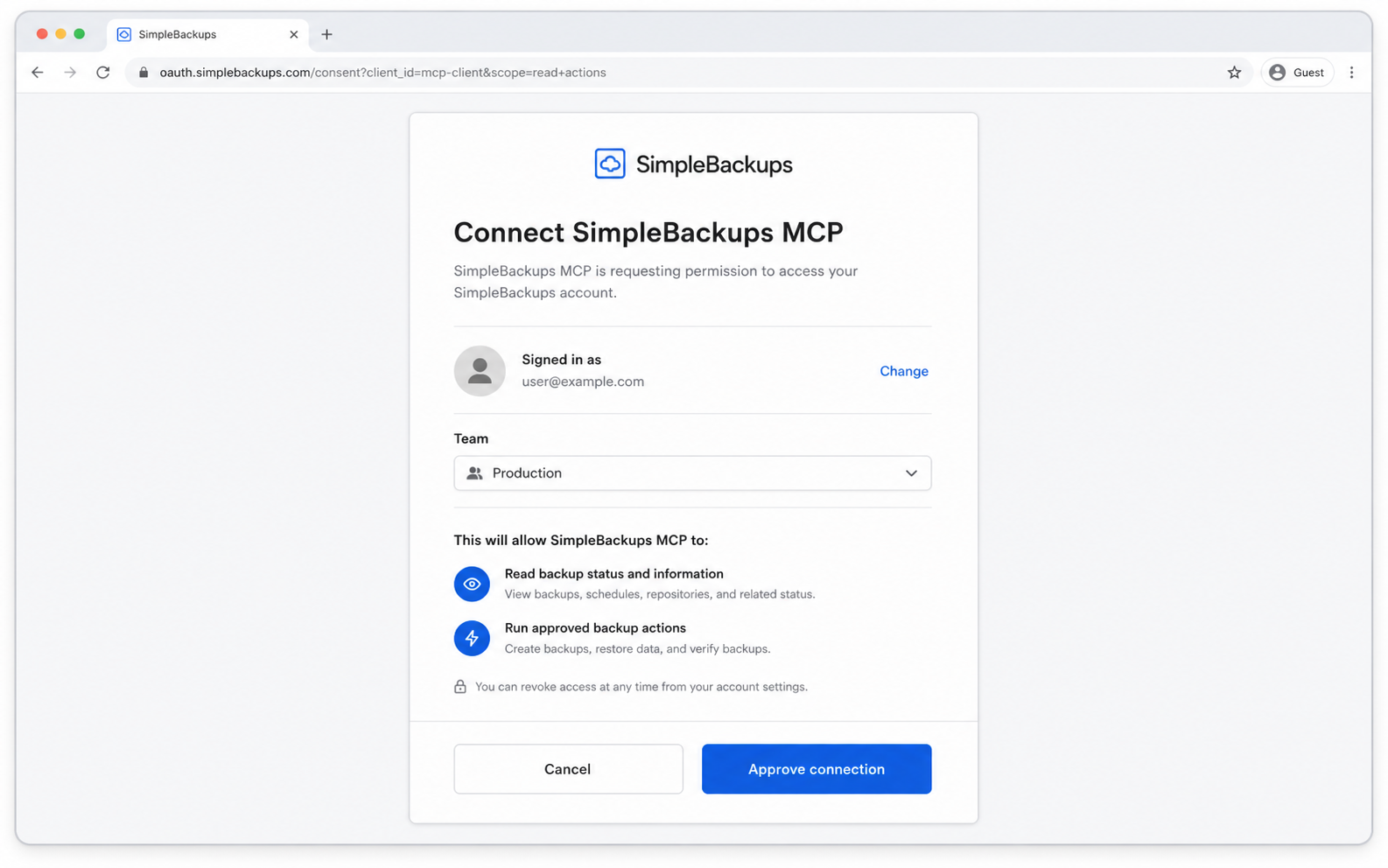
You can revoke a connection at any time from Settings → MCP connections.
Claude — from the Connector Directory (easiest)
SimpleBackups is listed in Claude's official Connector Directory, so there is nothing to configure by hand:
- Open claude.ai/directory/simplebackups — or browse to SimpleBackups in the directory from Claude itself.
- Click Connect.
- Complete the SimpleBackups OAuth flow and pick the team the connection should act on.
The connection is tied to your Claude account, so it works across Claude on the web, Claude Desktop, and Claude mobile without repeating the setup. The SimpleBackups tools appear in your next conversation.
Adding the server URL manually
If you're using Claude Code, the API, or any client that doesn't go through the directory browser, connect with the server URL directly:
text
https://mcp.simplebackups.ai/mcpFor deeper technical details, including the OAuth flow, dynamic client registration, tool schemas, and rate limits, see the MCP developer reference.
Claude Code
In a terminal, add the connector to your Claude Code configuration:
bash
claude mcp add --transport http simplebackups https://mcp.simplebackups.ai/mcpThe next time you start Claude Code, it will prompt you to complete the OAuth flow in your browser. After approval, the SimpleBackups tools appear automatically in the session.
Claude Desktop
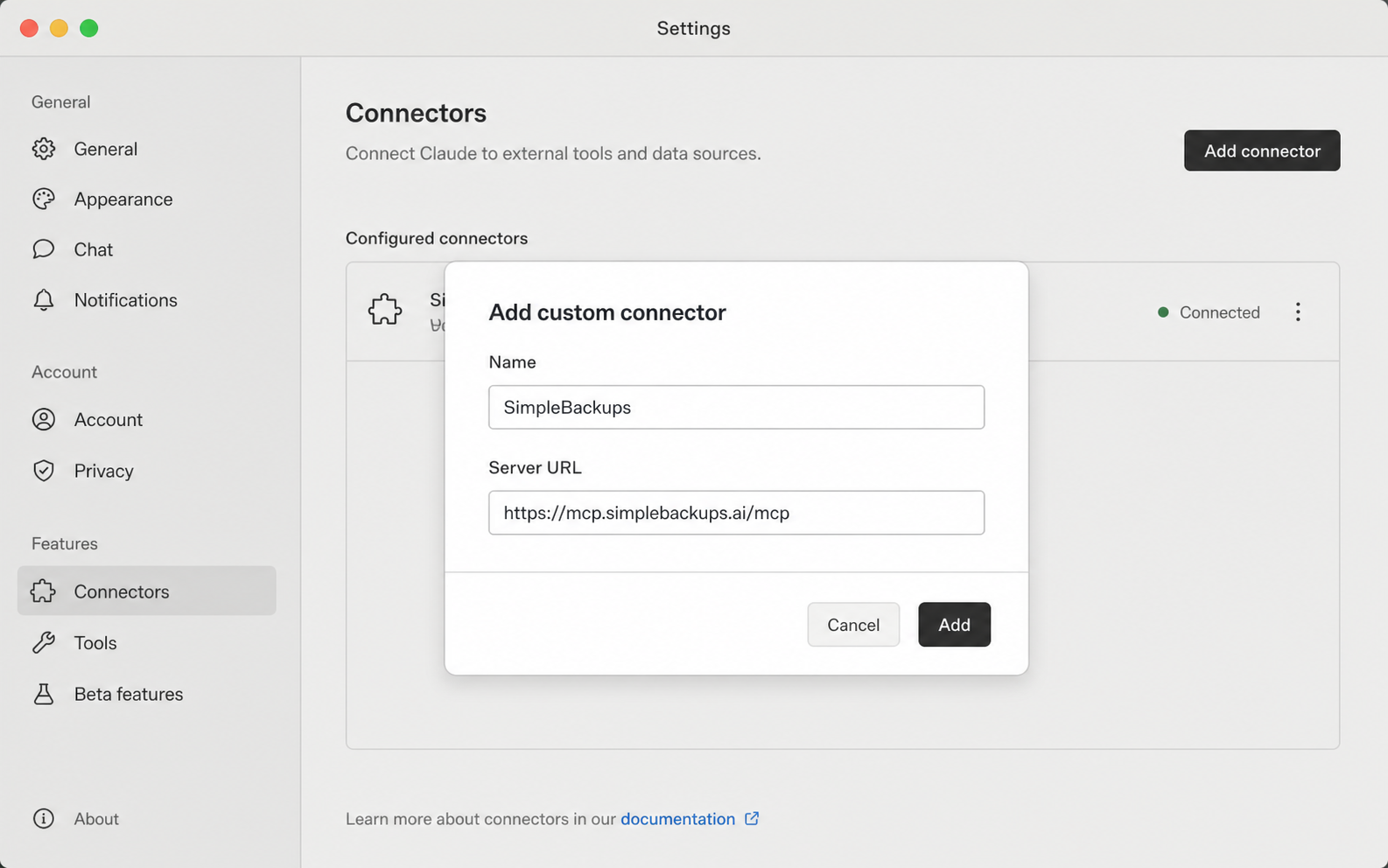
The directory is the recommended path for Claude Desktop. If you'd rather add the server yourself, open Settings → Connectors → Add custom connector, give it a name like SimpleBackups, and paste the server URL above. Claude will open a browser tab to complete the OAuth flow, then return you to the chat with the connection ready.
Cursor
In Cursor, open Settings → MCP → Add new MCP server, choose the HTTP transport, and paste the server URL. Cursor opens the OAuth flow in your default browser.
Alternatively, edit ~/.cursor/mcp.json directly:
json
{
  "mcpServers": {
    "simplebackups": {
      "url": "https://mcp.simplebackups.ai/mcp"
    }
  }
}
This uses Cursor's native HTTP transport, so there is nothing to install: no Node.js, no npx, and no separate proxy. If you don't see an HTTP transport option or the "url" form is ignored, your Cursor is too old to connect to a remote MCP server directly. Update to the latest Cursor, or use the mcp-remote fallback described in Troubleshooting.
Codex
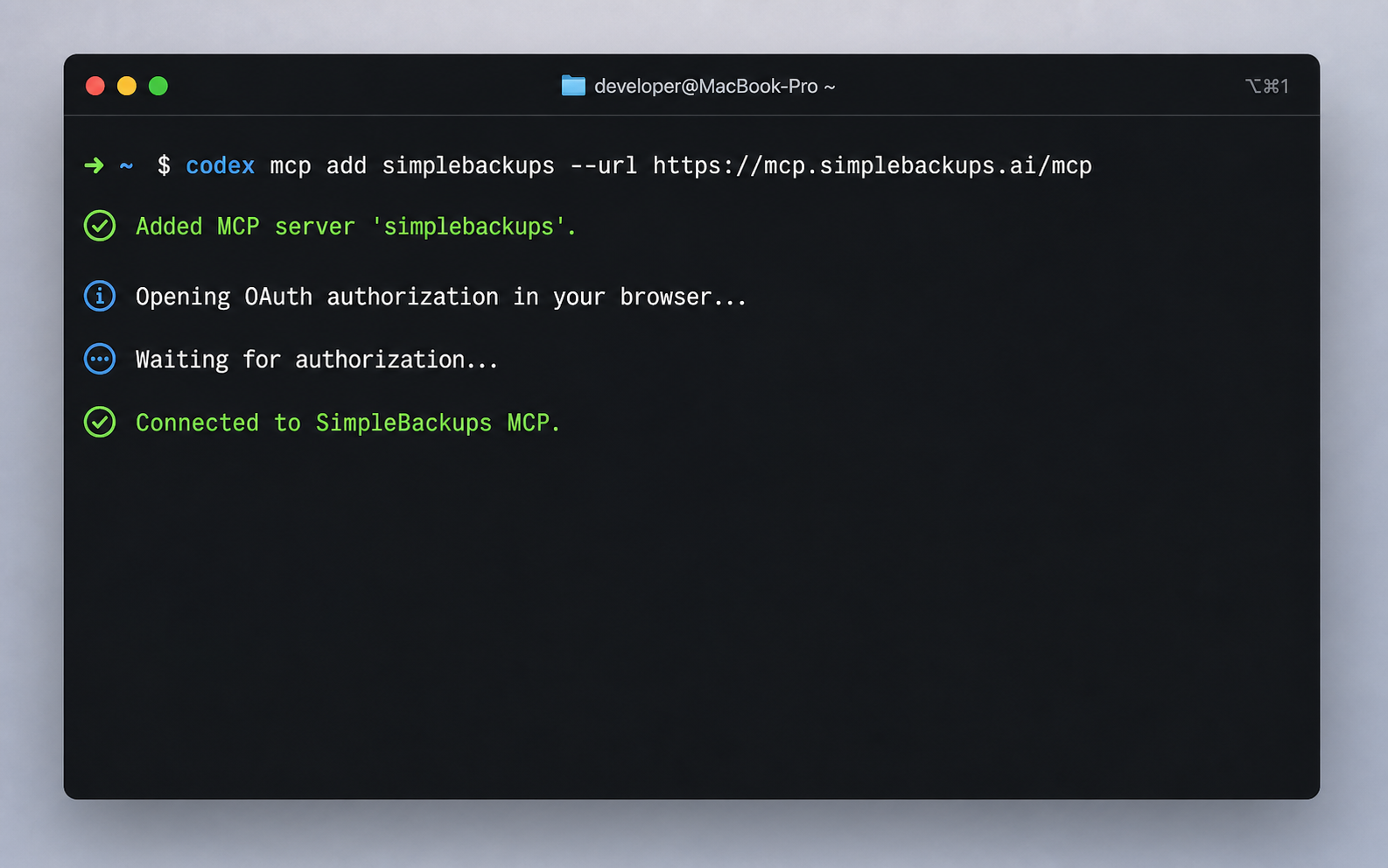
In Codex CLI, add the SimpleBackups MCP server:
bash
codex mcp add simplebackups --url https://mcp.simplebackups.ai/mcpCodex opens the OAuth flow in your browser and stores the connection after you approve it.
Other MCP clients
Any MCP-compatible client that supports the streamable-http transport and OAuth 2.1 with Dynamic Client Registration can connect using the same server URL. Refer to your client's documentation for where to paste it. If your client does not support OAuth, contact us and we will help you find a path.
Troubleshooting
My client can't connect to the remote URL directly
The setups above use each client's native HTTP transport, which needs no extra software. If your client is an older version that can't connect to a remote MCP server directly, you can bridge the connection over mcp-remote, a small proxy that exposes the remote server to your client over stdio:
json
{
  "mcpServers": {
    "simplebackups": {
      "command": "npx",
      "args": ["-y", "mcp-remote", "https://mcp.simplebackups.ai/mcp"]
    }
  }
}
mcp-remote handles the same OAuth flow for you on first run. Prefer the native HTTP transport when your client supports it; only reach for mcp-remote when it doesn't.
mcp-remote fails to start, or my client shows a Node error
mcp-remote runs through npx, so it needs Node.js 18 or newer (20+ recommended). Check your version with node --version.
The catch: your client launches npx with whatever Node.js is first on your PATH. If your default is an older Node.js, for example because a version manager like nvm pins one for legacy projects, the connection fails even though a newer Node.js is installed. Fix it one of two ways:
- Upgrade your default Node.js to 18 or newer (
nvm install --lts && nvm alias default 'lts/*'), then restart your client, or - Pin absolute paths to a newer Node.js and its
npxso the proxy never uses the old default:
json
{
  "mcpServers": {
    "simplebackups": {
      "command": "/Users/you/.nvm/versions/node/v20.20.2/bin/node",
      "args": [
        "/Users/you/.nvm/versions/node/v20.20.2/bin/npx",
        "-y",
        "mcp-remote",
        "https://mcp.simplebackups.ai/mcp"
      ]
    }
  }
}
Replace the paths with the output of which node and which npx from a shell where a modern Node.js is active.
Available tools
Each tool is scoped to the team you picked at connection time and runs with your existing role on that team.
| Tool | What it does |
|---|---|
whoami | Returns the connected user, team role and plan, support id, and dashboard and resource URLs. |
get-backups-overview | Single-call account health: aggregate counts plus a sample of failing or stale backups. |
list-backups | Paginated listing with filters on type, status, server, storage, or name. Includes inline last status and error excerpt. |
find-failing-backups | Returns only backups whose most recent run failed within a configurable window. |
get-backup | Compact summary for one backup, including identity, type, status, server and storage references, and the most recent run status and error excerpt. |
get-backup-logs | Recent run history for a single backup. |
get-backup-runs-timeline | Per-day status grid across many backups in a single call, useful for spotting flaky days or patterns. |
get-run-output | Returns the console output tail (stdout and stderr) for one backup run, including the exact error lines the backup process produced. This is the tool that turns a generic "backup failed" into an actual cause. |
list-storages | Storage destinations (S3, B2, SFTP, Dropbox, …) with type, usage in GB, and connection status. Credentials are never returned. |
list-servers | Servers and sources with connection type, status, firewall and Docker flags, and tool versions. Hostnames and credentials are never returned. |
run-backups | Triggers on-demand runs for up to 20 backups per call. Supports dry_run to preview the resolved set. |
pause-backups | Pauses one or many backups so they stop running on schedule. Supports dry_run. |
resume-backups | Resumes paused backups so they run on schedule again. Supports dry_run. |
restore-prep | Prepares a restore and provides type-specific restore instructions. |
Example prompts
Once connected, you can speak to your agent the way you'd speak to a teammate. A few prompts to get started:
- "Any backups failed in the last 7 days?"
- "Draw me a status grid of all my production backups for the last 14 days."
- "Why did backup #28491 fail last night? Show me the error."
- "Trigger the staging database backup now, I'm about to deploy."
- "Pause every MySQL backup for the next hour, I'm doing maintenance."
- "Give me a restore link for the latest successful run of backup #28491."
Security and permissions
The MCP server treats your data the same way the SimpleBackups dashboard does.
- No credentials are ever returned. Storage access keys, SSH private keys, database passwords, and API tokens stay inside SimpleBackups. Tool responses never include them, even when listing storages or servers.
- OAuth, not API keys. Each AI client gets a short-lived access token scoped to a single team. There is no long-lived secret for you to copy, store, or rotate manually.
- Restore artifacts are safe to share. Restore prep returns only safe artifacts you act on yourself; your credentials are never sent to the AI client.
- Permissions match your dashboard role. The MCP connection runs with the same role you have on the team you picked at connection time, so an investigative-only teammate stays investigative-only.
- Rate-limited and audited. Every call is rate-limited per caller and logged against your team's audit trail. You can revoke any connection or token from Settings → MCP connections.
Common questions
Which plans include MCP?
The MCP server is included on the free trial and on all paid plans.
Does my assistant see my backup data itself?
No. The MCP tools return metadata, including backup configuration, run history, status, and storage destinations, not the contents of your backed-up files or databases. The only exception is restore-prep, which returns a safe restore artifact you can choose to act on; the data itself is fetched by you, not by the assistant.
Can my assistant delete a backup or a storage?
No. Destructive operations like deleting a backup, removing a storage, or rotating credentials are intentionally not exposed over MCP. The only actions available are running, pausing, resuming, and preparing restores, all of which are reversible or read-only.
Can I connect more than one AI client to the same SimpleBackups account?
Yes. Each client registers as a separate MCP connection and gets its own access token. You can see all connected clients in Settings → MCP connections and revoke any of them individually.
Can I choose which team a connection acts on?
Yes. If you belong to multiple SimpleBackups teams, you pick the team during the OAuth consent step. The connection is then bound to that team for its lifetime. To act on a different team, add a second connection.
What if my MCP client does not support OAuth?
Most modern MCP clients support OAuth 2.1 with Dynamic Client Registration out of the box. If yours does not, contact us and we'll help you find a workable path or let you know when client support catches up.
Manage MCP connectionsView, audit, and revoke the AI clients connected to your SimpleBackups account.