
Appearance
Incremental file backups
Back up only the files that changed since the last backup to save storage and time.
An incremental backup copies only the changes made since the previous backup. The first backup in a cycle is always a full backup of all files and folders. Subsequent backups record only what changed, making them faster and smaller than running a full backup every time.
How SimpleBackups handles incremental backups
SimpleBackups creates a full backup at the beginning of each retention cycle, then builds a chain of partial backups that track file changes. Once the retention count is reached, a new full backup is created and the cycle starts over.
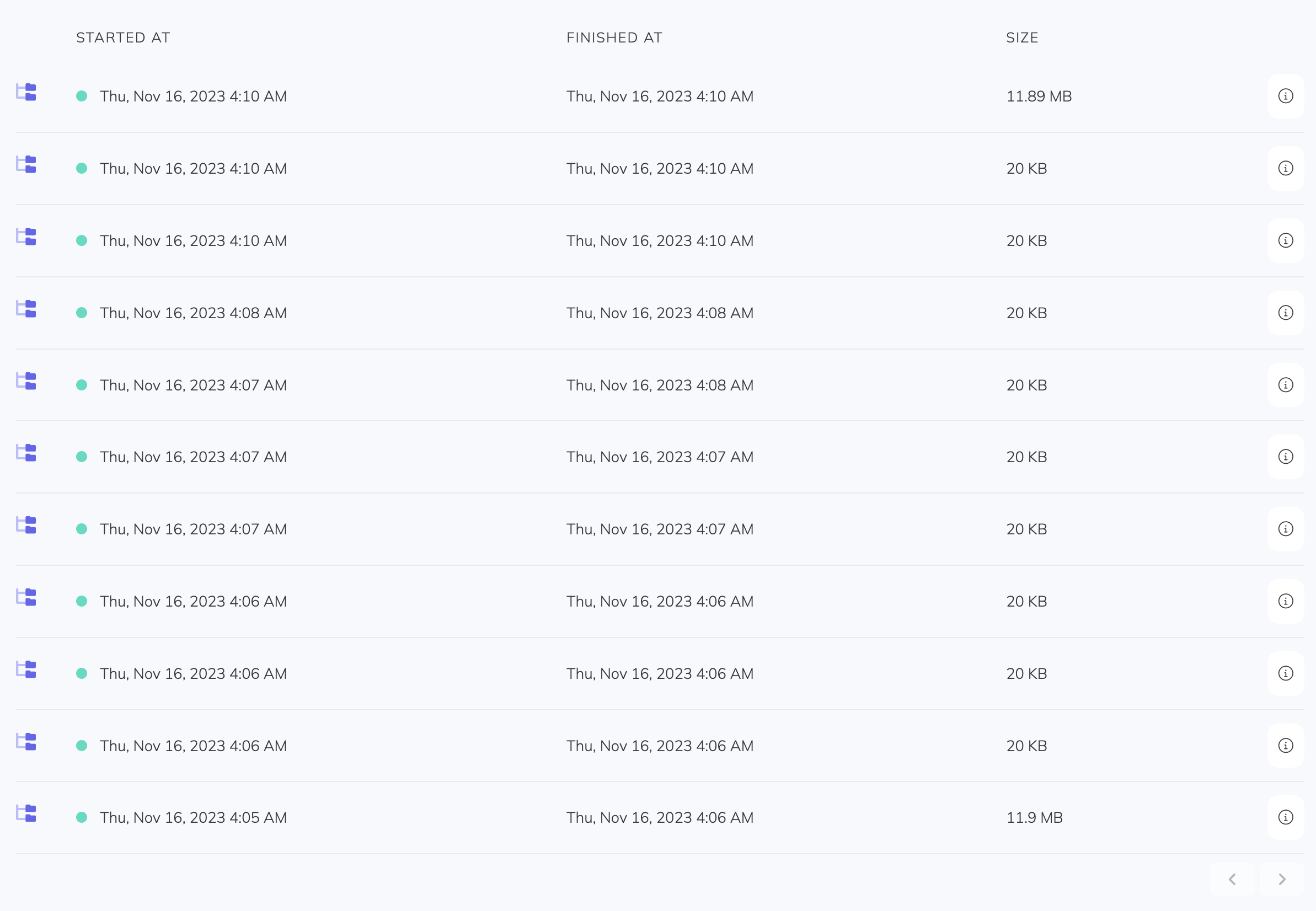
In the example above, the retention is set to 10. After 10 backups, the full backup is rebuilt and a new cycle begins.
Create an incremental file backup
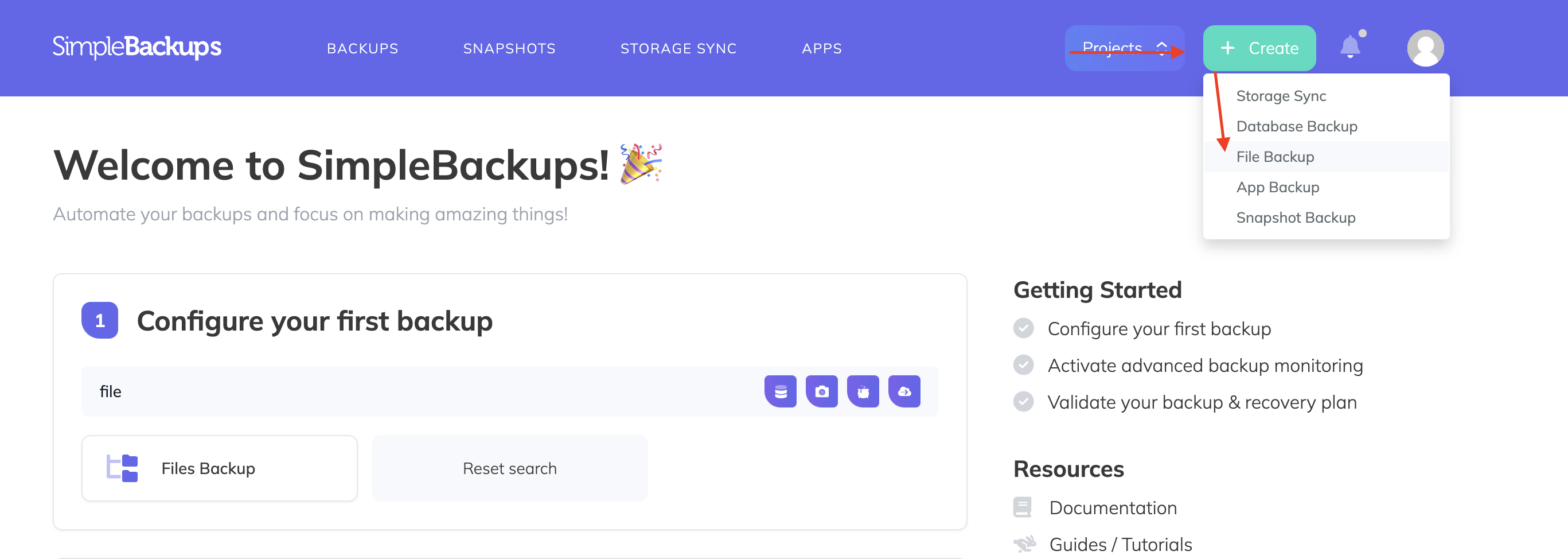
- In your SimpleBackups dashboard, click Create, then select Files Backup
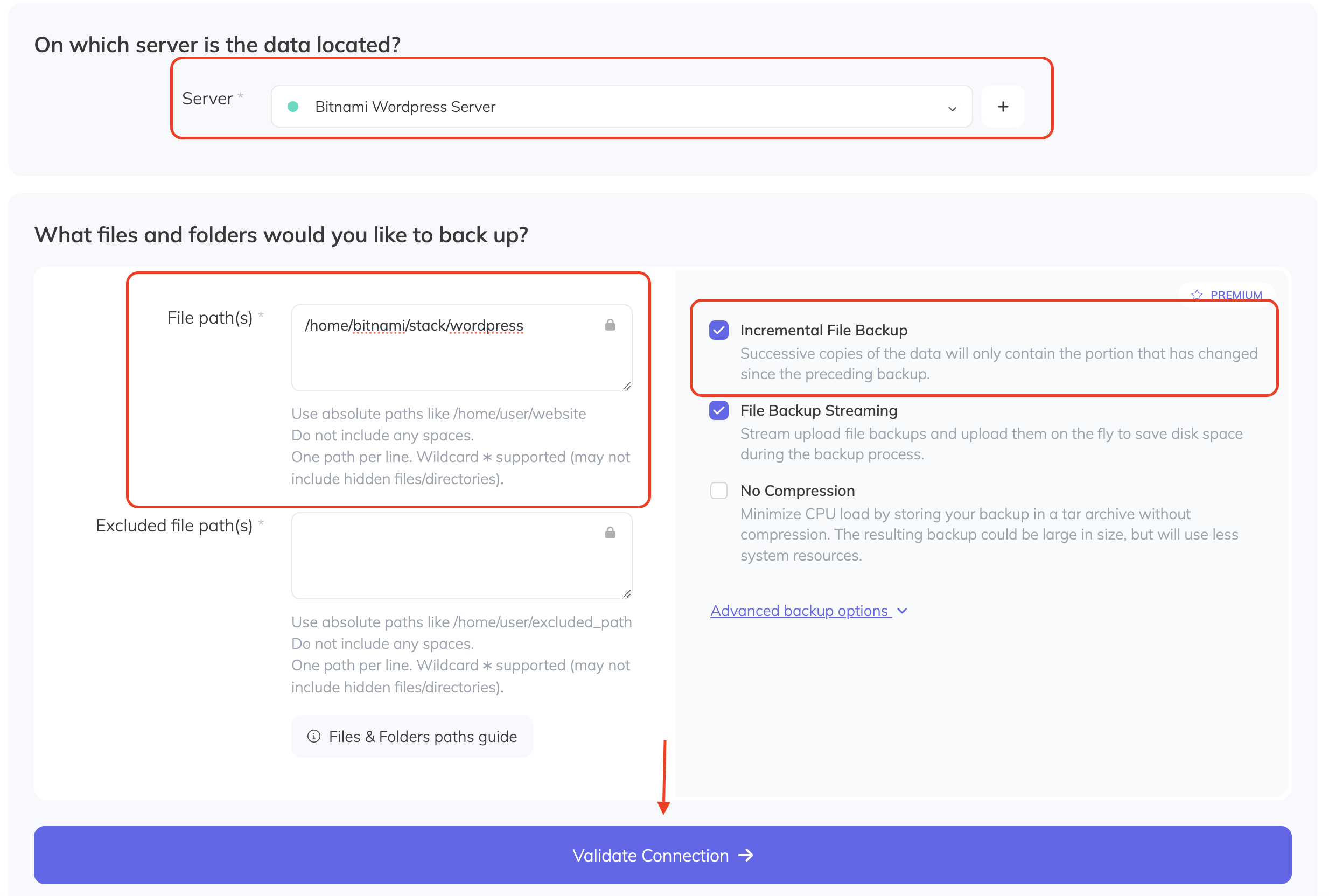
- Select your connected server, enable Incremental File Backup, enter your file paths and any exclusions, then click Validate Connection
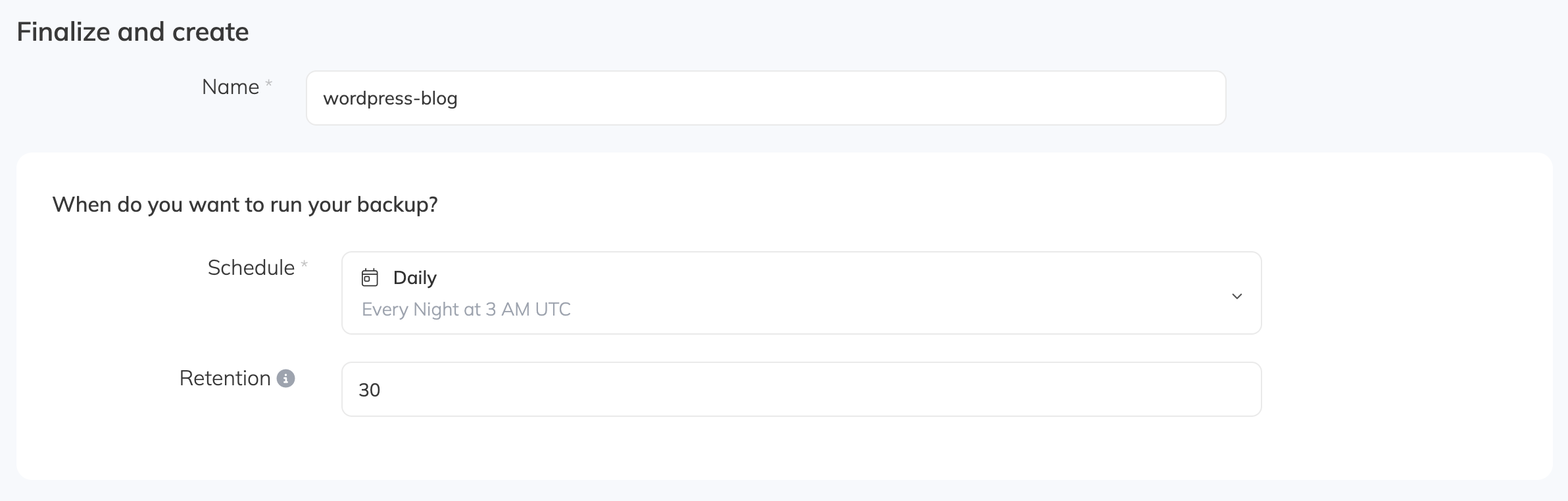
- Name your backup and set a schedule and retention policy
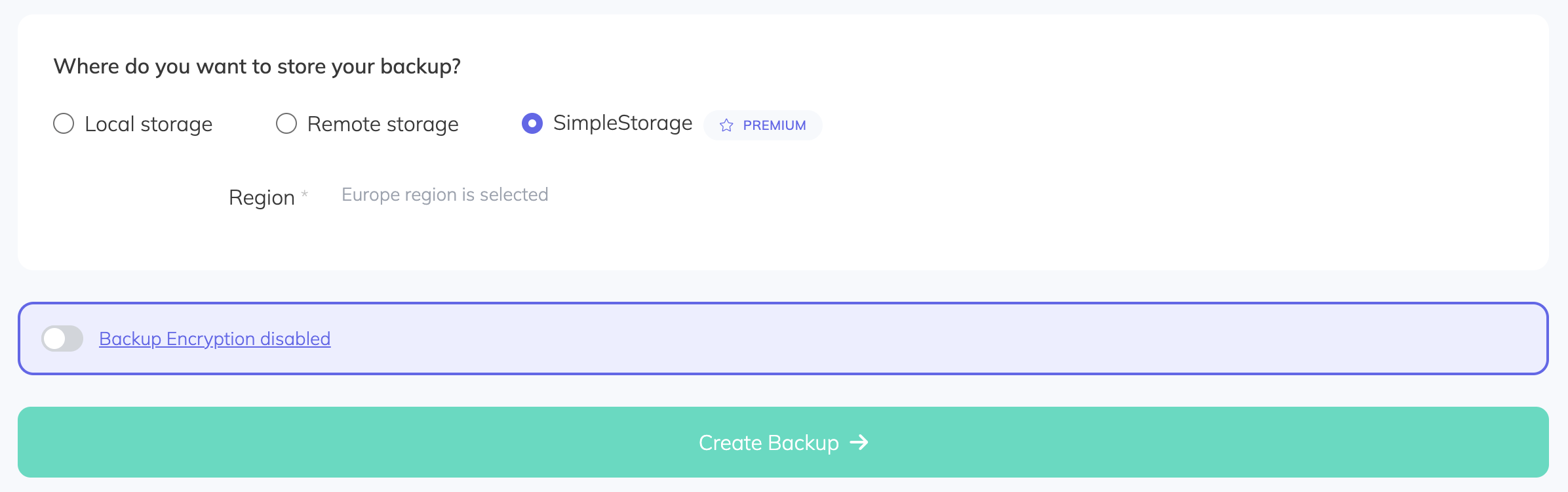
- Select the storage provider for your backup files and click Create Backup
Restore an incremental backup
You can restore any point-in-time snapshot from your incremental backup chain using a single command.
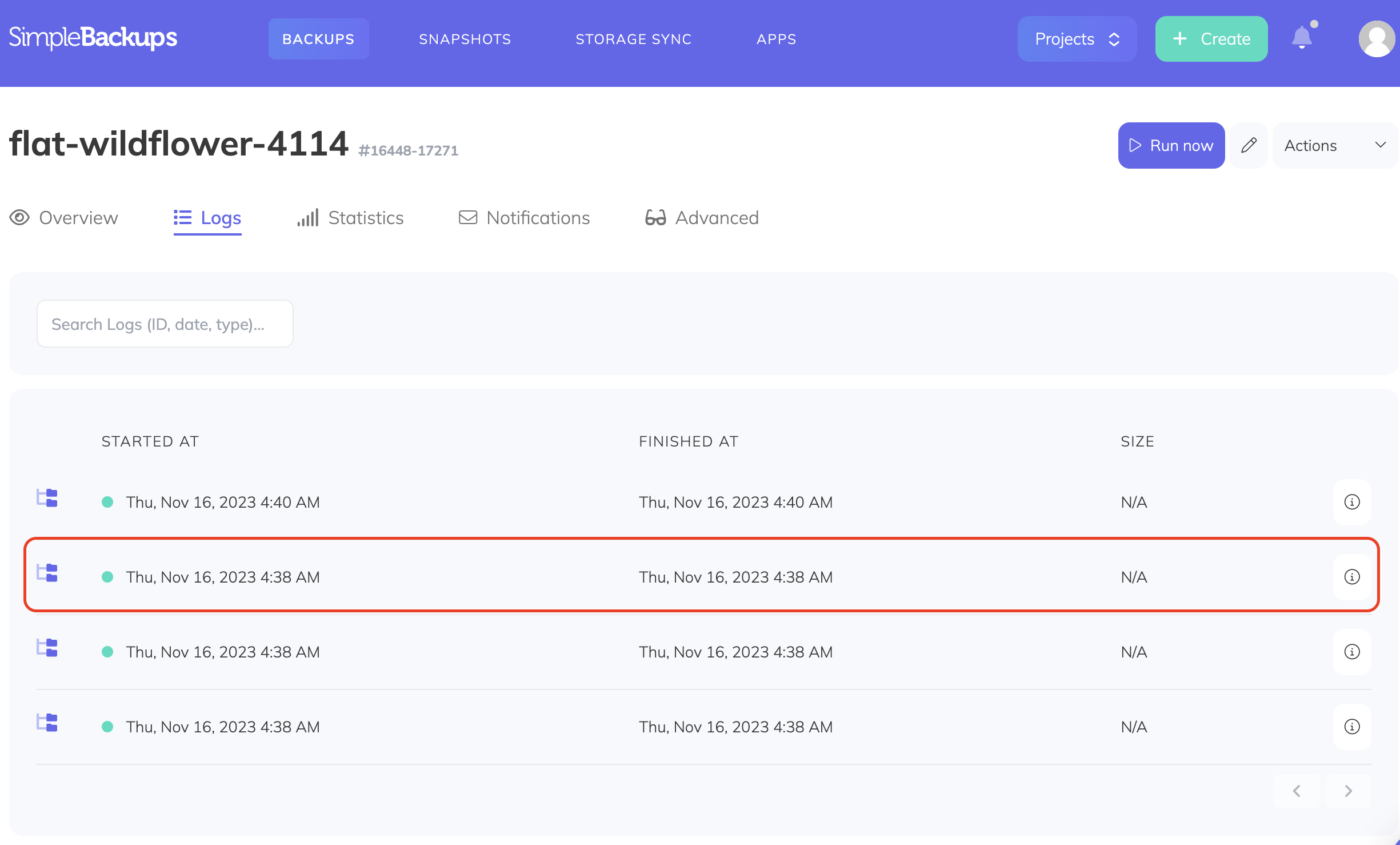
- Go to your backup page and navigate to the Logs tab
- Choose the point-in-time backup you want to restore and click the info icon
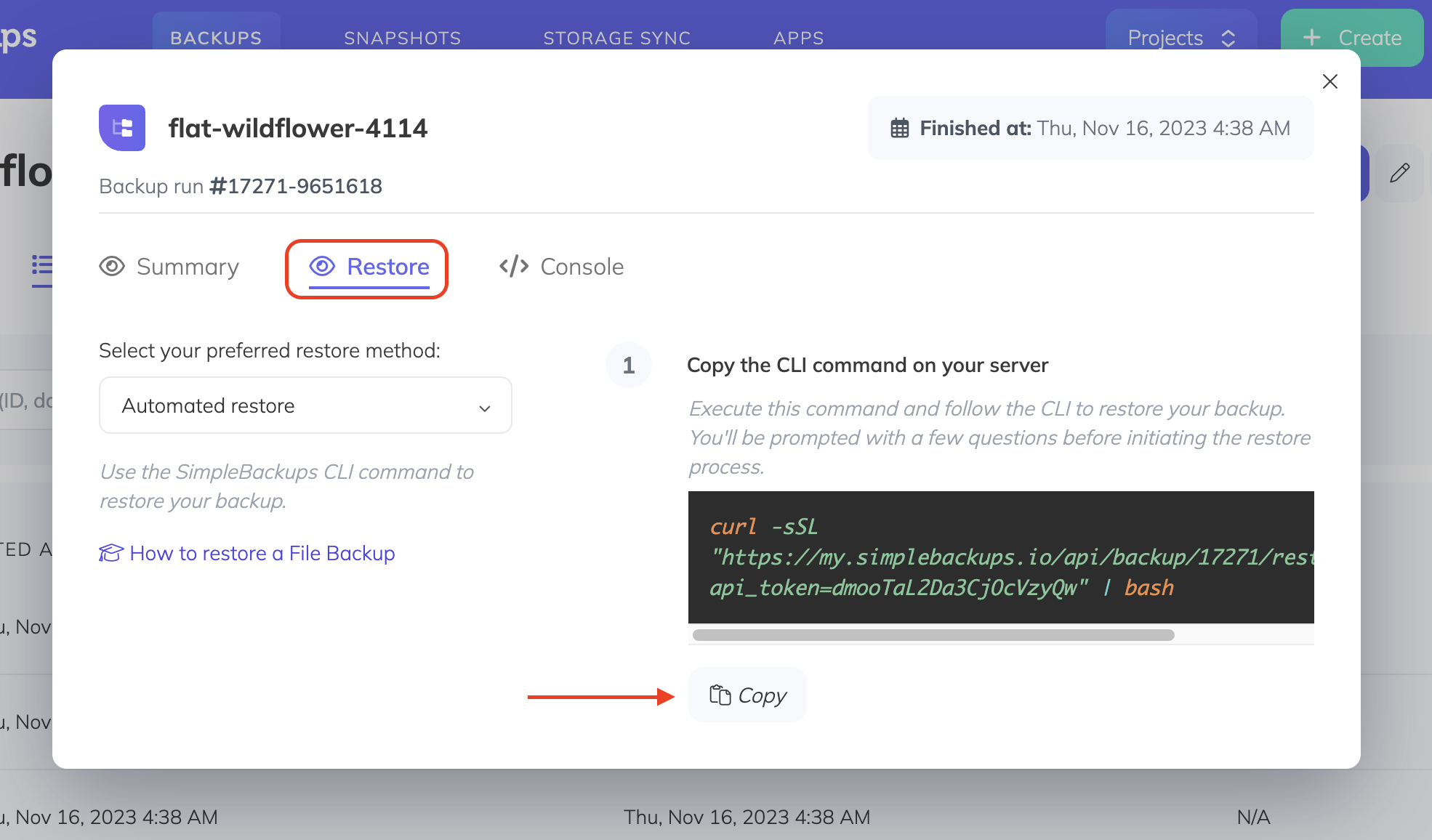
- In the popup, navigate to the Restore tab, make sure Automated restore is selected, and copy the command
- Paste the command on your server. A prompt will ask for the restore destination — leave it blank to restore to the current directory
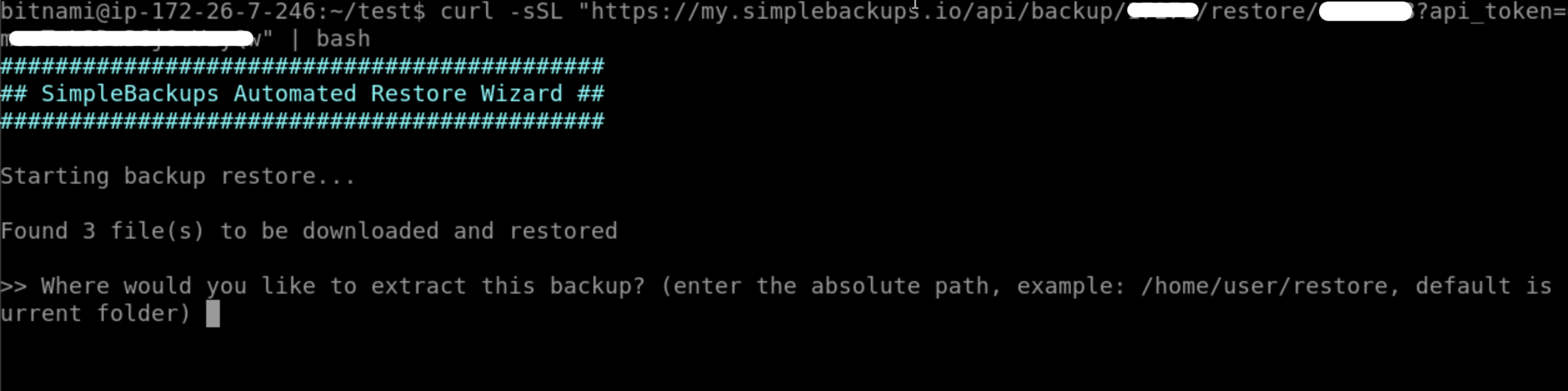
- The script downloads all required backup files and extracts them to your chosen directory
