
Appearance
Filebase
Steps to connect your Filebase storage to SimpleBackups
How to Connect your Filebase bucket to SimpleBackups
1. Create your Filebase Bucket
- Sign in to your Filebase account: https://console.filebase.com/users/sign_in
- Once logged in, click on "Create bucket"
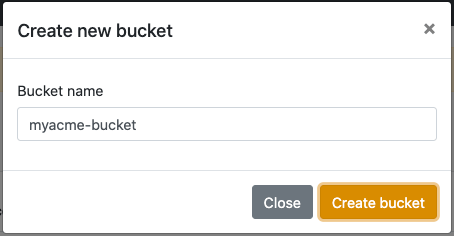
- Define a name for your bucket

Information You'll Need In Step 3
- Your "Bucket" name, in this case "myacme-bucket"
- Your "Bucket" Region, in this case "us-east-1"
2. Retrieve your Bucket credentials
Now that your bucket is created, we'll need to get the credentials required to access it.
Like everything with Filebase (and we like this!) it's super easy.
- Simply go to your Settings: https://console.filebase.com/users/edit and copy your Access Key and Secret.
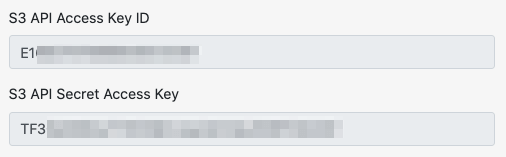
Information You'll Need In Step 3
- Access Key
- Secret
3. Connect your Bucket to SimpleBackups
- Log into SimpleBackups and head to the connect your storage page
- In the storage provider list select "Filebase", and fill in the form with the information from step 1 and step 2
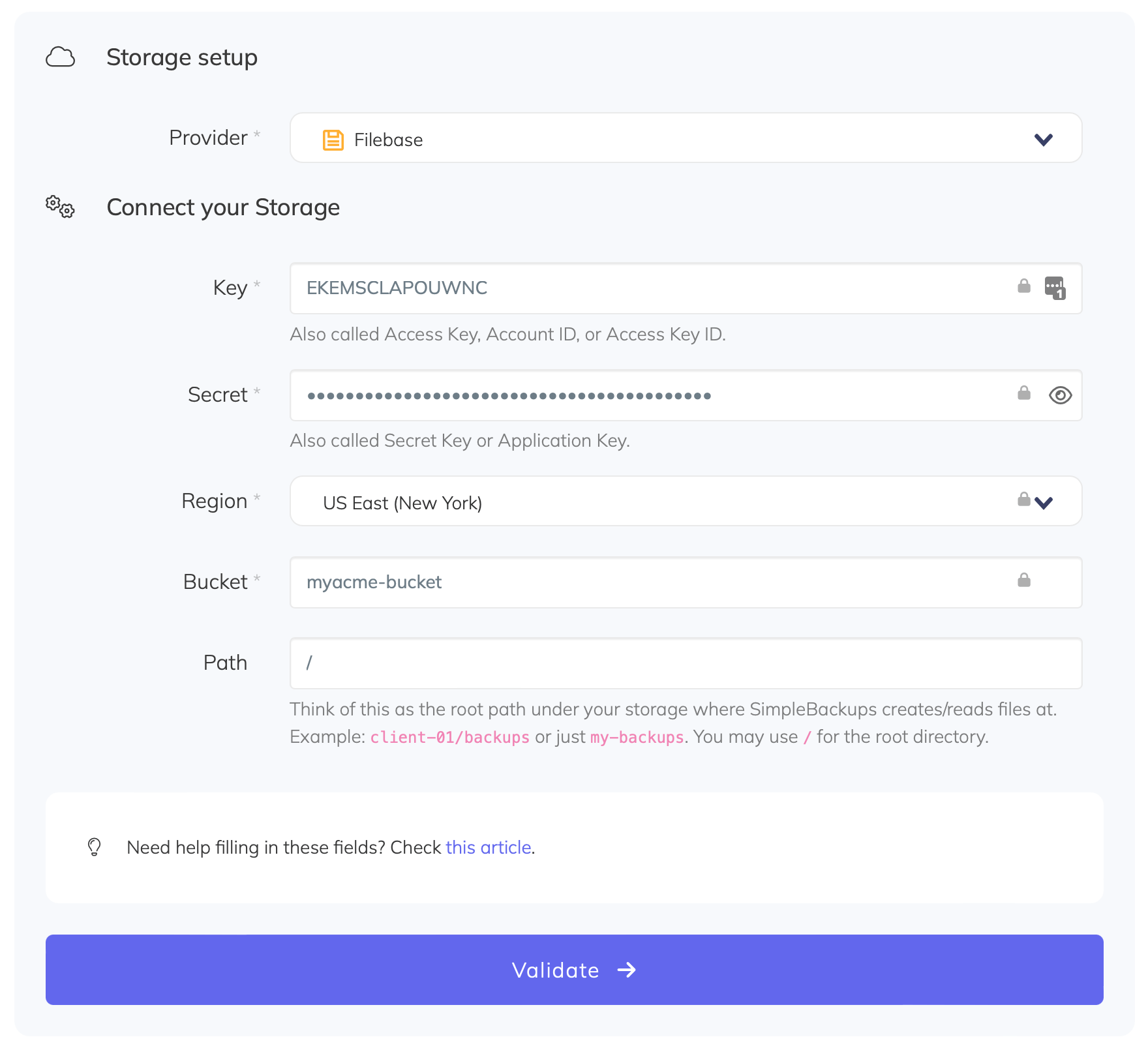
You'll have to input :
- Key: Access Key described in (step 2)
- Secret: Secret described in (step 2)
- Region: Region described in (step 1)
- Bucket: Bucket name described in (step 1)
- Give your storage a name (the bucket name is usually a good pick, but you can be creative) and click on "Save new storage".
And your storage is now connected!