
Appearance
Teams, Projects & users
Manage who has access to your backups, servers, and storages — and what they can do.
SimpleBackups gives you flexible access management through Teams and Projects. Teams let you collaborate with colleagues, while Projects let you control which resources specific team members can see and manage. Together, they cover everything from single-team setups to multi-client agencies.
Teams
A Team is the top-level container for all your resources. Every backup, server, and storage belongs to a Team. When you create your SimpleBackups account, a default Team is created for you automatically.
You can invite as many members as you want to your Team and join as many Teams as you want (based on your plan). Resources are always bound to a single Team and cannot be shared across multiple Teams.
Inviting team members
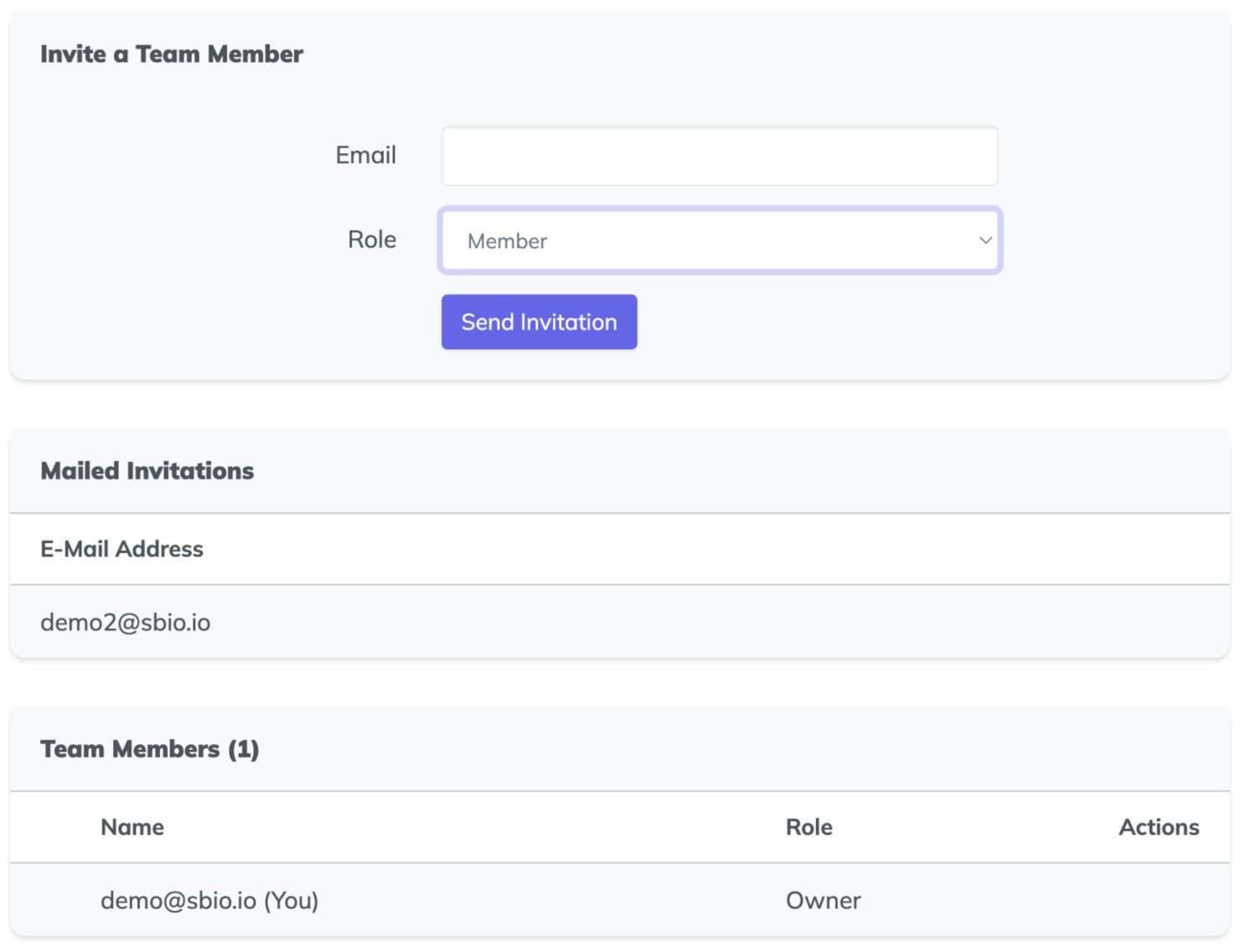
To invite someone to your Team:
- Go to Team Settings in the menu
- Click on Membership
- Fill in the invite form with the email and the role you want to assign
Roles
Each team member is assigned a role that determines what they can do. Roles follow a hierarchy — higher roles inherit all permissions from lower ones.
- Owner: full control over the Team — transfers ownership, deletes the Team, cancels the subscription, edits the Team profile, and manages all members including Administrators
- Administrator: manages billing (except cancellation), Projects, invites and manages Members and Viewers, and manages all resources within the Team
- Member: creates and edits resources (backups, servers, storages) within the Projects they belong to
- Viewer: read-only access — can view resources and their status but cannot create or modify anything
| Permission | Owner | Administrator | Member | Viewer |
|---|---|---|---|---|
| View resources | Yes | Yes | Yes | Yes |
| Create and edit resources | Yes | Yes | Yes | No |
| Manage Projects | Yes | Yes | No | No |
| Invite and manage members | Yes | Yes | No | No |
| Manage billing (plan, add-ons, payment method, invoices) | Yes | Yes | No | No |
| Cancel the subscription | Yes | No | No | No |
| Edit Team profile (name, billing email, timezone) | Yes | No | No | No |
| Transfer ownership | Yes | No | No | No |
| Delete Team | Yes | No | No | No |
Switching between Teams
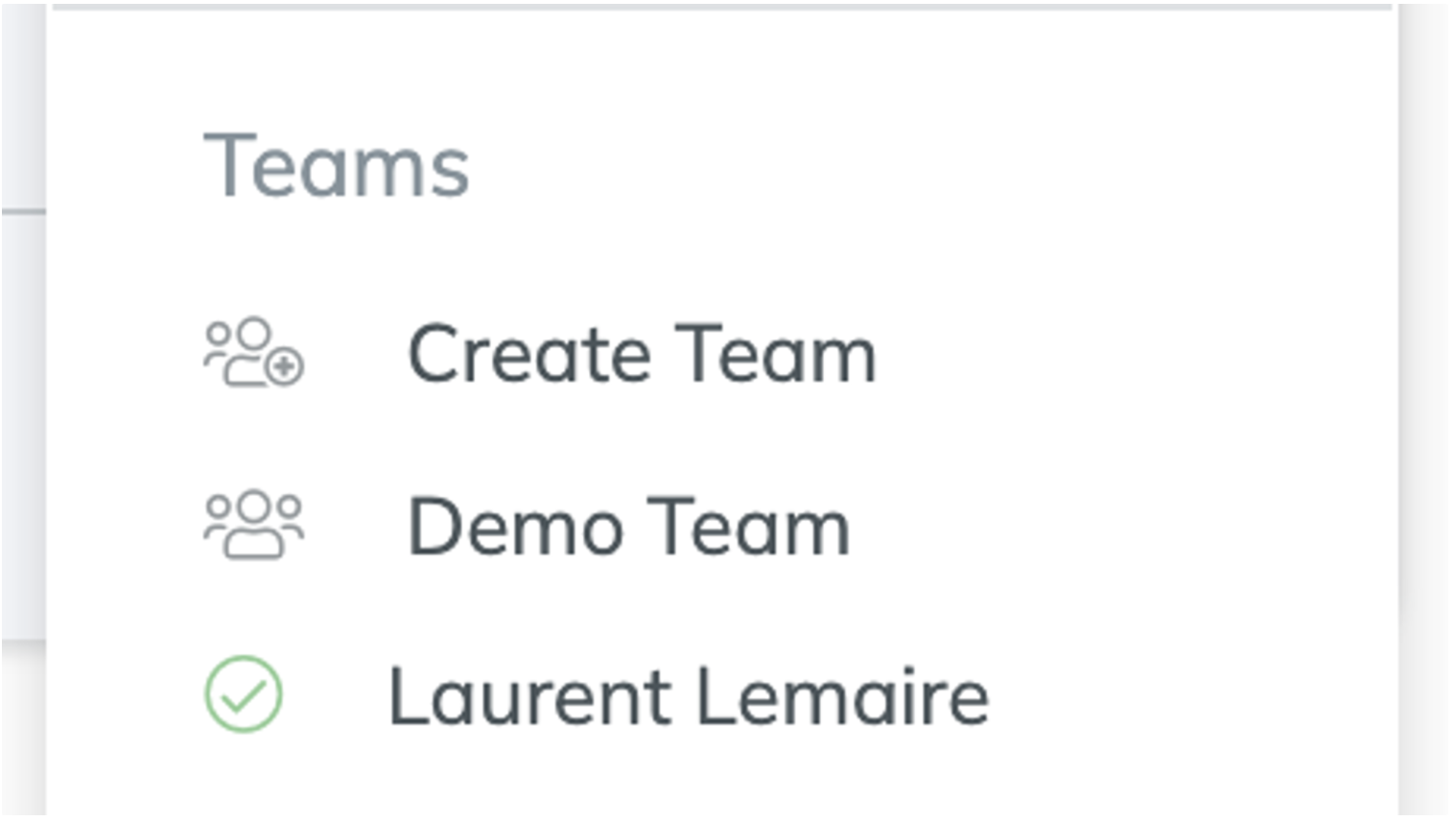
To switch Teams, click on the Team name in the navigation menu and select the Team you want to switch to.
Subscriptions and Teams
Each Team has its own subscription. If you belong to multiple Teams, each one requires a separate subscription.
Projects
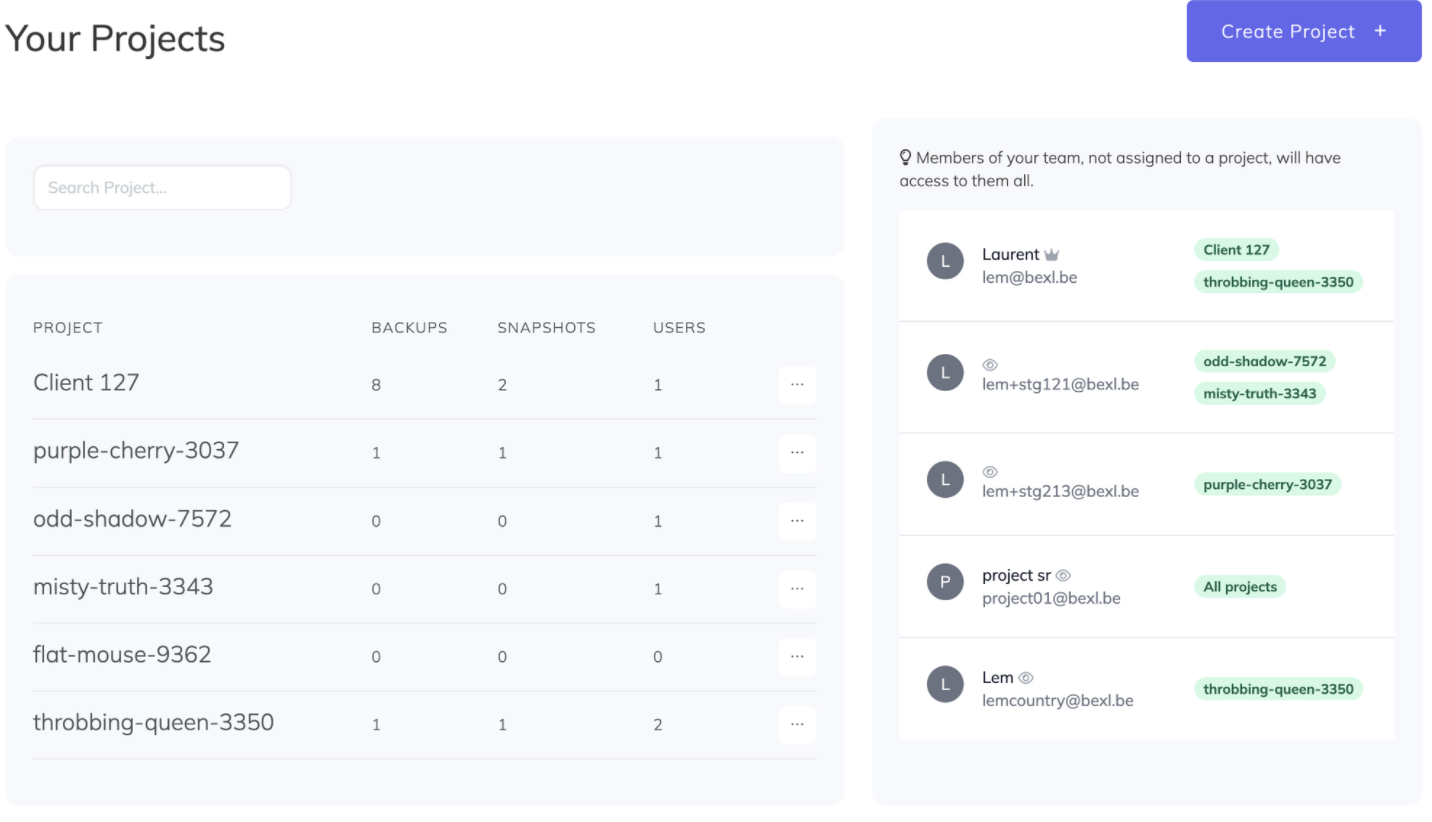
Projects let you restrict access to specific resources for specific team members. This is useful when you want to share access to some backups with a client without exposing your entire Team, or when a client wants to give you access to only part of their infrastructure.
Members inherit their Team role within every Project they belong to. For example, a user with the Member role can create and edit resources in all their assigned Projects.
What defines a Project
Each Project consists of:
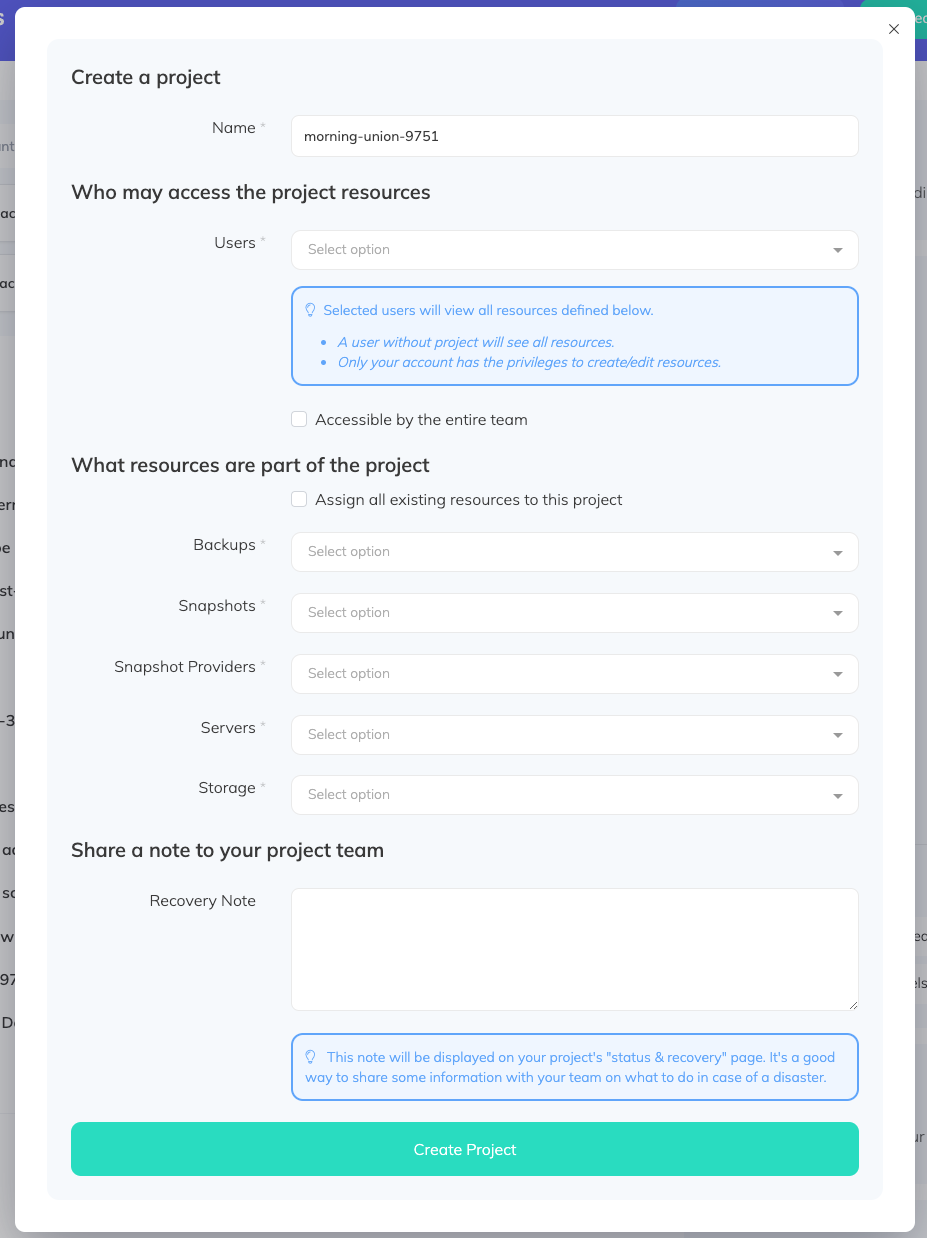
- A name
- The team members who have access to it
- The resources (backups, snapshots, connected providers, storages, servers) accessible within it
Creating a Project
To create a Project, click the Project dropdown in your navigation bar, then click Create project. A dialog will appear where you can configure the Project name, select resources, add a recovery note, and choose which team members have access.
Project overview
Once you have created a Project, you can navigate to it from the Project dropdown in the navigation bar. The overview page shows a summary of all resources assigned to the Project and how they are performing over time. Storages associated with your backup resources appear at the bottom of the Summary page.
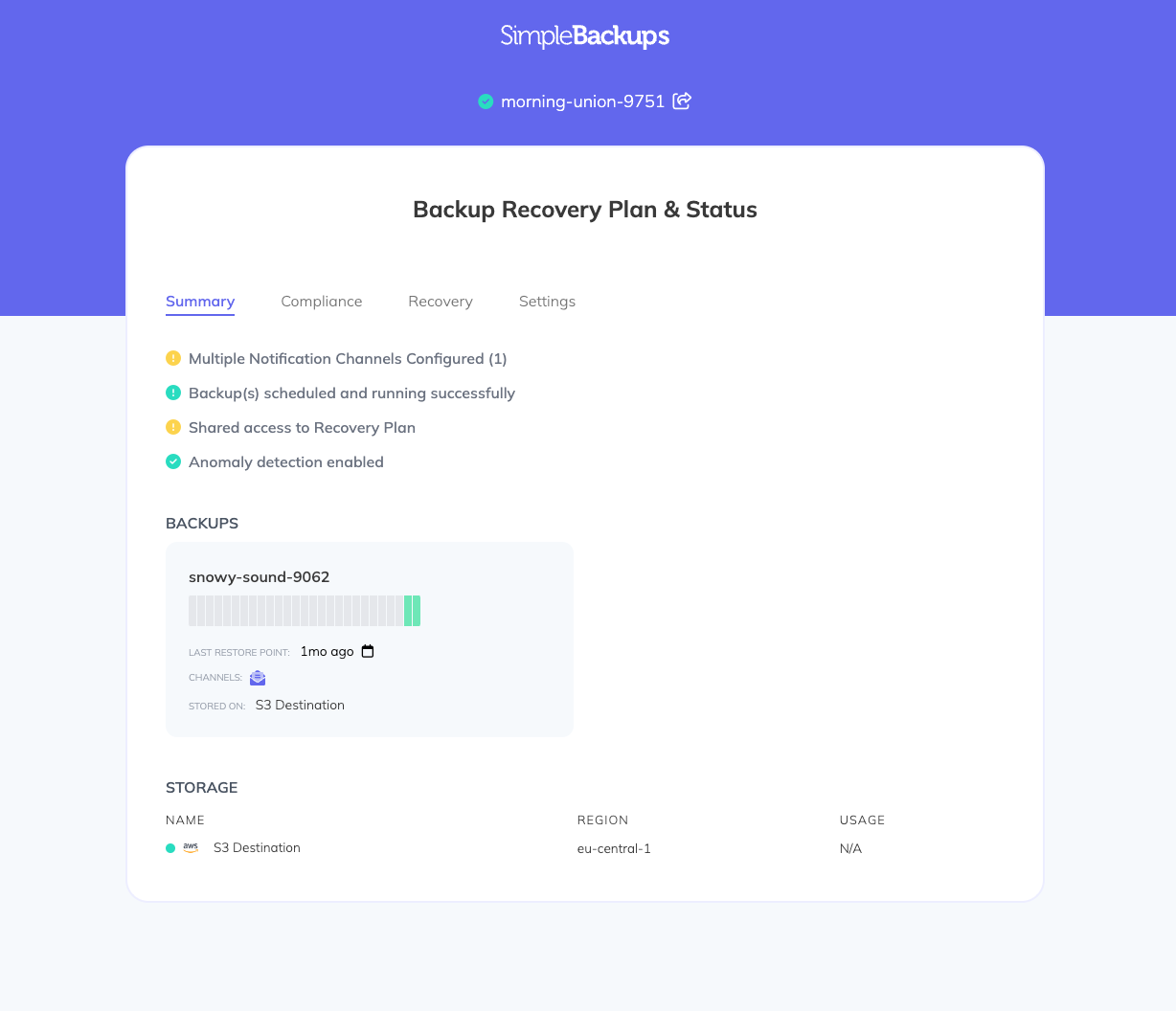
Sharing a Project with guest access
You can share a Project's compliance sheet with someone outside your Team without requiring them to create a SimpleBackups account. This is useful for giving clients or auditors read-only visibility into backup status and recovery plans.
To generate a guest link, click the share icon next to the Project name. In the dialog that appears, give the link a name and set a validity period.
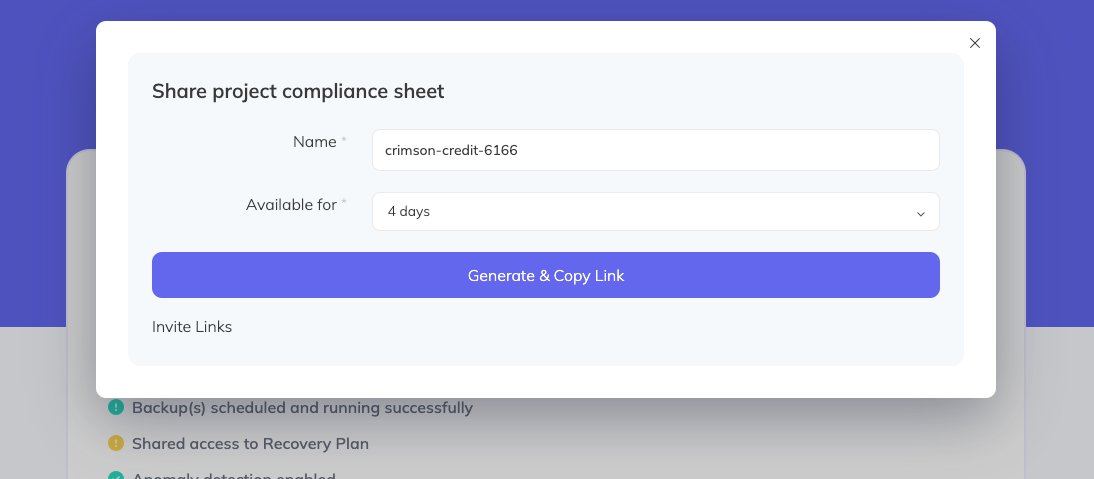
Click Generate & Copy Link to create the link and copy it to your clipboard.

The link expires after the validity period you set. While active, guest viewers can access the Summary, Compliance, and Logs tabs without a SimpleBackups account.
NotificationsConfigure how and when your team gets notified about backup events.SubscriptionsLearn how subscriptions work and how to manage your plan.Account & billing FAQCommon questions about invoices, payments, coupons, and transferring ownership.