Appearance
Amazon Lightsail
Automate Amazon Lightsail server and volume snapshots on a custom schedule.
SimpleBackups connects to your AWS account through IAM credentials to create and manage Lightsail snapshots automatically. This guide walks you through creating a least-privilege IAM policy, generating access keys, and linking your Lightsail account to SimpleBackups.
Create a custom Lightsail policy for snapshots
- Connect to your AWS Console
- Head to the IAM/Policies management page
- Click Create policy
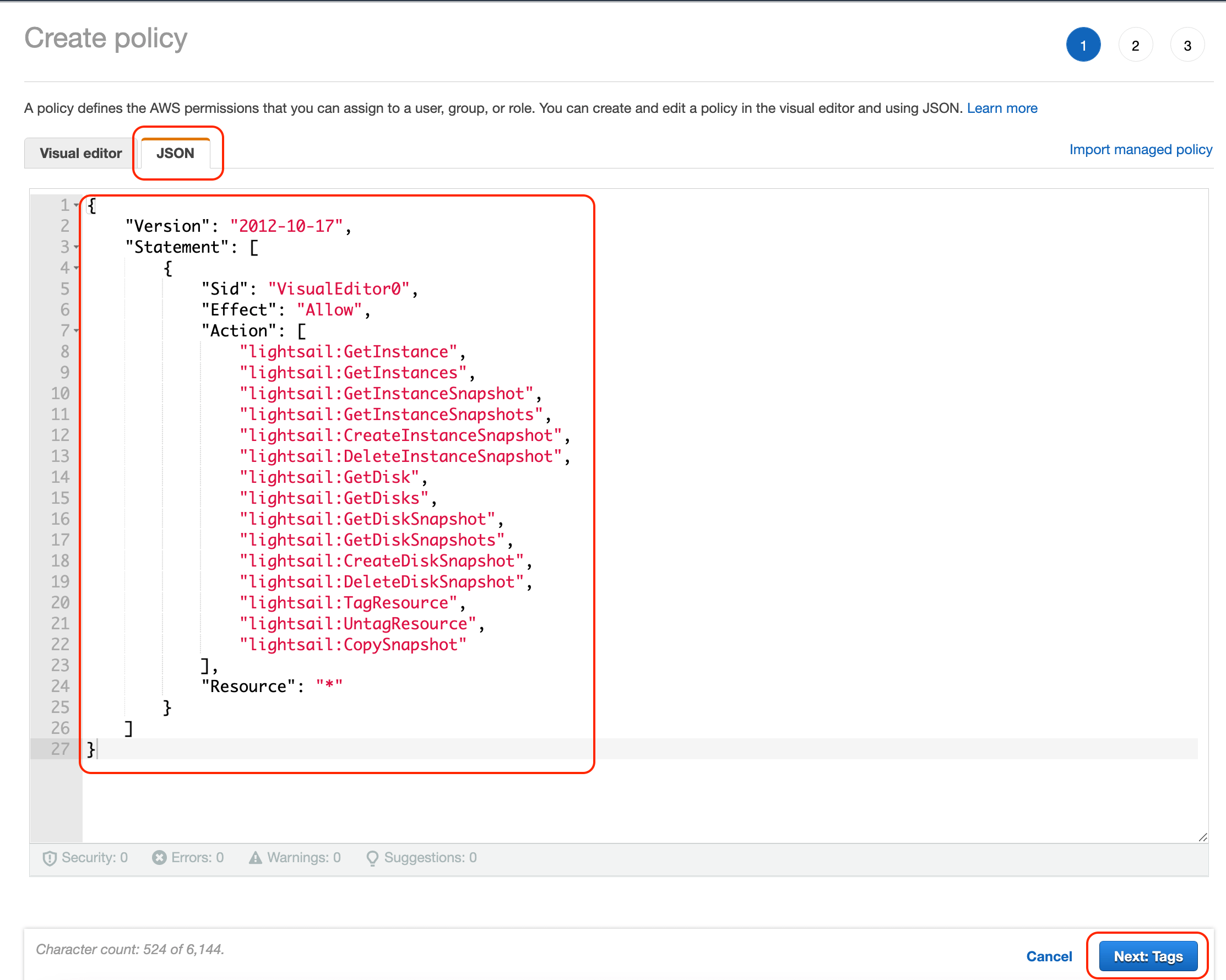
- Click JSON and paste the custom policy below:
json
{
    "Version": "2012-10-17",
    "Statement": [
        {
            "Sid": "SimpleBackupsLightsailSnapshots",
            "Effect": "Allow",
            "Action": [
                "lightsail:GetInstance",
                "lightsail:GetInstances",
                "lightsail:GetInstanceSnapshot",
                "lightsail:GetInstanceSnapshots",
                "lightsail:CreateInstanceSnapshot",
                "lightsail:DeleteInstanceSnapshot",
                "lightsail:GetDisk",
                "lightsail:GetDisks",
                "lightsail:GetDiskSnapshot",
                "lightsail:GetDiskSnapshots",
                "lightsail:CreateDiskSnapshot",
                "lightsail:DeleteDiskSnapshot",
                "lightsail:TagResource",
                "lightsail:UntagResource",
                "lightsail:CopySnapshot"
            ],
            "Resource": "*"
        }
    ]
}- Click Next: Tags, then Next: Review
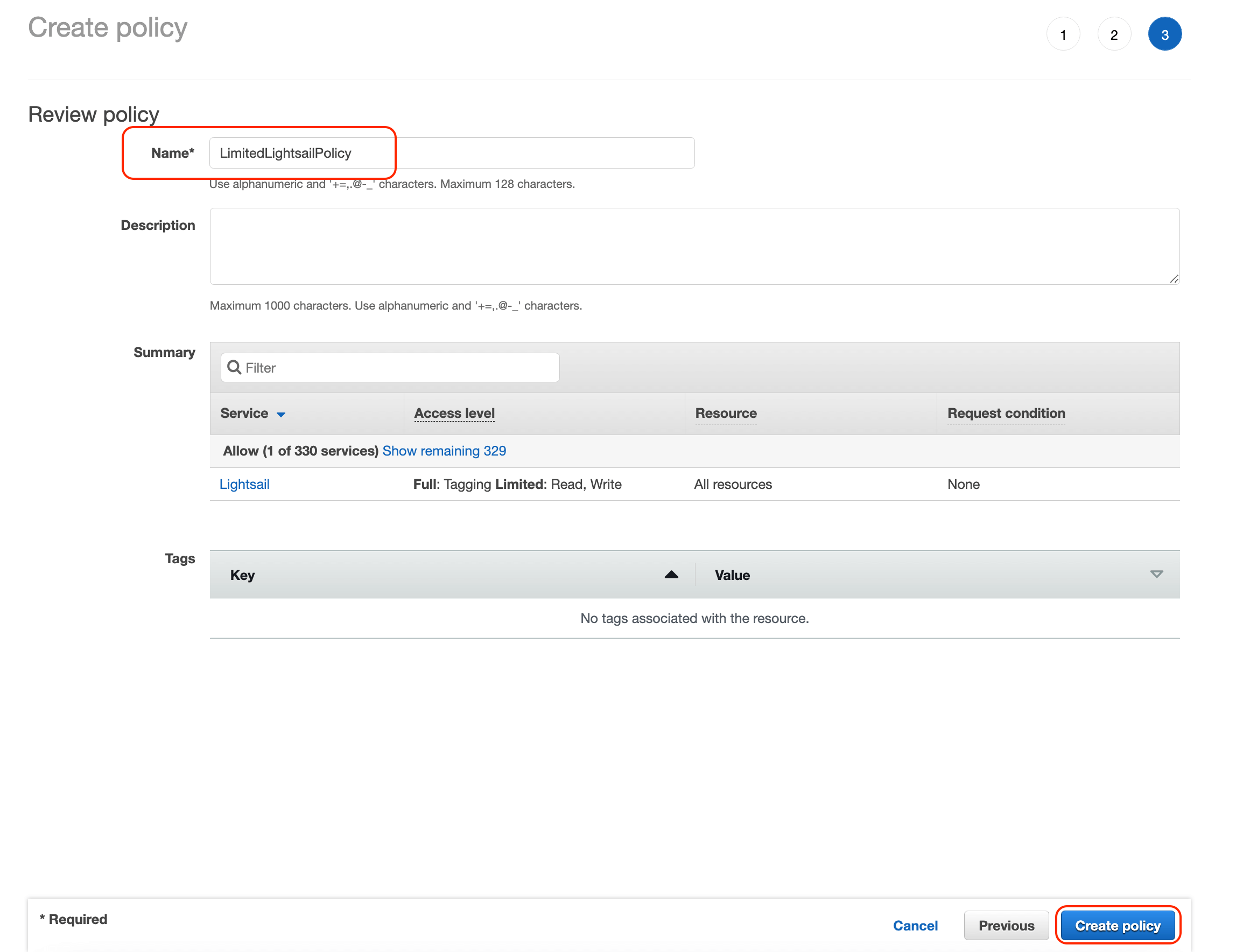
- Give the policy a name (for example,
LightsailSnapshotsPolicy) and click Create policy
Create a Lightsail user for snapshots
- Head to the IAM/Users management page
- Click Add users
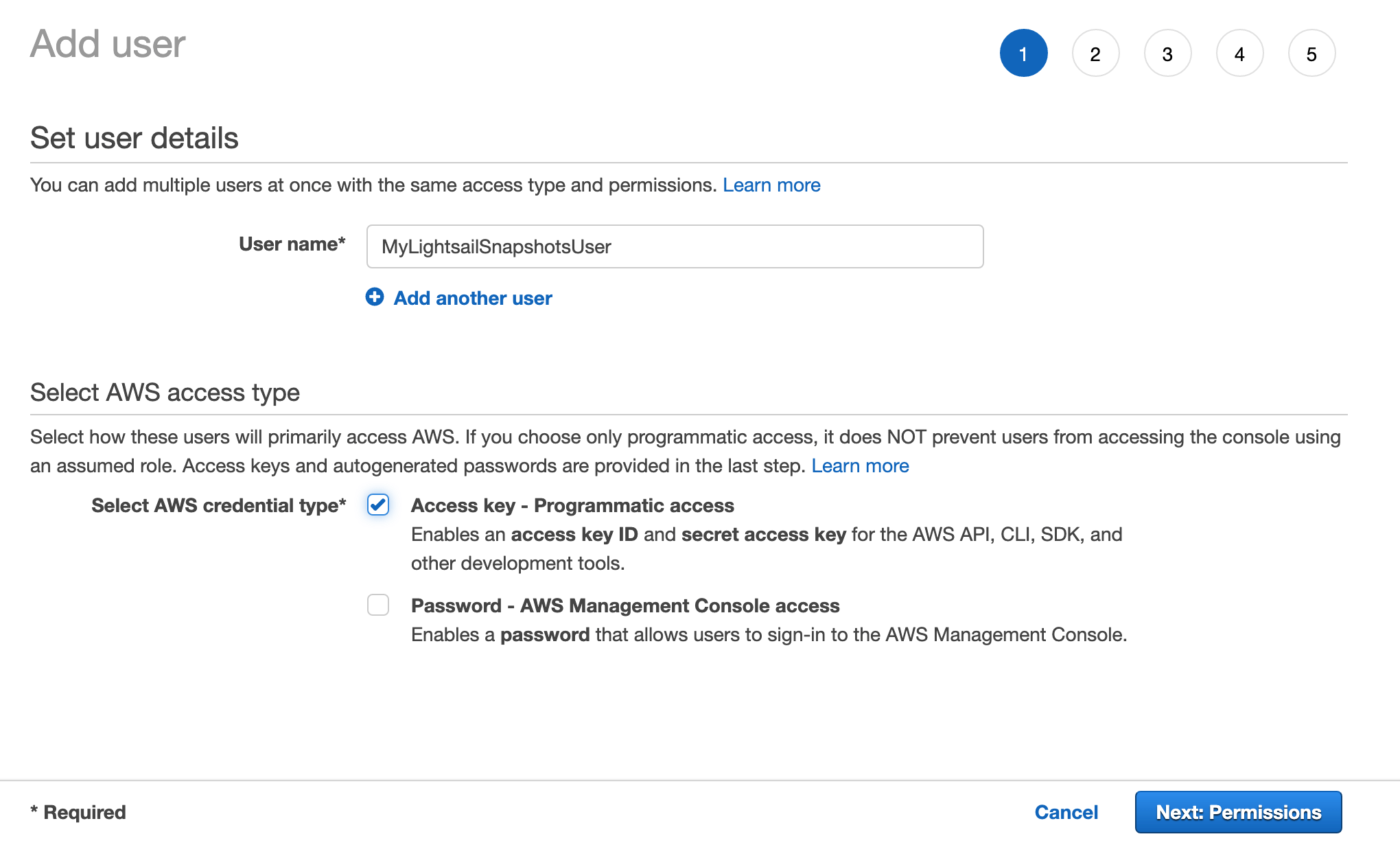
Step 1: Set user access
Define a name for your user and choose Access key - Programmatic access for the credential type.
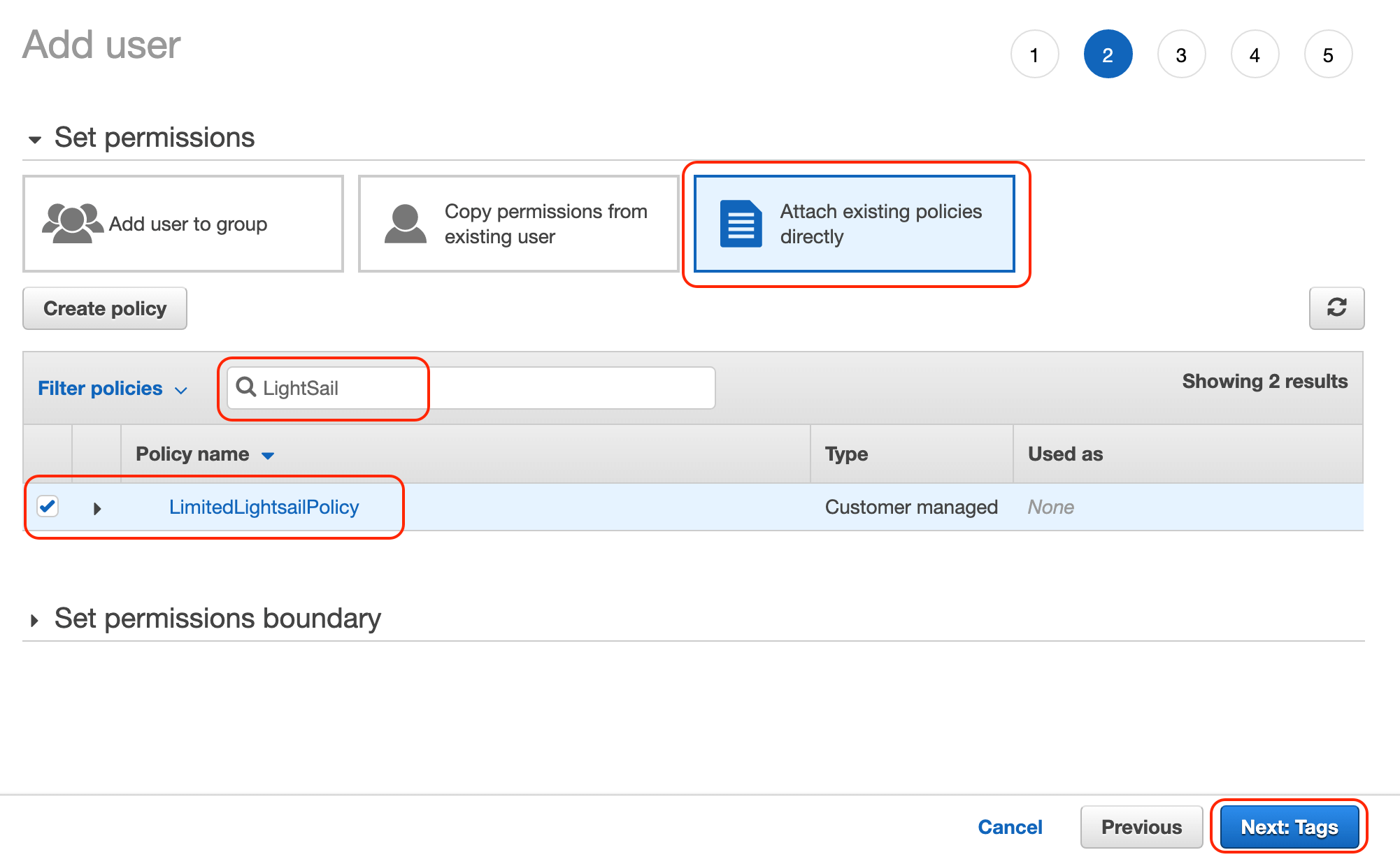
Step 2: Attach policy to user
Select Attach existing policies directly and choose the LightsailSnapshotsPolicy you created earlier. Select Create user without a permission boundary.
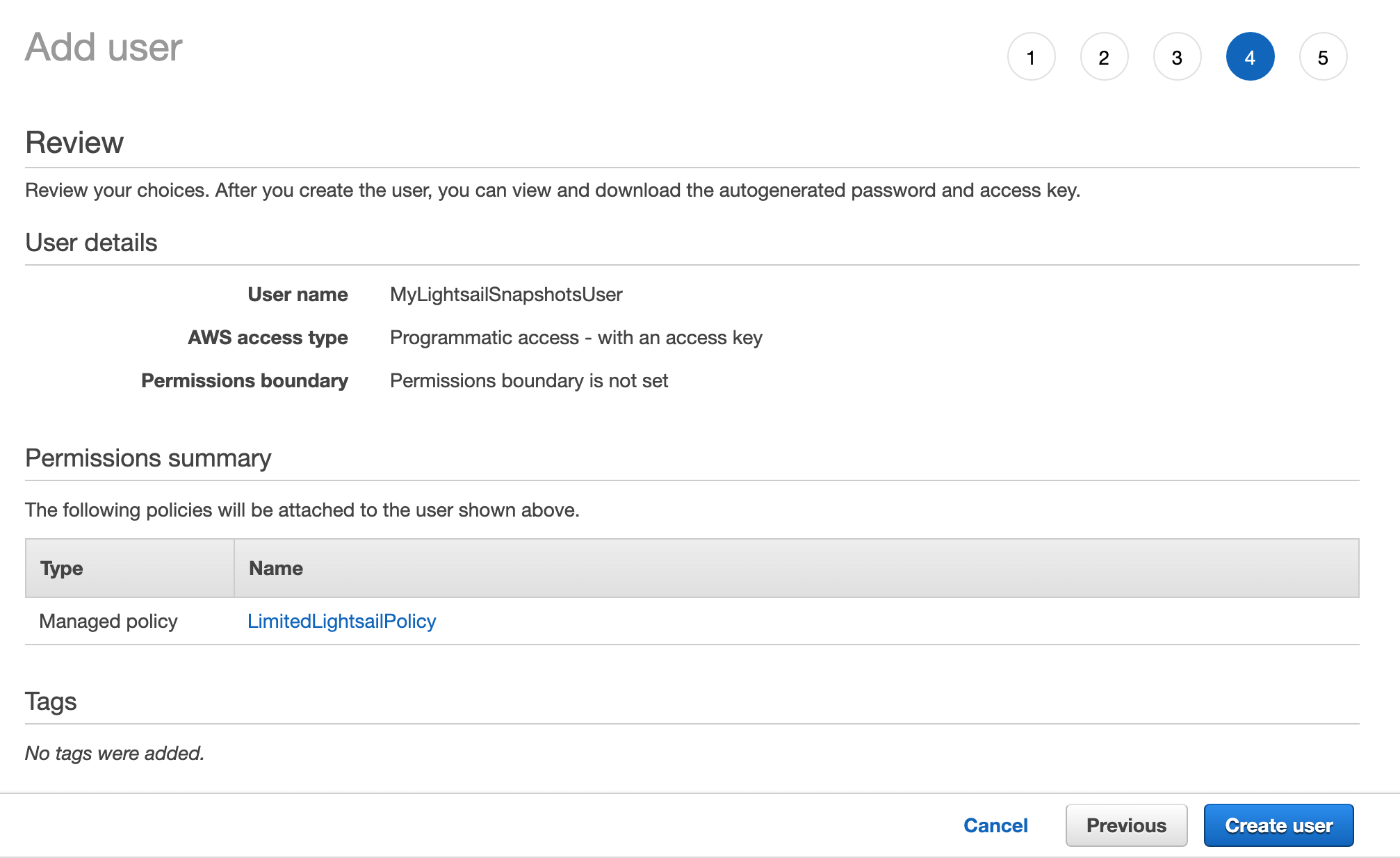
Step 3: Finalize user creation
Skip the tags step and click Next. Review the details and create the user.
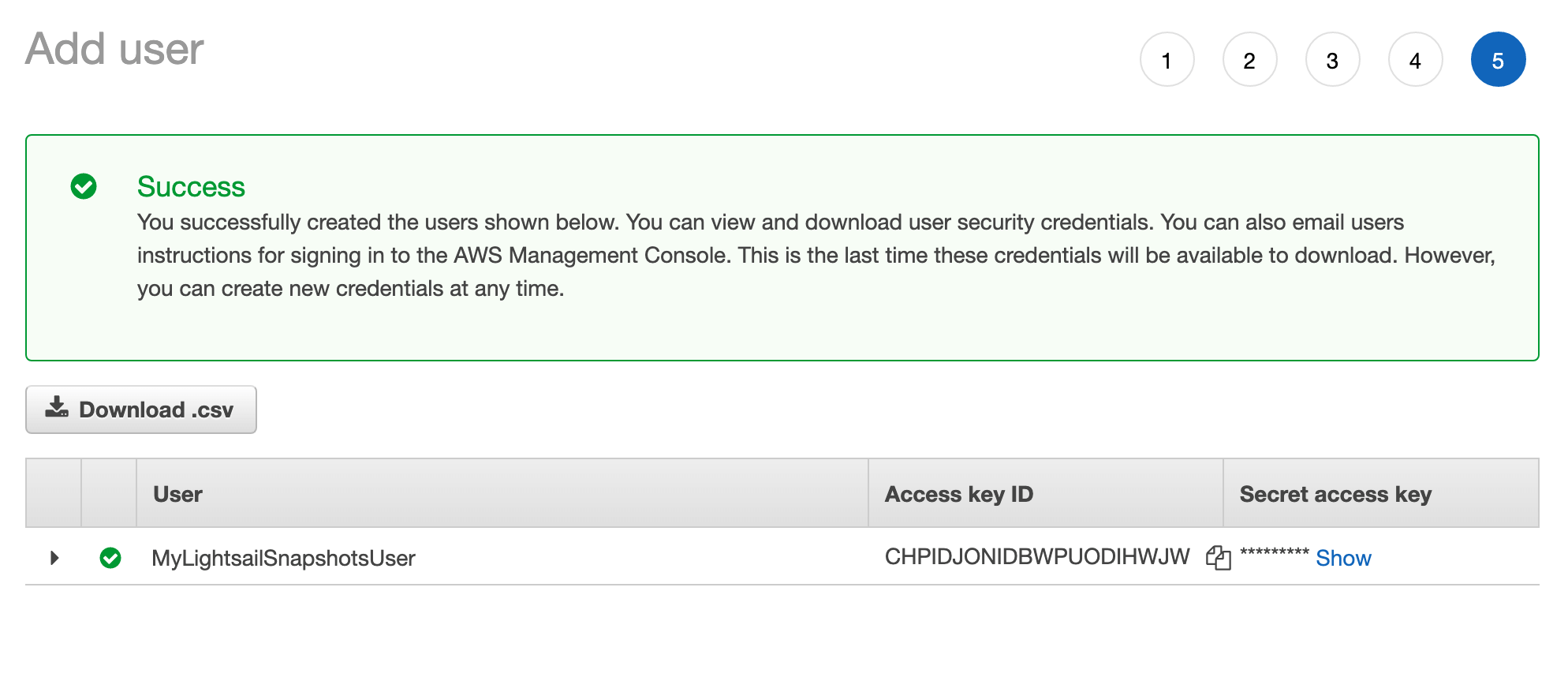
Step 4: Copy your access credentials
Copy both the Access Key ID and Secret Access Key.
Connect Lightsail to SimpleBackups
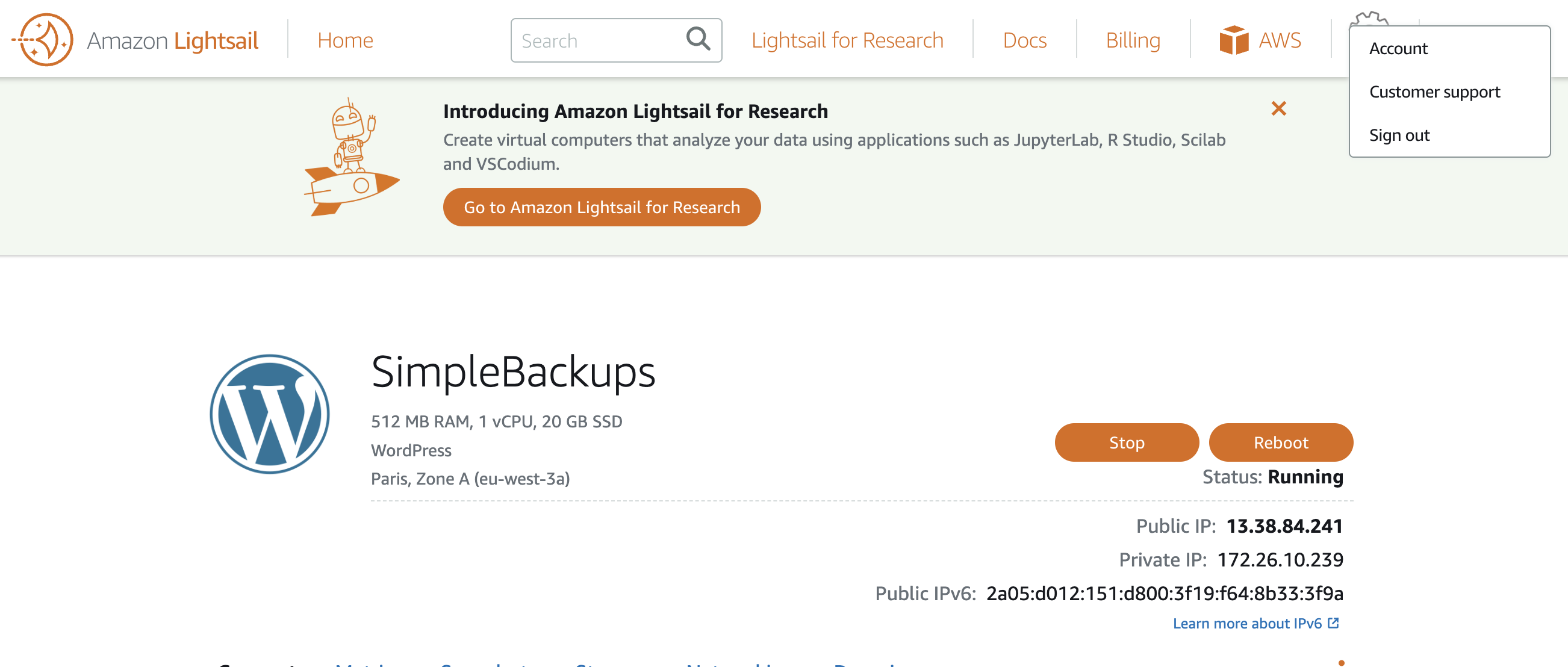
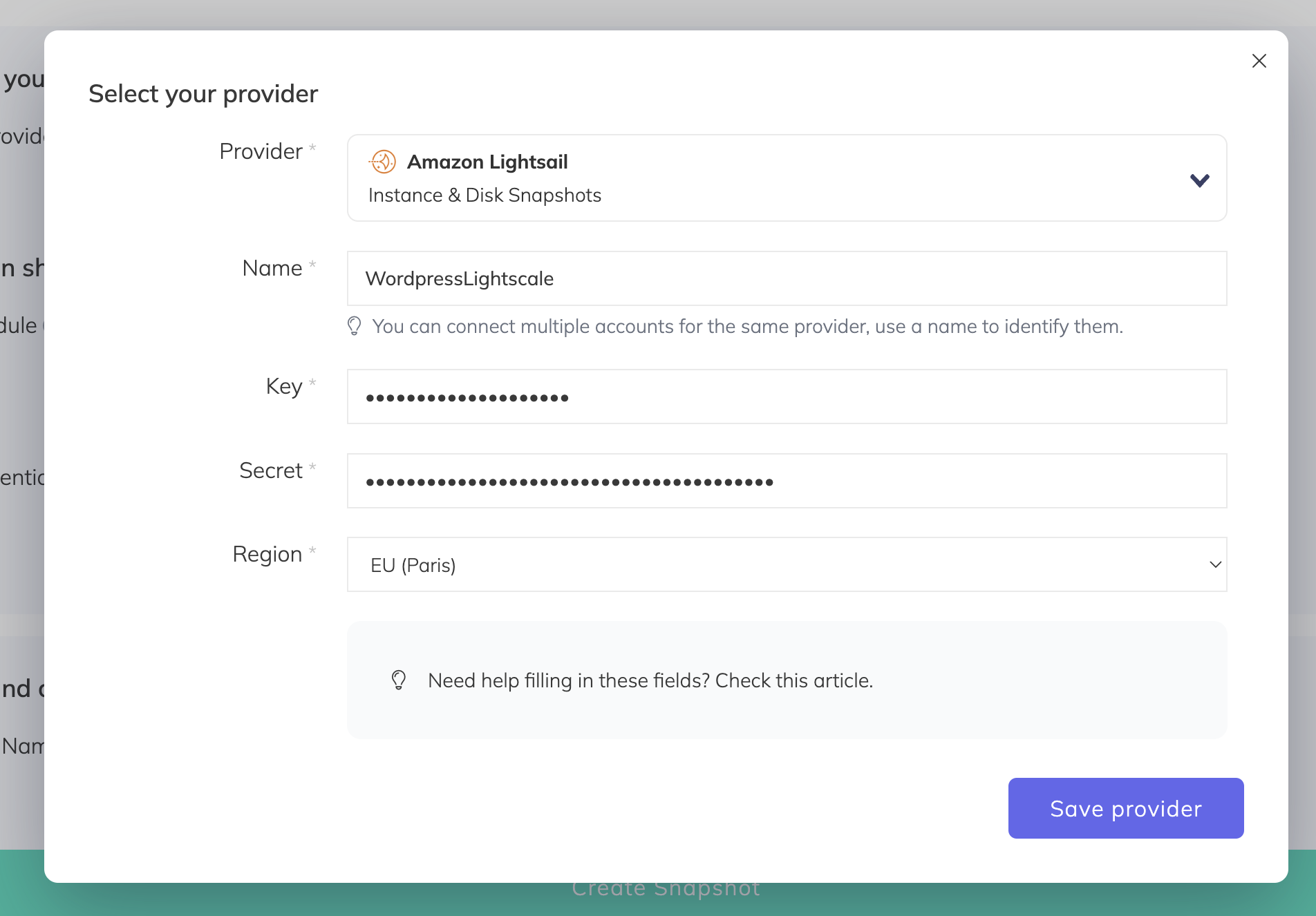
- Note which region your Lightsail instance is hosted in from the Lightsail console
- In SimpleBackups, go to the Snapshots/Create page
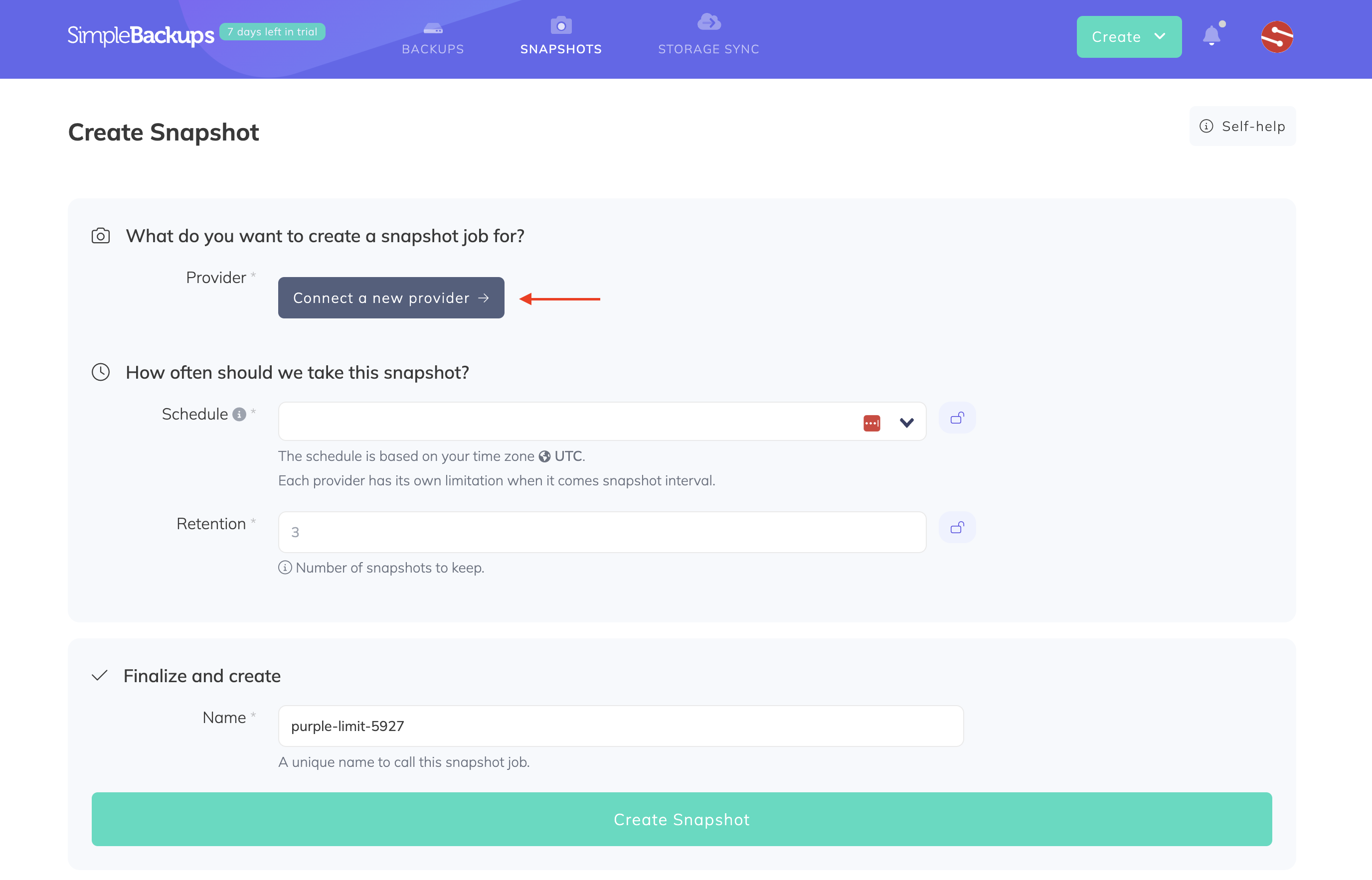
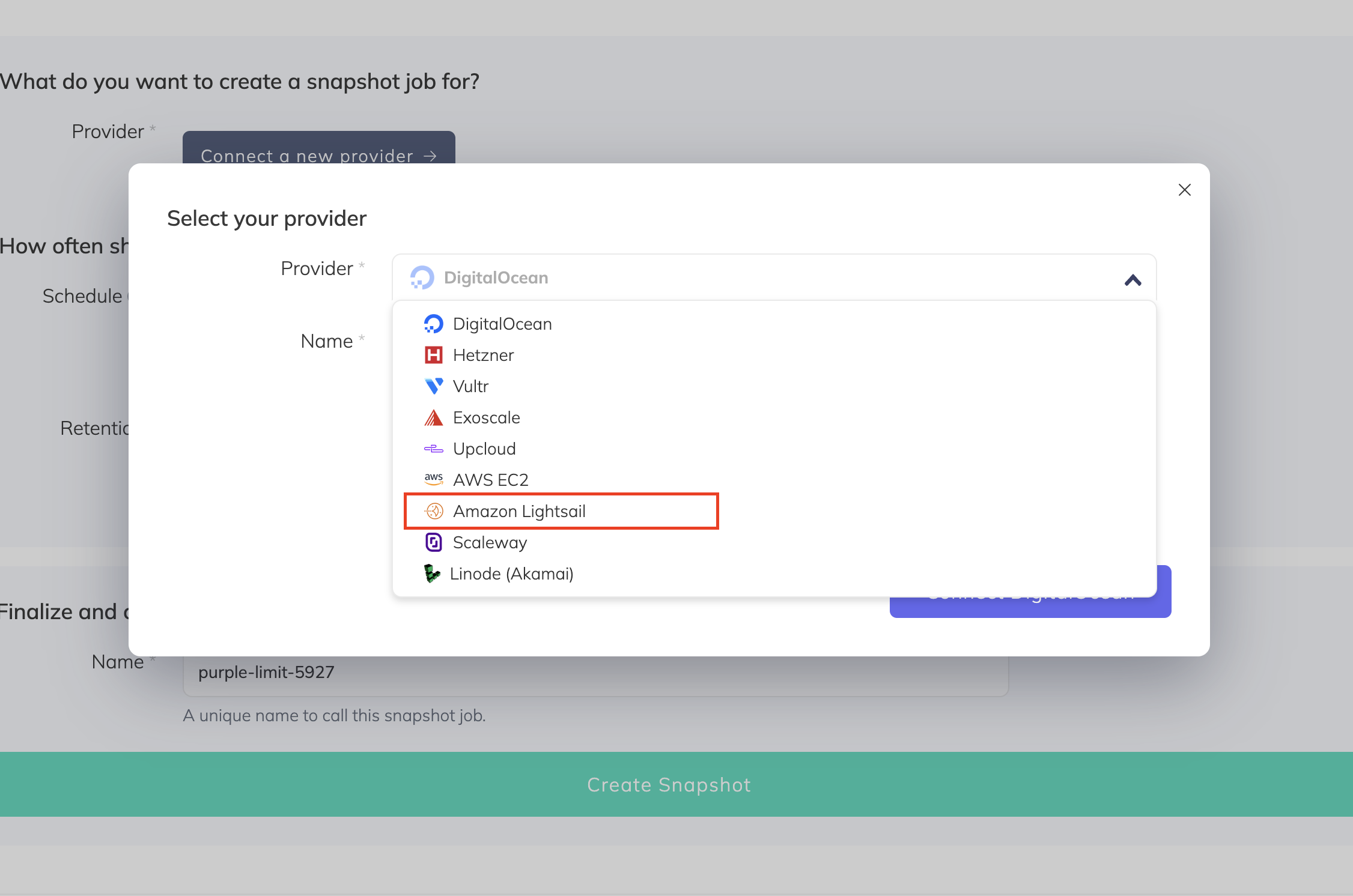
- Click Connect a new Provider and select Amazon Lightsail
- Enter a name, paste your access key and secret, select the region where your Lightsail instance is hosted, and click Save provider
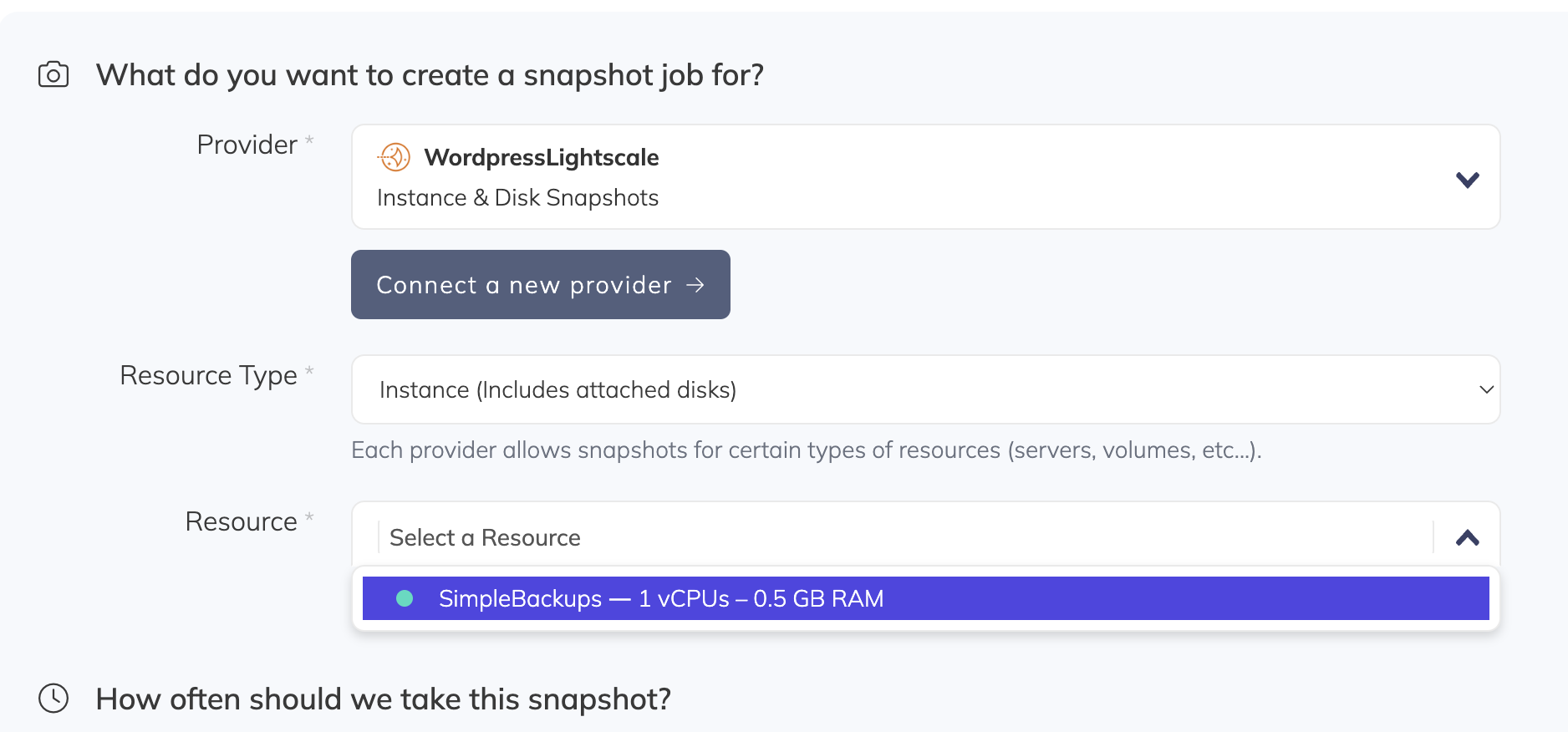
- Select your Lightsail instance from the resource list
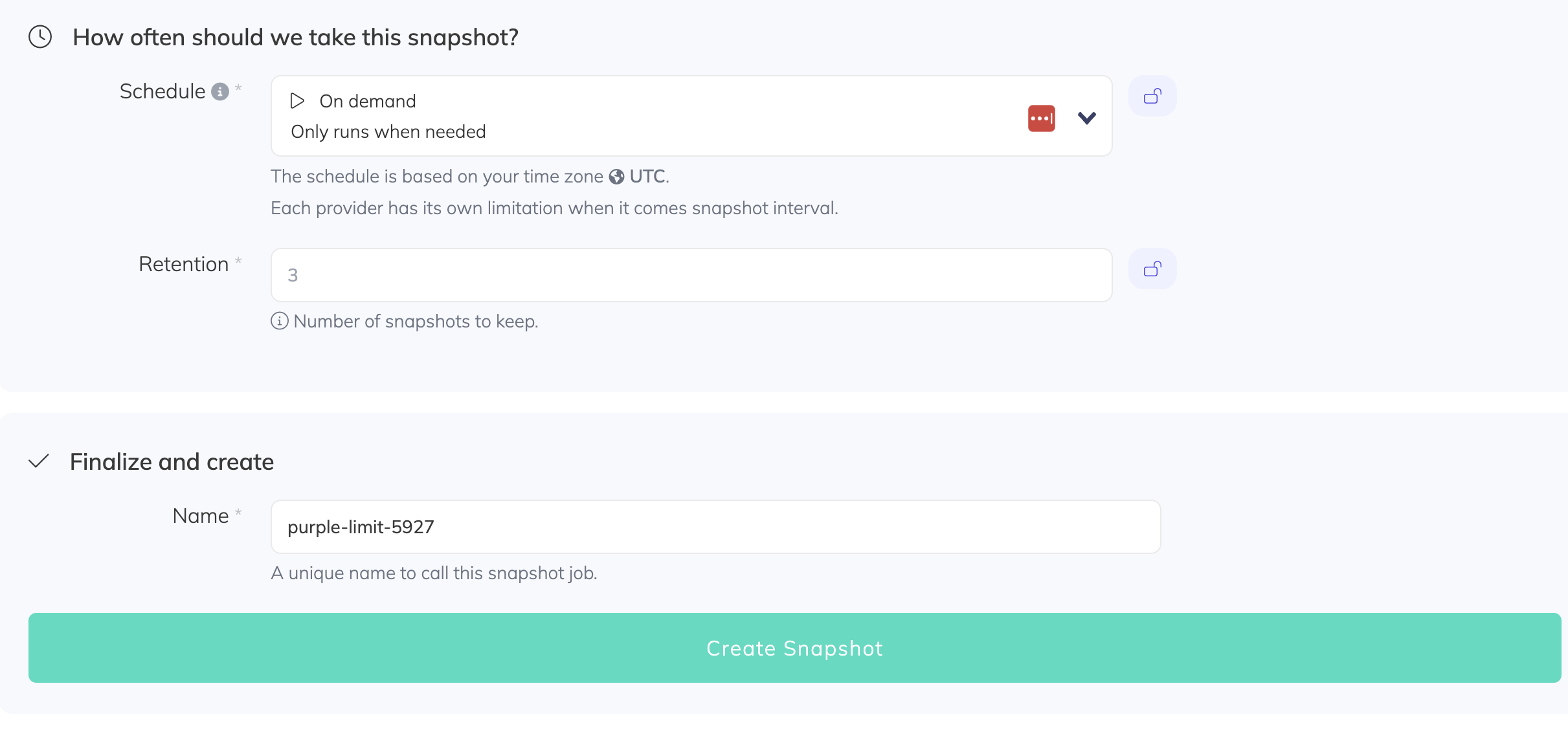
- Configure your schedule, retention, and a descriptive name, then click Create Snapshot