
Appearance
Restore a file/server backup
Download and restore a file backup to your server.
SimpleBackups stores your file backups as compressed .tar.gz archives. You can restore them using a one-line automated command or by manually downloading and extracting the archive. This guide walks through both methods using a /var/www directory as an example.
Find your backup
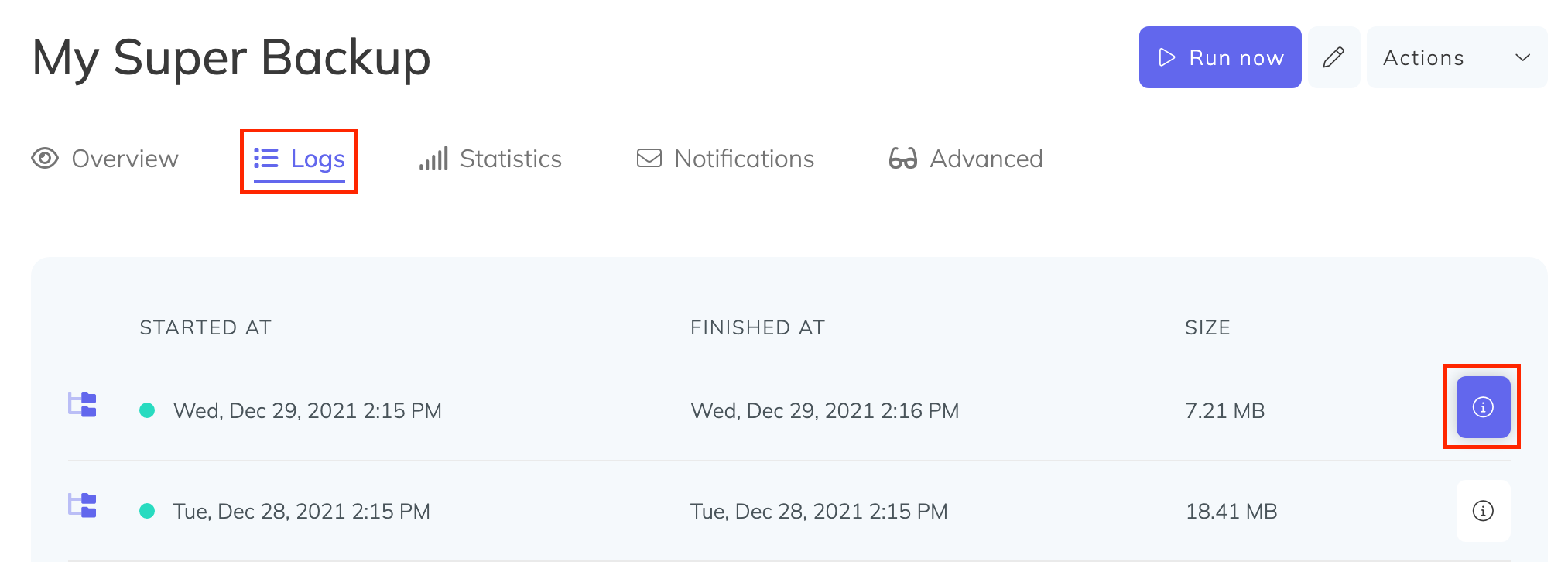
Go to your backup page and select the Logs tab. Click the info icon next to the backup copy you want to restore.
Automated restore
In the backup details modal, navigate to the Restore section. You will find a Restore command — a single-line command that handles downloading and extracting your backup.
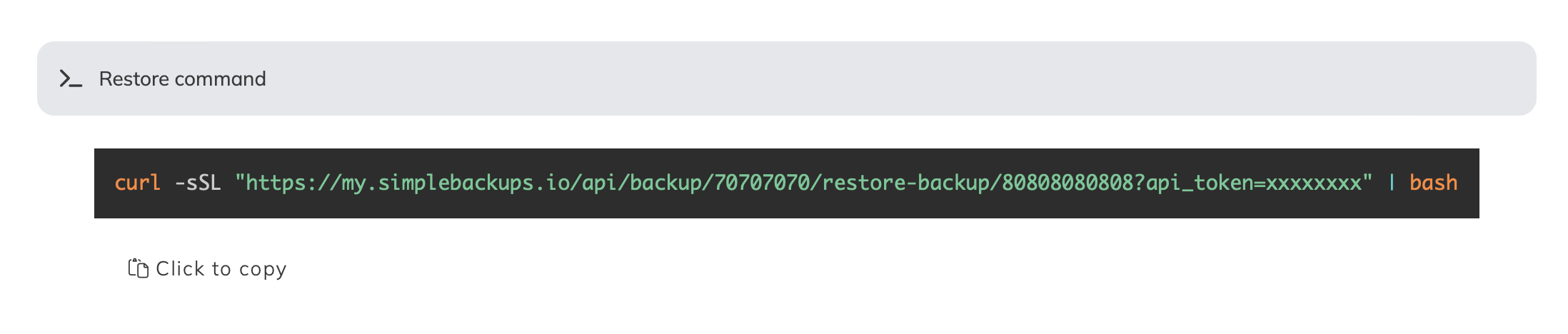
Copy the command and run it on your server. The wizard will ask you where to extract the files and prompt for the encryption key if the backup was encrypted.
Manual restore
If you prefer to restore manually, click Click to generate a signed download link in the backup details modal and copy the resulting URL.
Download the backup archive to your server:
bash
wget "PASTE_YOUR_SIGNED_DOWNLOAD_LINK_HERE" -O "backup.tar.gz"Replace the URL with the signed download link you copied. Then extract the archive to the target directory:
bash
Create a file/server backupStep-by-step guide to setting up a file or server backup.Incremental file backupsBack up only changed files to save storage and speed up backups.tar --overwrite -xvf backup.tar.gz --directory /var/www