
Appearance
Restore a backup
Restore a Storage Sync from the dashboard by copying its replica to any storage and path on your team.
A Storage Sync keeps a replica of your source bucket on a separate storage. When you need that data back, SimpleBackups copies the replica into the storage and path you choose, straight from the dashboard. You do not need to set up a reverse sync.
How a Storage Sync restore works
A Storage Sync keeps a single, continuously updated replica of your source storage. It does not keep point-in-time snapshots, so only the state left by the most recent successful run can be restored. Each run records when we replicated, not a separate copy of your data.
A restore copies the current contents of the sync's destination storage into the storage and path you choose. It copies files in and never deletes anything already at the target.
Restore a Storage Sync
Pick the run to restore
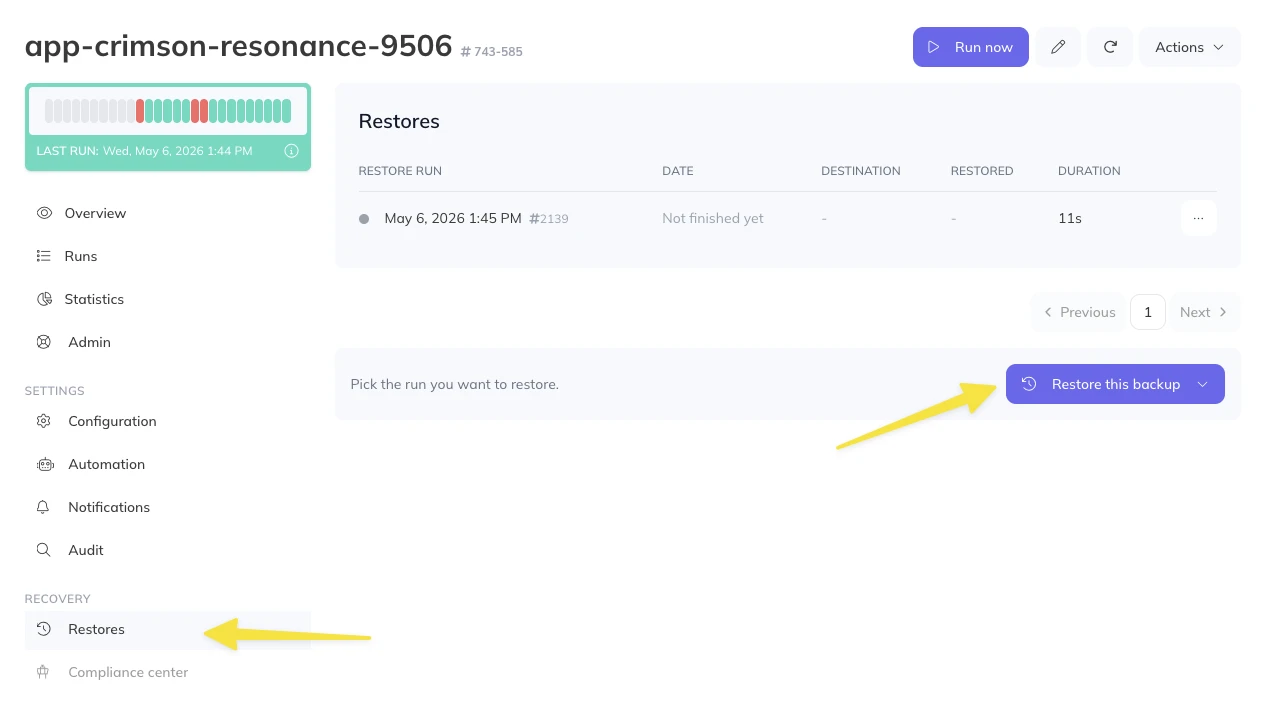
Open your sync and click Restores, under Recovery in the left menu. Click Restore this backup and pick the most recent successful run from the list. This opens the Restore tab of that run.
If you open an older run, SimpleBackups explains why it cannot be restored and offers an Open the latest run button.
Check what will be restored
The first step of the restore panel shows the sync's destination storage and the size of the data it holds. This is exactly what will be copied.
Choose where to restore it
Select a storage and enter a path. It can be the sync's original source storage, or any other writable storage on your team.
Choose the server that will carry the job
By default, the restore runs on the same kind of worker as your sync. Click Change worker to pick another one:
- Serverless: runs on SimpleBackups infrastructure. Pick the region.
- Own server: runs over SSH on one of your servers.
If your sync runs on the local Agent, the restore runs on a serverless worker or one of your servers instead. The Agent cannot run restores yet.
Start the restore
Click Restore to this destination. The restore is queued, then runs. You can leave the page: the restore keeps running.
When it finishes, the panel shows how much data was transferred. Click Restore somewhere else to copy the same replica to another destination, or Try again if the restore failed.
Follow your restores
Every restore appears in the Restores table of your sync (Recovery > Restores), with its date, destination, the amount of data restored and its duration.
Only one restore can run at a time for a given sync.
FAQ
Can I restore my sync as it was a week ago?
No. A Storage Sync holds one live replica, not a history of versions. You can restore the state left by the latest successful run. If you need point-in-time recovery for your files, enable versioning on the destination bucket, where your provider supports it.
Will the restore overwrite or delete files at the destination?
A restore never deletes files at the destination. Files from the replica are copied into the path you chose, alongside anything already there. A file with the same name and path as one in the replica is replaced by the replica's version, so restore into an empty path if you want to compare the two first.
How long does a restore take?
It depends on how much data the replica holds and the speed of both storages. Large storages can take a while. The duration of every restore is listed in the Restores table.