
Appearance
GitLab
Back up your GitLab repositories to your own cloud storage.
GitLab is a Git hosting and DevOps platform available as both a cloud service and self-hosted instance. SimpleBackups connects to GitLab using a personal access token to export your repositories on a schedule. This guide covers token creation, backup setup, and how to restore from a backup.
Create your GitLab access token
Go to the token management page
Navigate to your user settings by clicking on your profile picture in the top-right corner of the left navigation panel, then select Edit Profile.
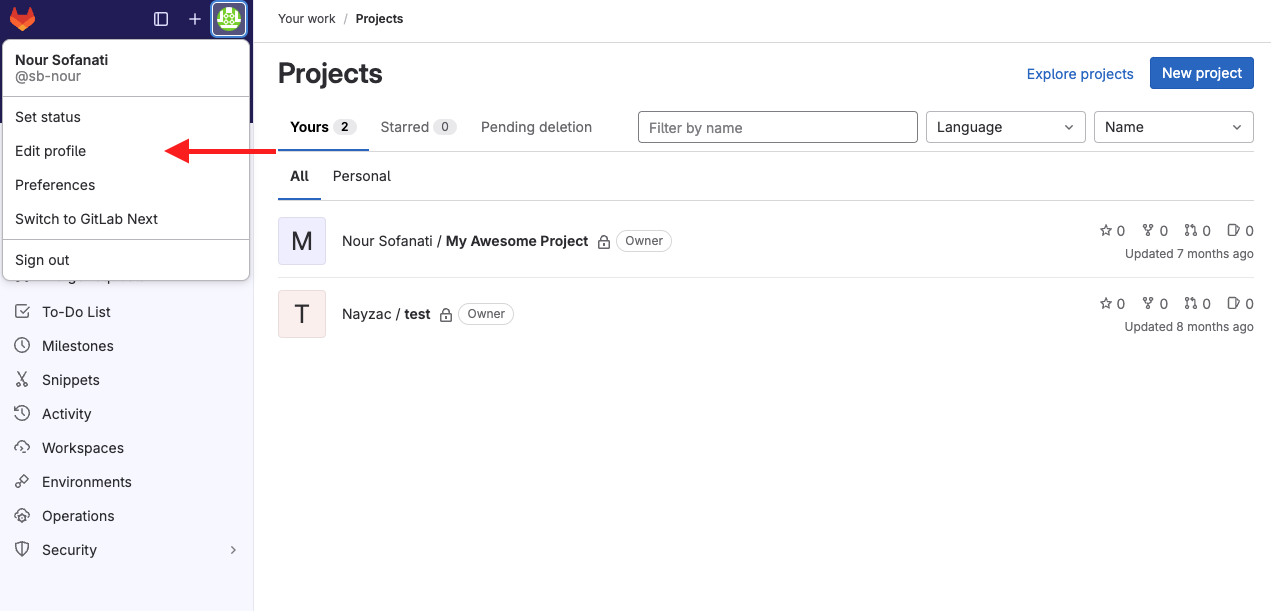
In the left-hand menu, click on Access Tokens. This takes you to the Access Tokens page.
Generate a new token
On the Access Tokens page, click Add New Token to open the token configuration window.
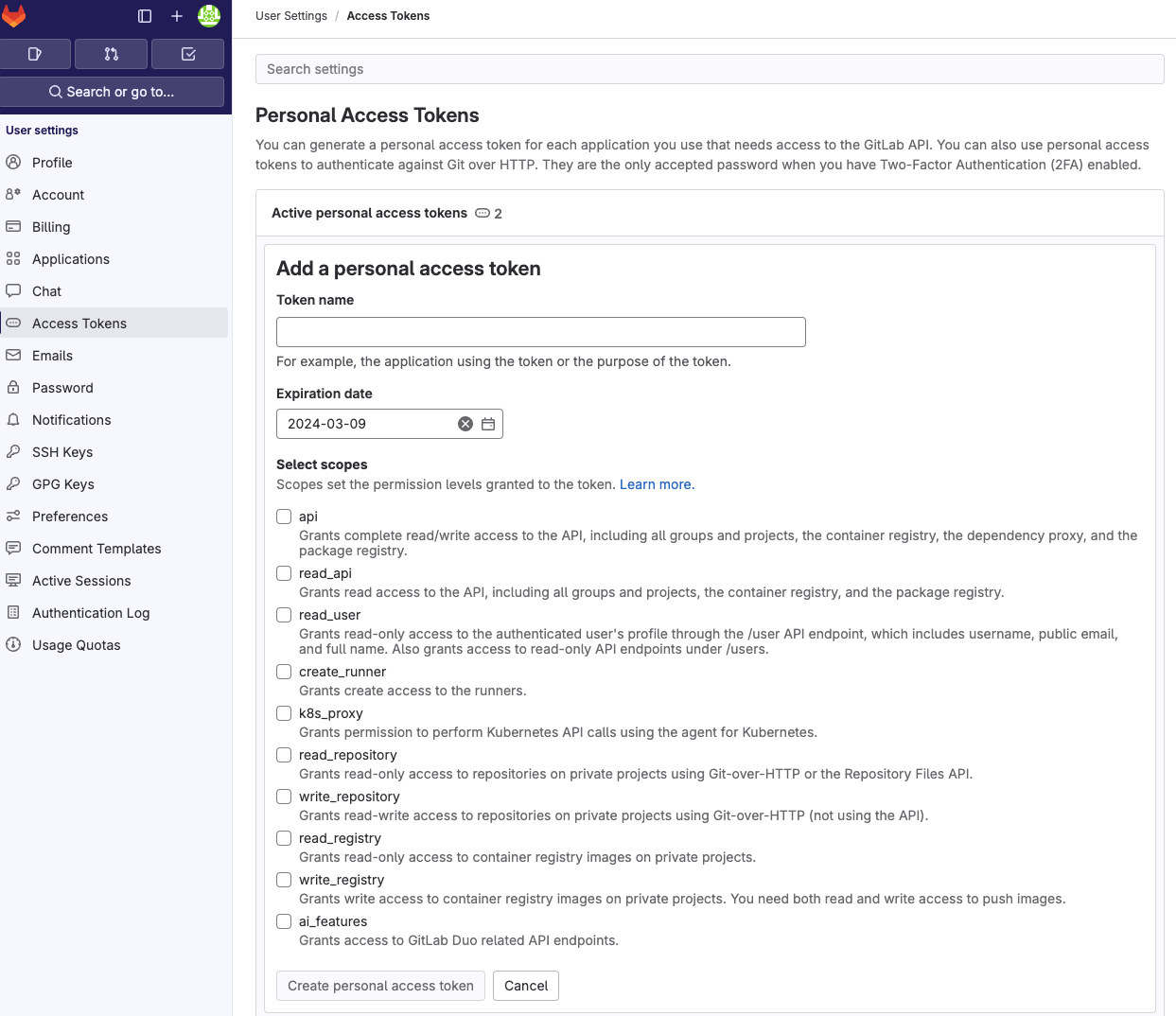
In the Token Name field, enter a descriptive name for your token. Under Select scopes, select read_api. Once configured, click Create personal access token to generate it.
Copy your token
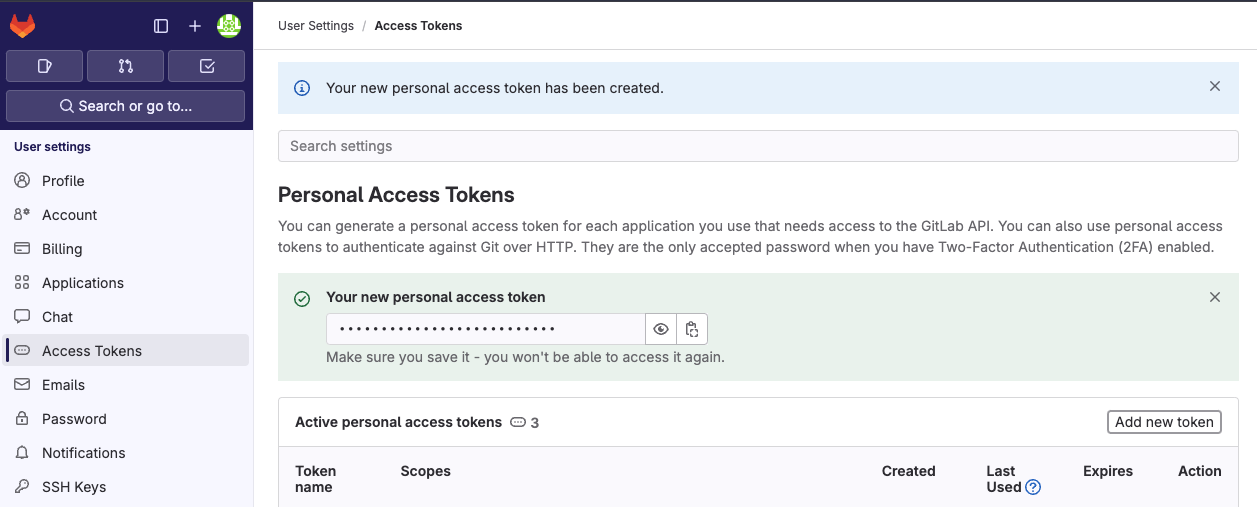
GitLab displays the new access token on screen after generation. Copy it and store it in a safe place — you will not be able to retrieve it later.
Understanding backup errors: 401 vs 403
When performing GitLab backups, two error codes may appear, and they have different impacts on the backup process.
A 401 Unauthorized error means your authentication credentials (personal access token or API key) are invalid or missing. This error halts the entire backup because SimpleBackups cannot interact with the GitLab API without valid credentials.
Restore a GitLab backup
To restore a bare clone from a backup to a new GitLab repository:
- Create a new empty repository on GitLab. Do not initialize it with a README or
.gitignore, as this can cause conflicts. - On your local machine, navigate to the directory where your bare clone is stored.
- Push the bare clone to GitLab:bashThe
cd /path/to/myrepo.git git remote add origin https://gitlab.com/username/new-repository-name.git git push --mirror origin--mirroroption ensures that all branches, tags, and refs are pushed exactly as they were in the bare repository. - Verify the repository on GitLab by checking that all branches, tags, and commits have been restored.