
Appearance
Aiven
How to back up and restore Aiven managed databases via SimpleBackups.
Aiven is a managed database platform that supports MySQL, PostgreSQL, and other database engines. SimpleBackups can connect to your Aiven database either automatically via the Aiven API — which discovers your databases without manual configuration — or manually using a connection string. Both methods work for MySQL and PostgreSQL.
Automatic setup
In this section, you will generate an Aiven API token and connect your Aiven project to SimpleBackups so that databases are discovered automatically.
Step 1: Obtain Aiven API credentials
You can use either a personal token or an application token.
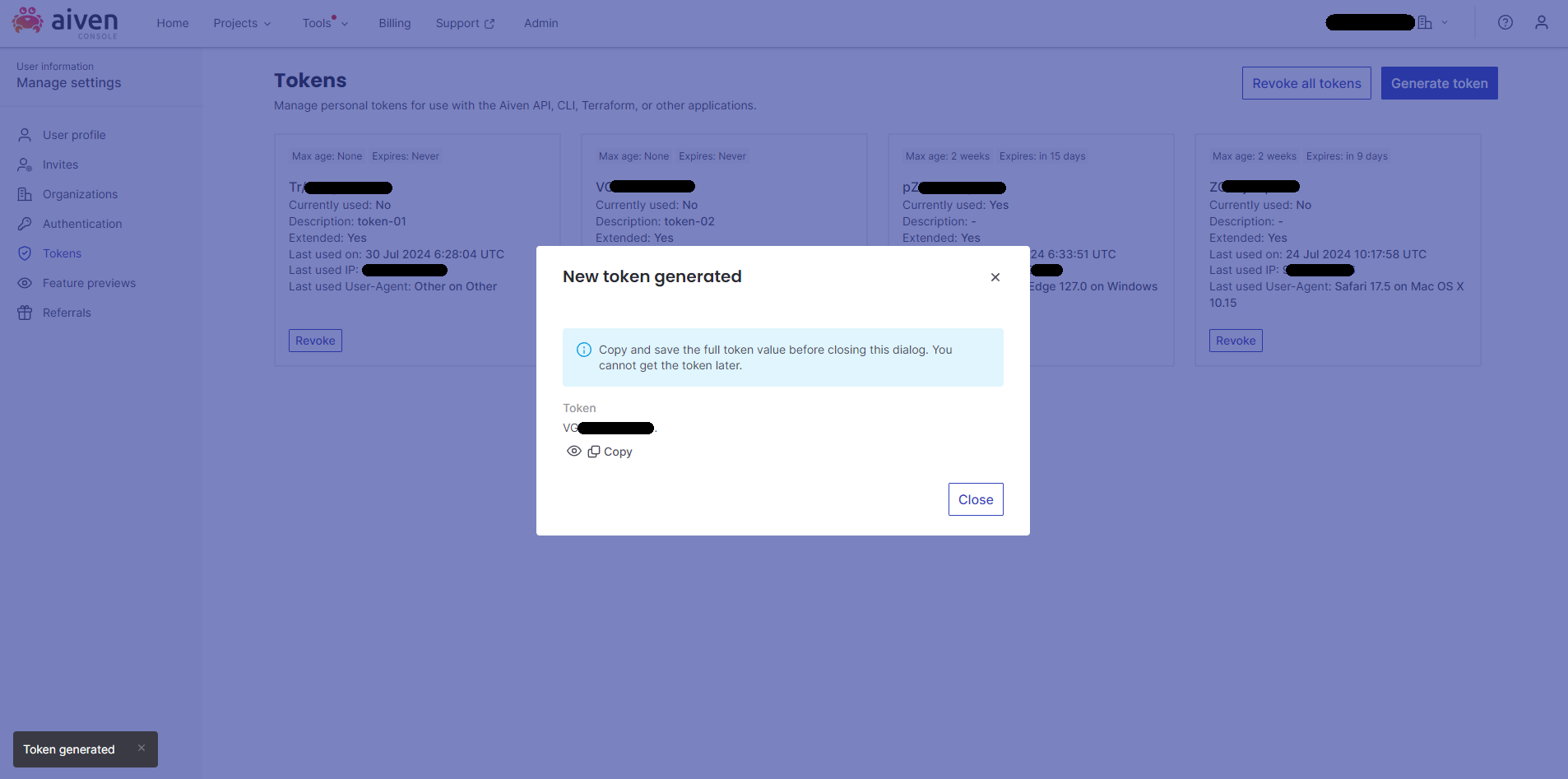
Option A: Create a personal token
- Go to https://console.aiven.io/profile/tokens.
- Click Generate token.
- Select a session duration or leave it empty, then click Generate.
- Copy the generated token to a safe location.
Option B: Create an application token
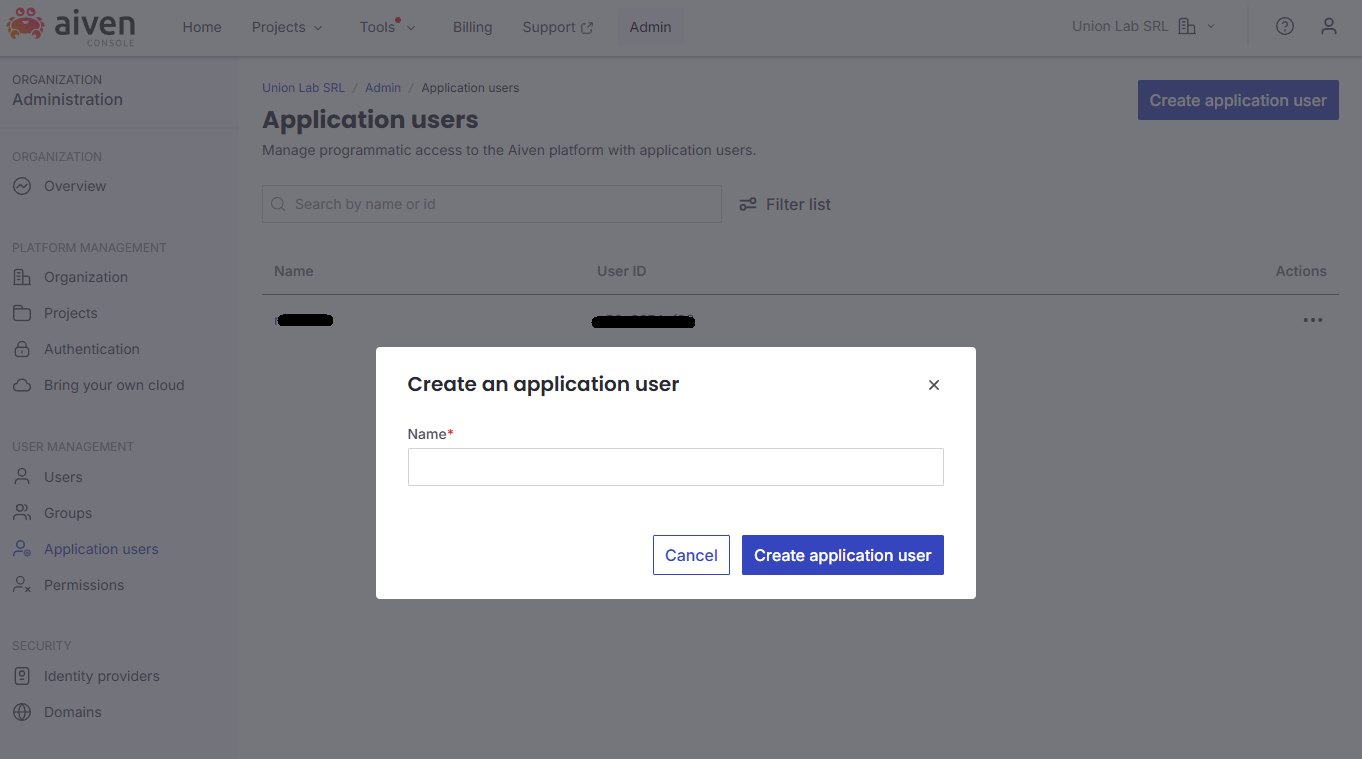
- Go to the Admin section from the top navigation bar.
- Select Application users from the left sidebar.
- Click Create application user and choose a name.
- From Actions, choose View profile.
- Under Authentication tokens, click Generate token.
- Select a session duration or leave it empty, then click Generate.
- Copy the generated token to a safe location.
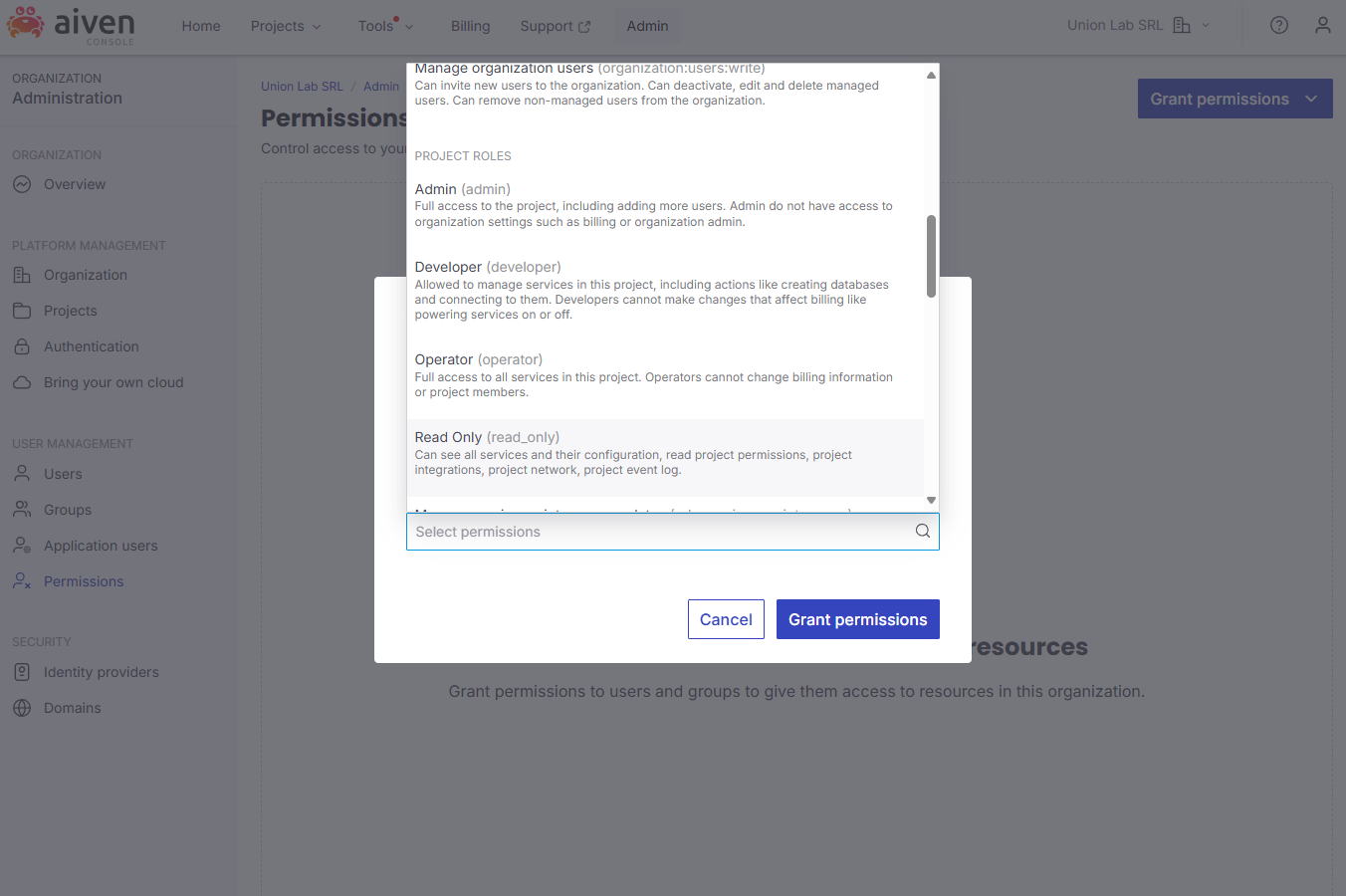
- Select Permissions from the left sidebar.
- Click Grant permissions, then Grant to users.
- Select the application user you just created and assign the Read Only role under Project Roles.
Step 2: Get the project name
- From the navigation bar, go to Projects.
- Select View all projects.
- Choose the project that contains the database you want to back up.
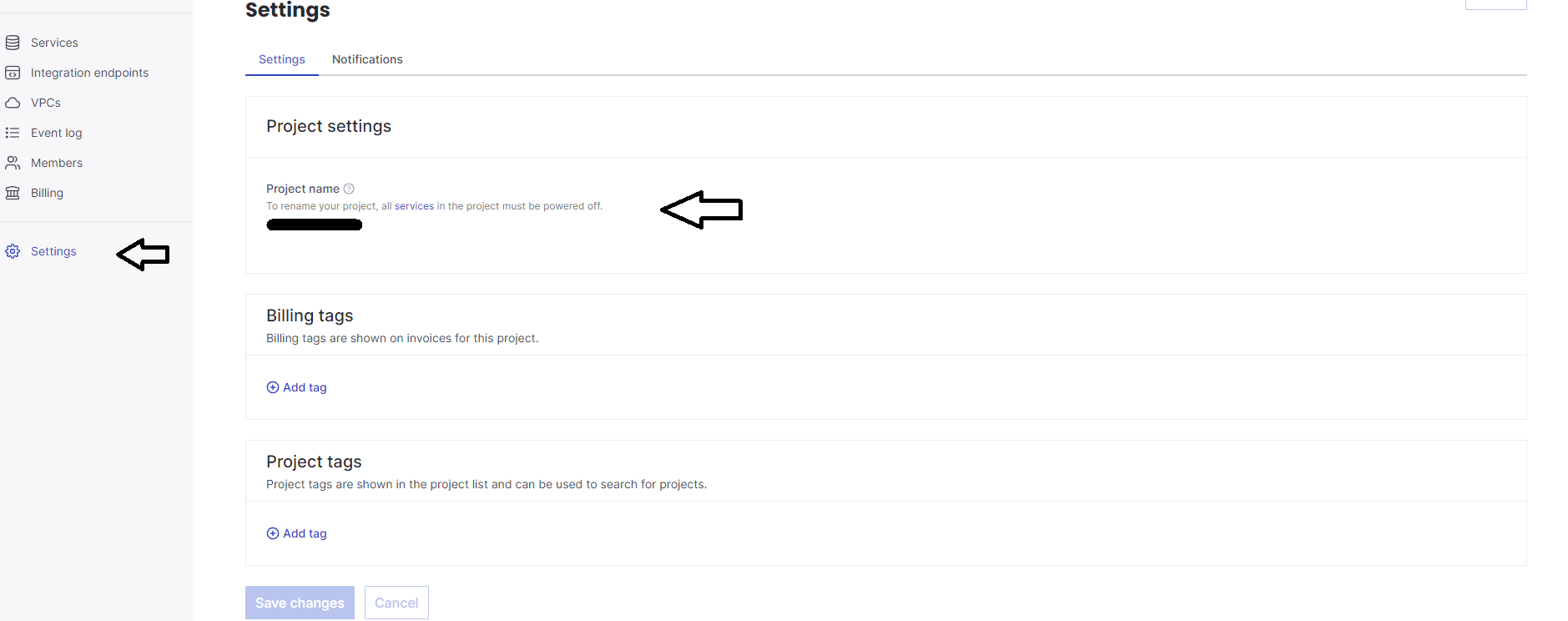
- From the menu, choose Settings and copy the Project Name.
Step 3: Connect Aiven to SimpleBackups
- Go to the database backup page and click Add in the Connect your DBaaS Provider section.
- Select Aiven from the Provider dropdown, enter a name for your Aiven account, paste the token and project name from the previous steps, then click Save provider.

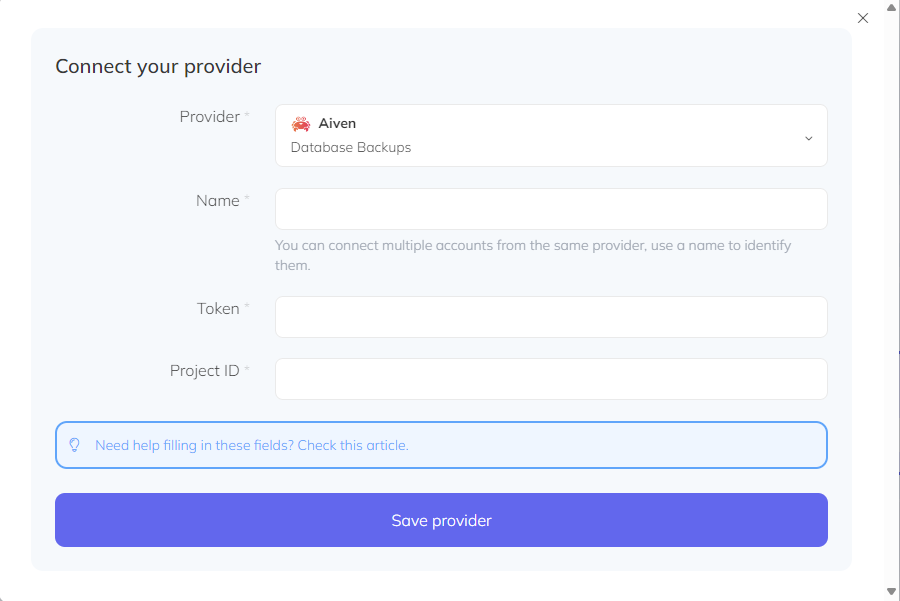
- Select the managed database you want to back up.
- Click Load.

Step 4: Validate and activate
Click Validate connection to confirm that SimpleBackups can reach your database. Once validated, configure your schedule and activate the backup.
Manual setup
Use this approach if you prefer to supply connection credentials directly rather than through the Aiven API. The steps are the same for MySQL and PostgreSQL — only the connection string format and the database type you select in SimpleBackups differ.
Step 1: Copy your connection string
- Log in to your Aiven console.
- Navigate to the database service you want to back up.
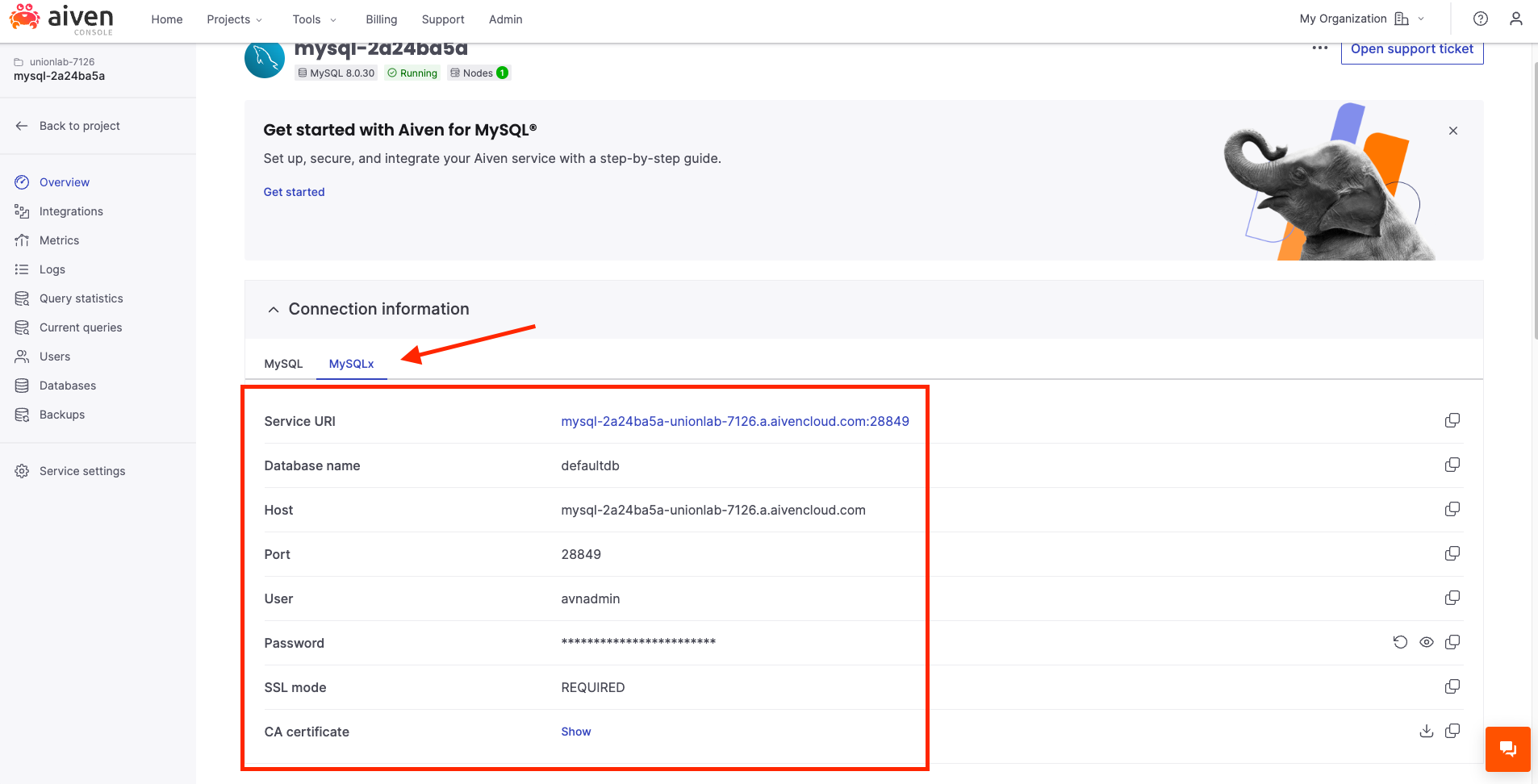
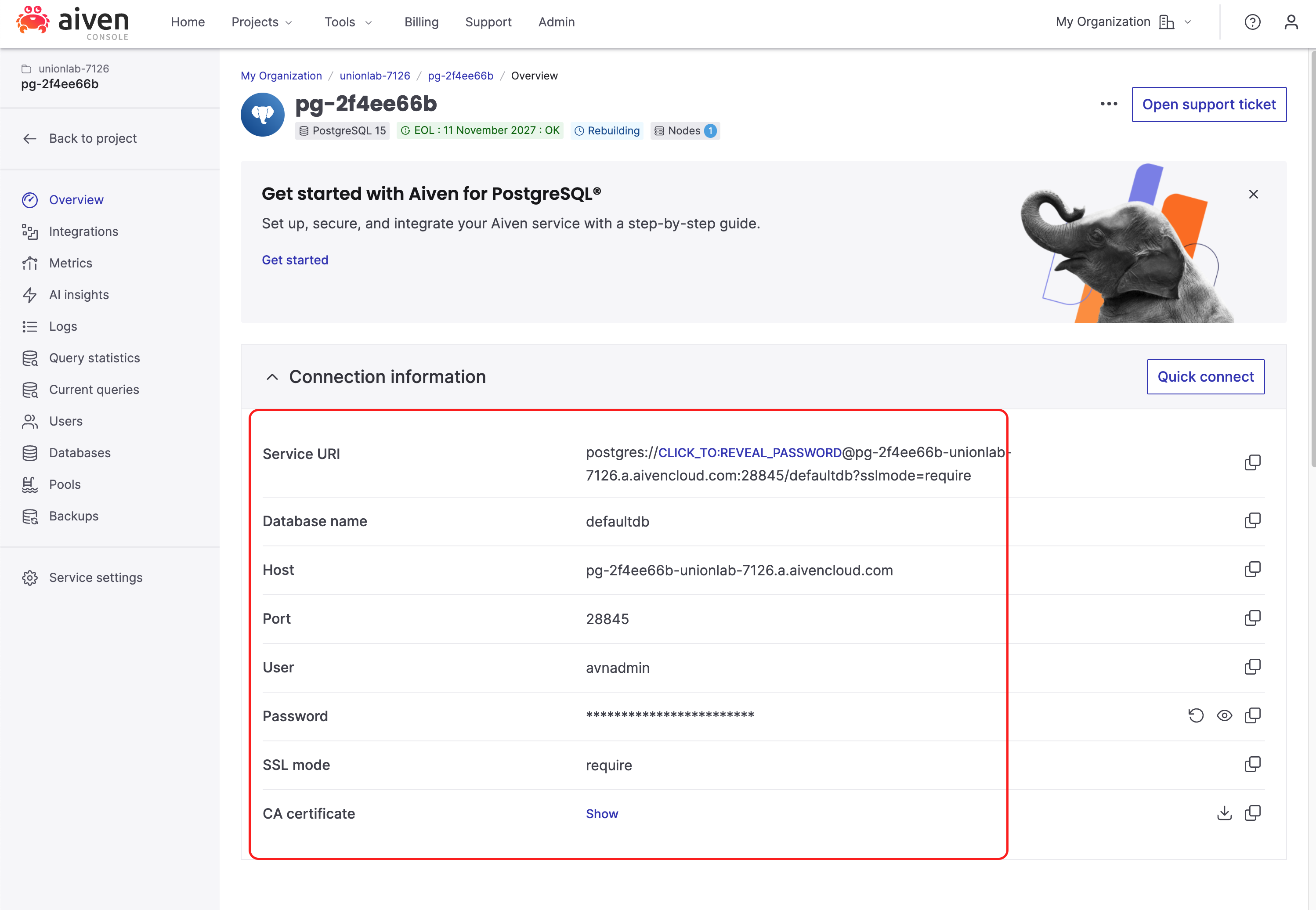
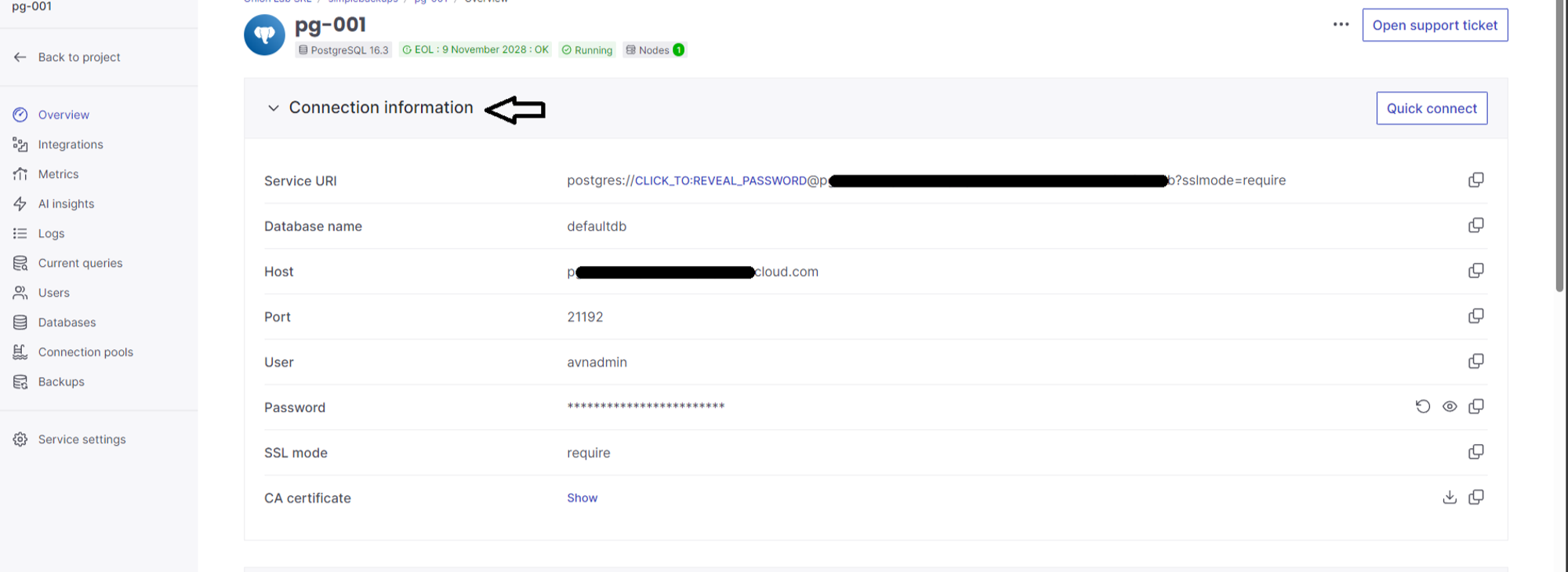
- Click Overview, then Connect, or refer to Connection Details on the dashboard.
- Copy the connection string and replace the
****placeholder with your actual password.
For MySQL, your connection string will look like this:
For PostgreSQL, your connection string will look like this:
You can also find the Service URI in the Connection information section, along with a downloadable CA certificate.
Step 2: Whitelist SimpleBackups IP addresses
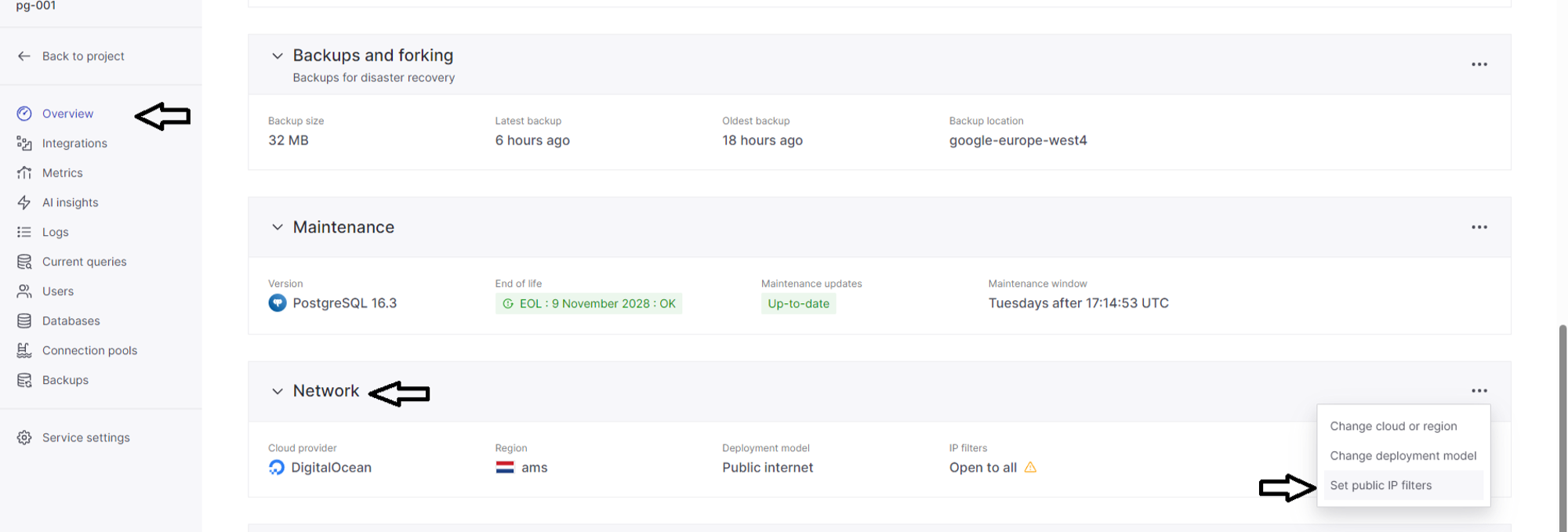
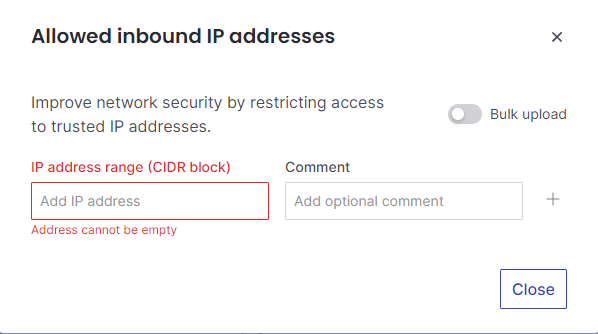
- In the Aiven console service overview, scroll down to the Allowed IP Addresses section and click Change.
- Add the IP addresses provided by SimpleBackups to the allowlist.
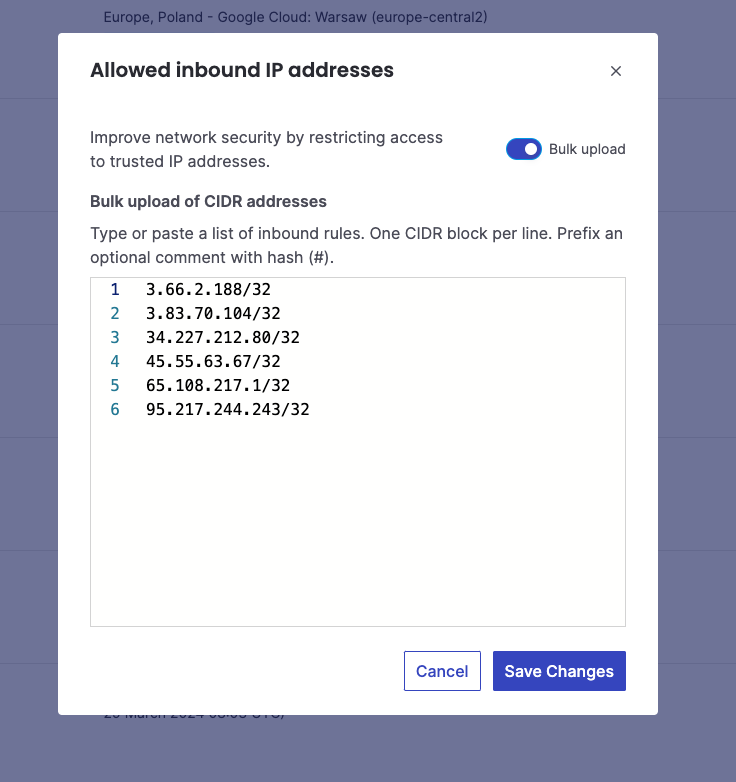
You can also configure IP filtering from the Network section by choosing Set public IP filters.
Step 3: Create a database backup in SimpleBackups
- Navigate to Backups and click Create Backup, then select Database Backup.
- Choose Serverless as the backup server type.
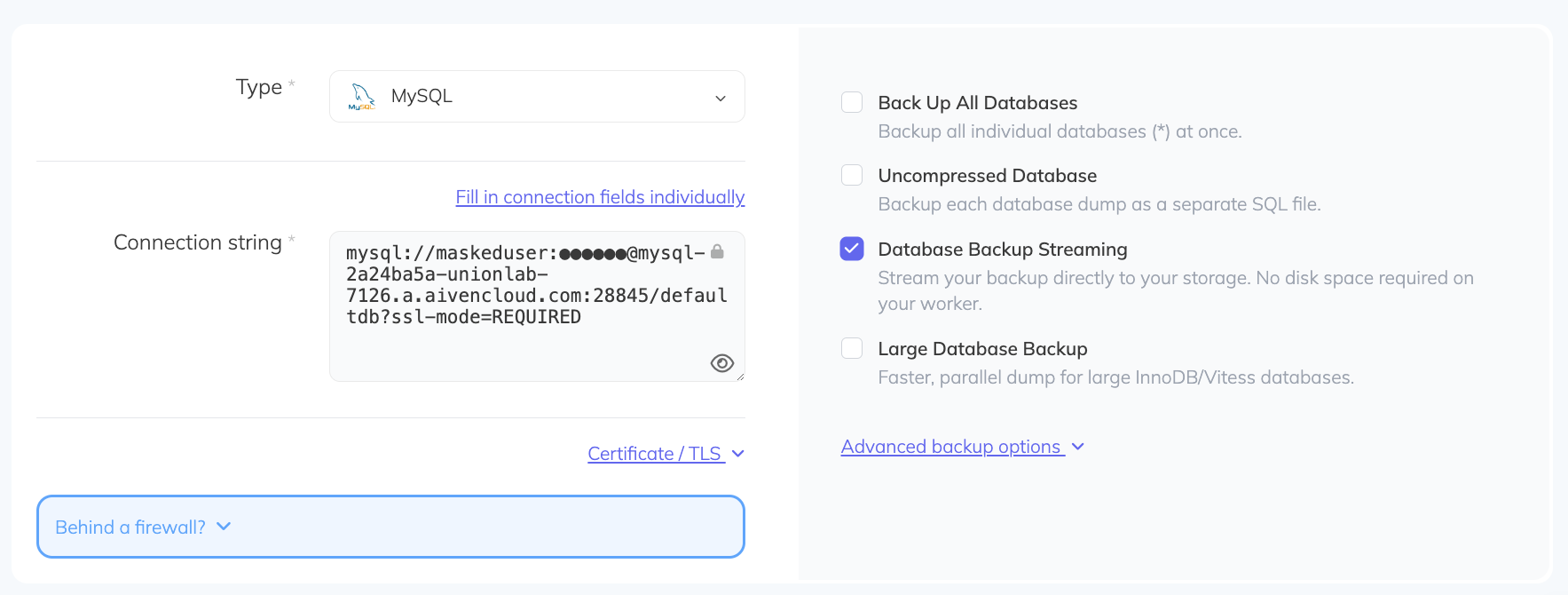
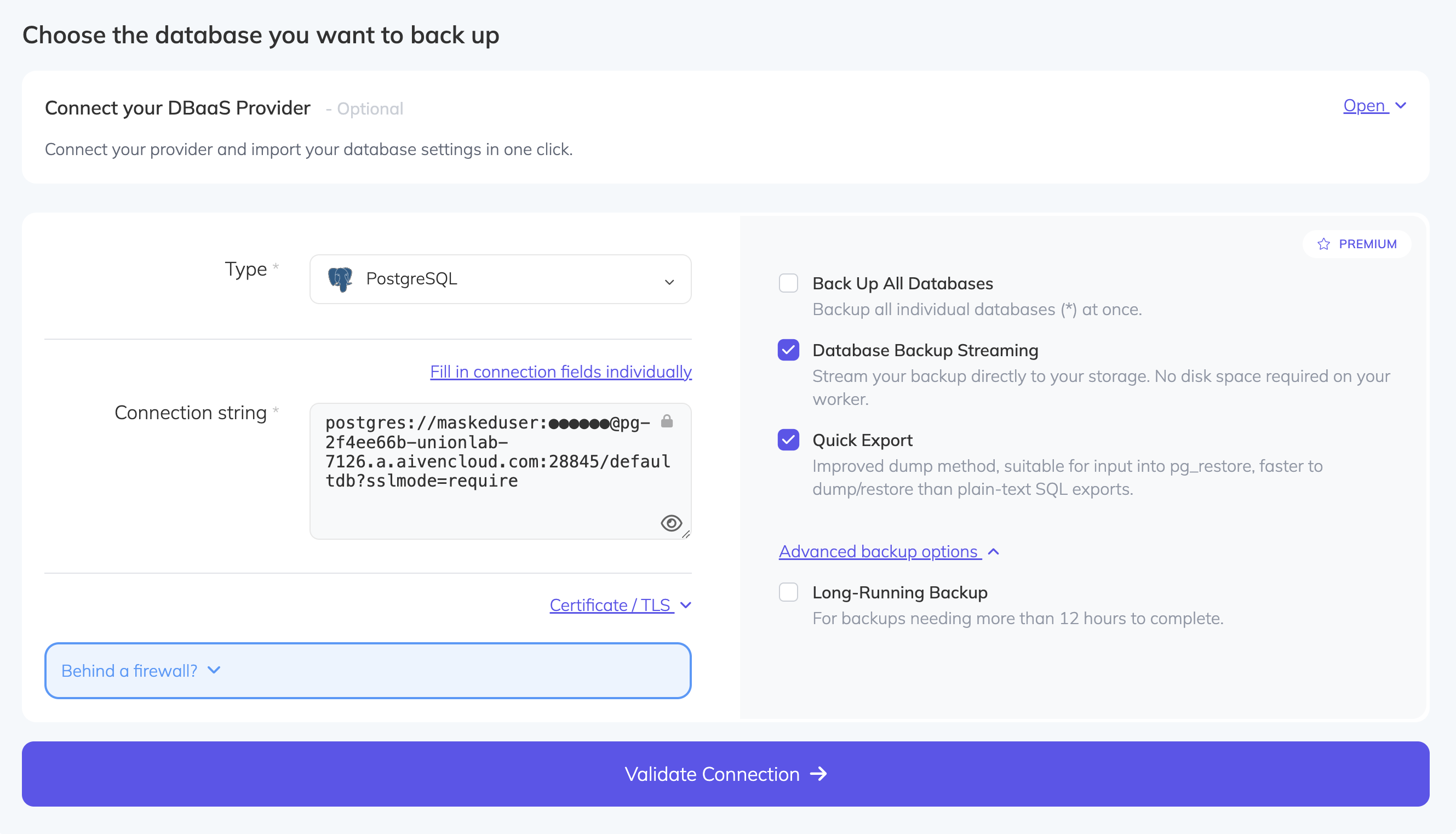
- Select the database Type: choose MySQL for an Aiven MySQL database, or PostgreSQL for an Aiven PostgreSQL database.
- Click Paste connection string and paste the connection string you copied, making sure the password is included.
- Click Validate Connection.
For MySQL:
For PostgreSQL:
- Set a schedule for your backups and configure retention policies and storage.
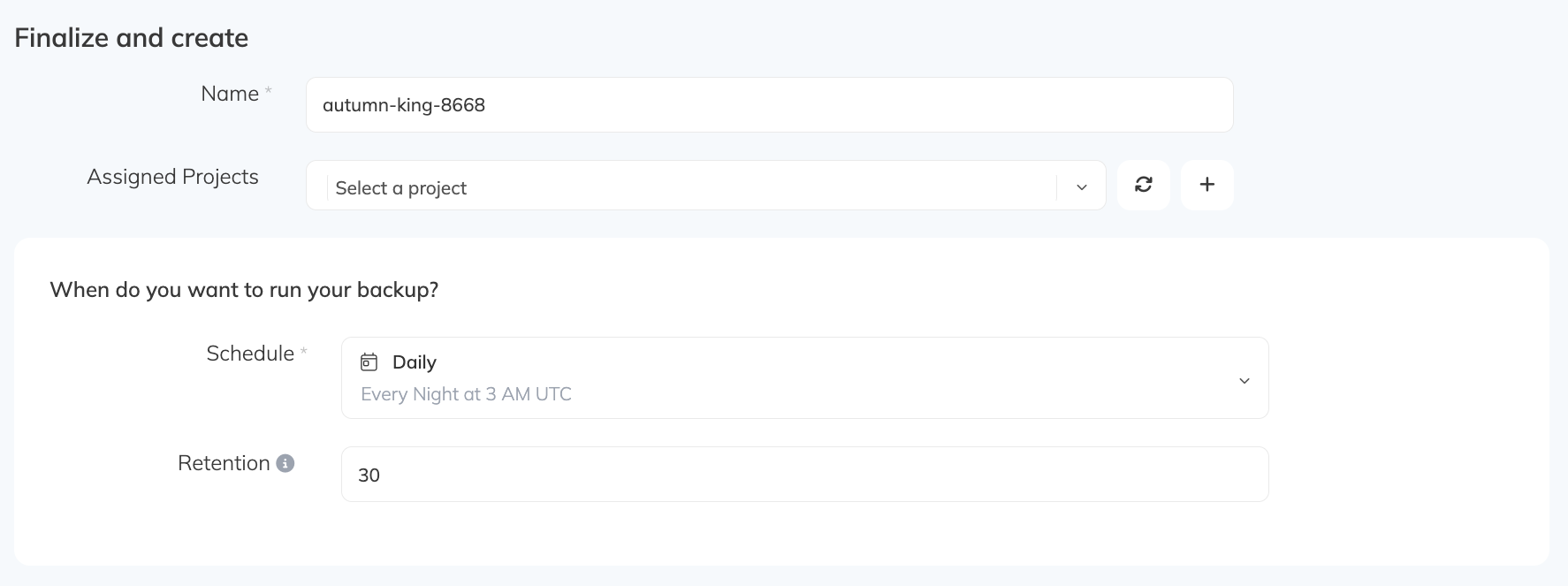
- Review your configuration and save. SimpleBackups will start backing up your database according to your schedule.
Restoring a backup
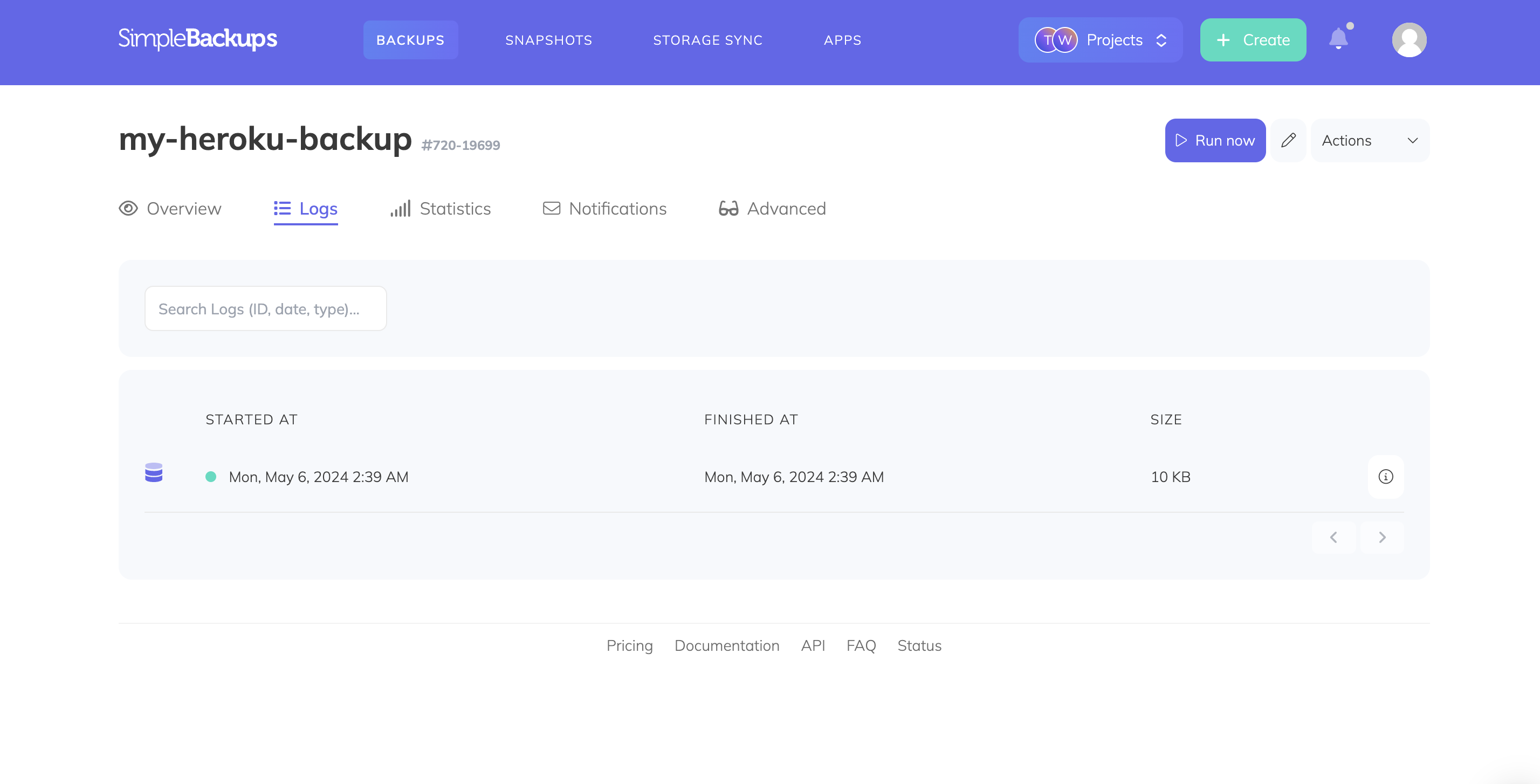
To restore a backup, navigate to your backup page and open the Logs tab. Click the detail icon on the backup you want to restore from, then open the Restore tab. Generate a download link and copy it.
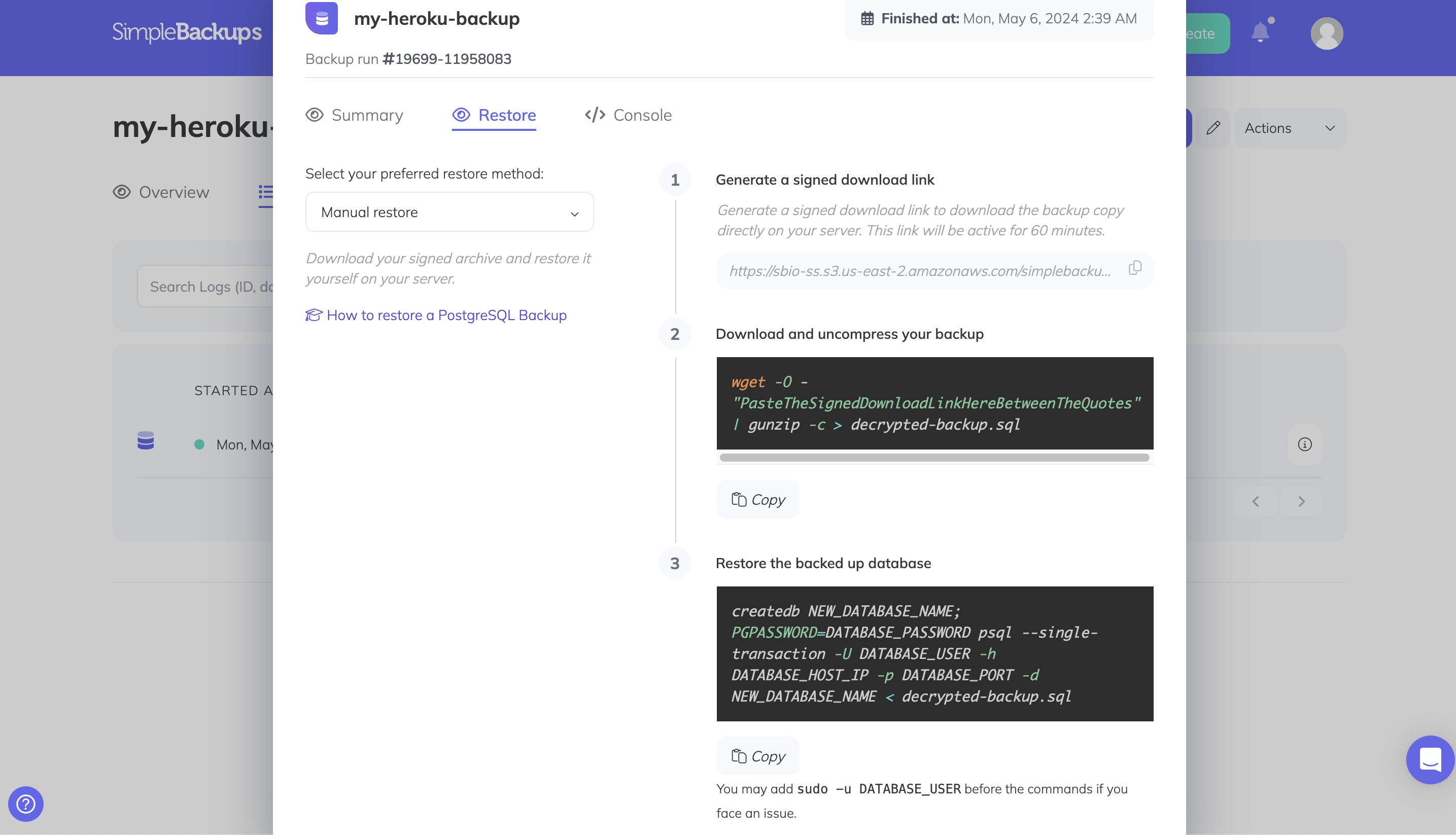
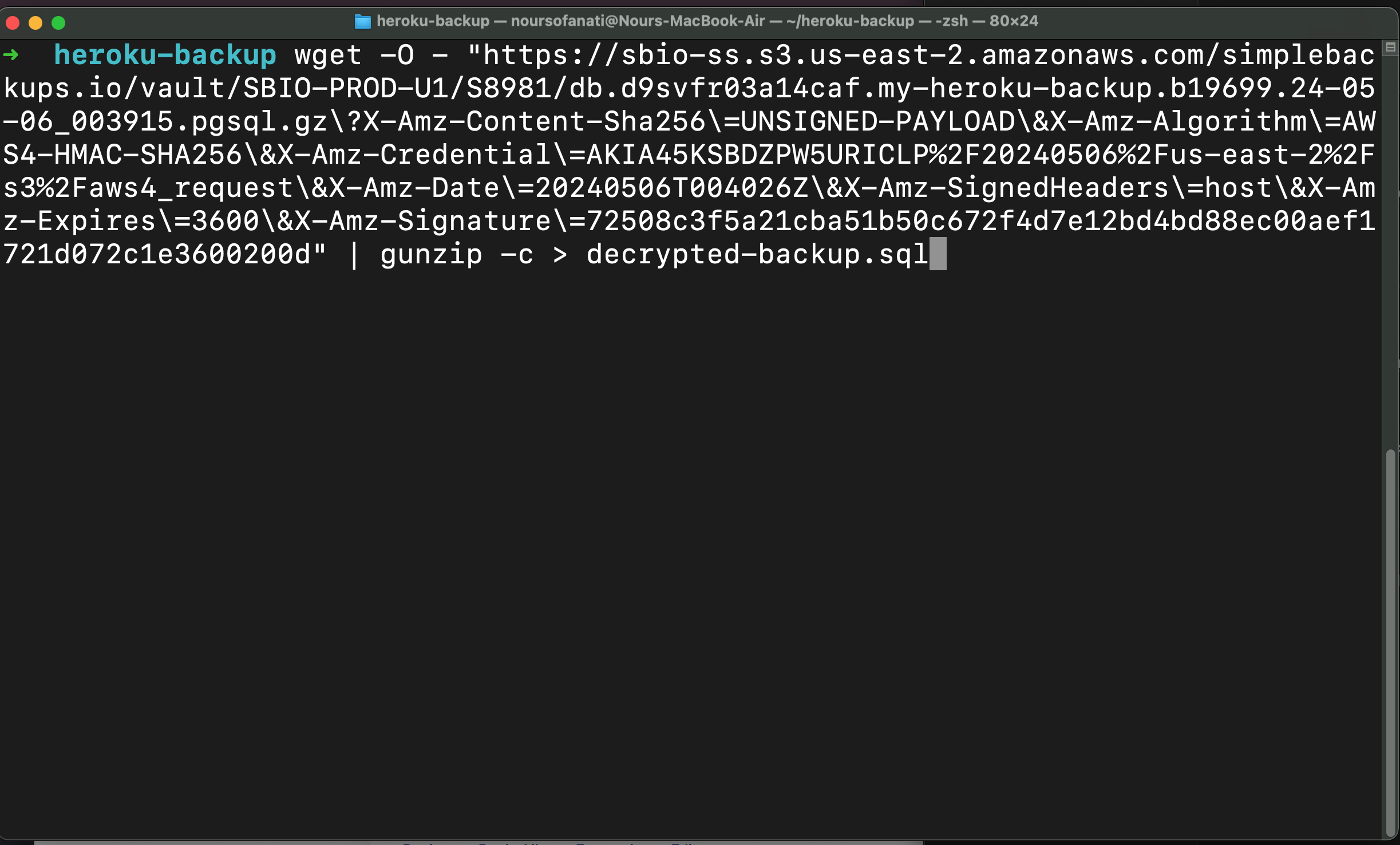
Run the following command to download and decompress your backup (replace the URL with your signed download link):
bash
wget -O - "<signed-download-url>" | gunzip -c > backup.pgsqlThen restore using pg_restore, replacing <your-database-uri> with your full database connection string:
bash
pg_restore -d "<your-database-uri>" ./backup.pgsql