
Appearance
FAQ
Questions related to database backups, database dumps, and connections
My database server doesn't allow external connections. Can I back it up?
Yes, you can!
SimpleBackups supports SSH tunneling, meaning you can leverage another server (tunnel) that has access to the server you want to back up. You may also, instead, use our Tailscale integration to easily access your private resources without exposing them to the internet and without having a jump/bastion server.
How to back up private and internal databases?
It is possible to use SimpleBackups to back up private resources. You will need an intermediate server within your network that has access to the private network, and use that intermediate server during the backup.
Using this method, the private host is never accessible or exposed to the Internet, and at the same time no agents are run on the private server to take the backup. The private host stays as a blackbox.
Requirements
- Private database, or server you need to back up (ex.:
private-resource-01) - Any SSH-accessible intermediate server, that has access to the resources in step 1 (ex.:
tunnel-server-01)
Backup Internal or Private Databases (database backups)
Expose the private database that resides on private-resource-01 to an intermediate SSH-accessible server tunnel-server-01, then:
- Create a serverless database backup on SimpleBackups
- Use the tunnel option to tunnel SimpleBackups' connection through
tunnel-server-01which has access to your privately accessible database
How do I migrate to the new serverless workers?
SimpleBackups has updated its serverless workers with support for the latest versions of MySQL and PostgreSQL dumpers. If your backups are running on older workers, you should migrate to avoid compatibility issues.
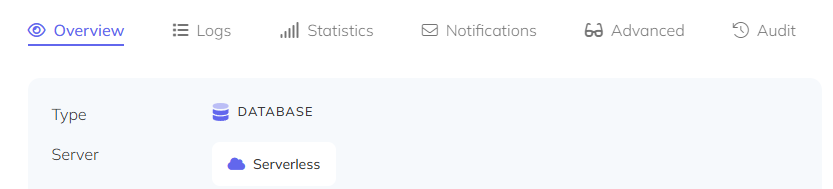
To check if you are using the old workers, look for the migration indicator on your backup detail page.
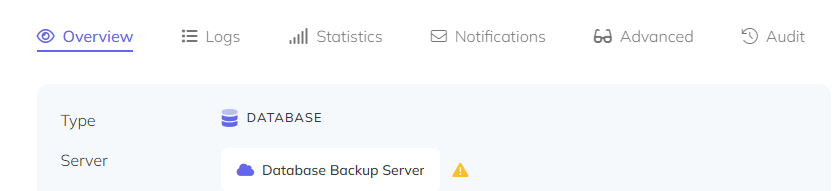
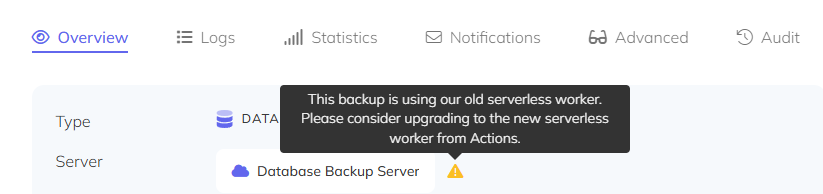
Before migrating, whitelist all SimpleBackups IP addresses in your database firewall. See SimpleBackups IP addresses for the full list.
Once your firewall is updated, open the Actions dropdown on your backup and click Upgrade to new serverless.
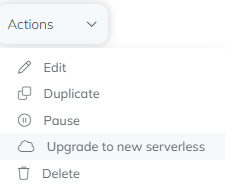
Click Confirm and wait for the process to complete.
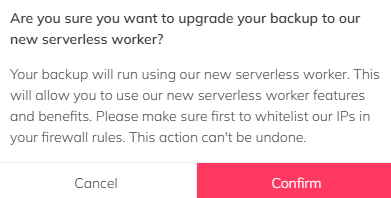
After the migration finishes, your backup info will reflect the new worker.
Database size is smaller after restore
A backup could certainly be much smaller than the actual size of the database.
The trusted way to confirm the consistency of a backup is in fact restoring and inspecting the backup.