
Appearance
Linear
Back up your Linear workspace to your own cloud storage.
Linear is a project and issue tracking tool for software teams. SimpleBackups connects to Linear with a read-only OAuth connection, exports your workspace content through the Linear API on a schedule, and stores it as a compressed archive on the storage provider of your choice. This guide covers how to connect your workspace, configure a backup, and access your backed-up data.
Create a Linear backup
Connect your Linear workspace
- In SimpleBackups, create a new backup and choose Linear.
- Click Connect Linear workspace. You are redirected to Linear to authorize SimpleBackups.
- Review the request and click Authorize. SimpleBackups requests read-only access, and content is accessed by the integration itself rather than through your personal user account.
Once authorized, you are redirected back to SimpleBackups and the new connection is selected automatically. Your OAuth tokens are encrypted at rest, and SimpleBackups refreshes them automatically before each run.
Configure your backup
- Select the Account connection to back up. Each connection maps to one Linear workspace.
- Choose a Backup mode:
- Resilient (recommended) — the run stops and is marked failed if any core content (issues, comments, projects, teams) cannot be captured, so an incomplete backup is never reported as a success. Everything captured up to that point is kept, and the run's Content tab still shows the partial counts and what failed. Optional content that fails is recorded and retried on the next run.
- Simple — a single pass that keeps going after optional-content failures and records them in the run's Content tab. Missing core content still fails either mode. Choose this only if you prefer an incomplete backup over a failed one.
- Choose whether to include Embedded files. This optional setting attempts to download images and files hosted in Linear, in addition to the usual attachment and link metadata. It increases the backup's size and duration, so it is off by default. Individual file downloads are best-effort and are reported if they fail.
- Name your backup, then choose your schedule and storage destination.
Run and verify your backup
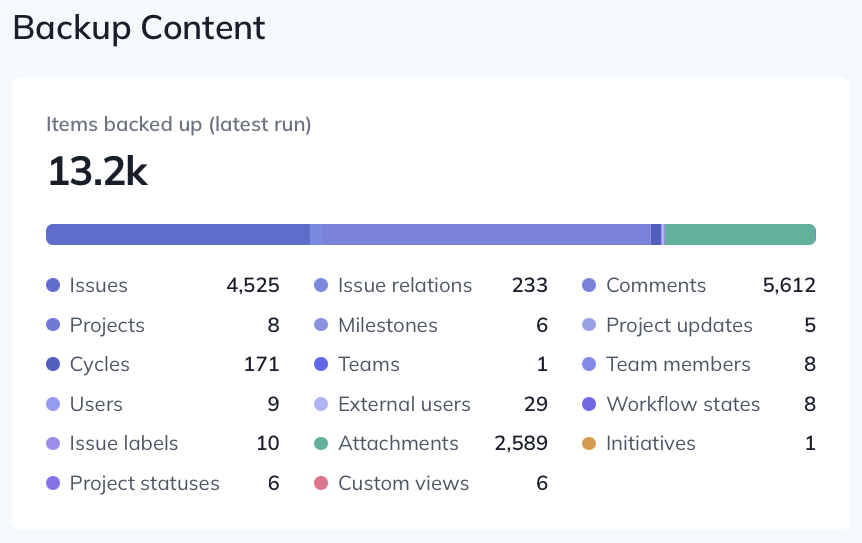
After creating the backup, you can run it on demand with Run Now. Each run reports per-entity counts — how many issues, comments, projects, and other records were captured — in the log's Content tab, and the backup page shows these counts across runs. Anything that could not be captured is listed per run, so a degraded backup is always visible. Runs that fail partway still appear with the counts they captured and a warning that they are not a reliable restore point.
One connection per workspace
Each Linear workspace can be connected to SimpleBackups once. Linear issues a single backup authorization per workspace, so authorizing again supersedes the existing connection's access rather than adding to it.
What a backup contains
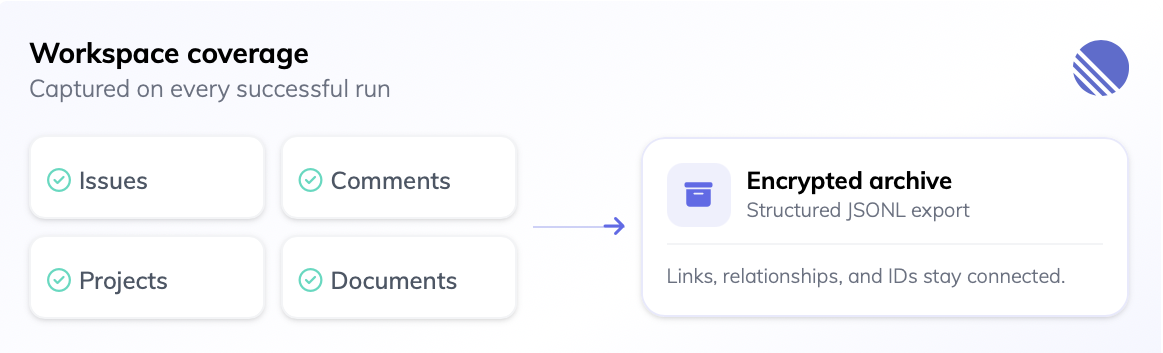
SimpleBackups backs up every team your workspace has granted to the SimpleBackups app, along with workspace-level content, including archived items. Each entity type is exported as a standard JSON Lines (.jsonl) file, and all files are packaged into a compressed archive (optionally encrypted) on your storage.
A backup captures:
- Issues — including sub-issues, archived issues, estimates, priorities, assignees, and issue relations (blocking, duplicates)
- Comments — full comment threads on issues, project updates, initiatives, and documents
- Projects — including milestones, project updates, labels, members, and external links
- Cycles and workflow states — with each team's cycle settings
- Teams, members, and users — including external users
- Labels — with label groups and hierarchy
- Documents — full document content
- Initiatives — including initiative updates and linked projects
- Attachments and links — title, URL, and metadata for linked resources. If you enable Embedded files, SimpleBackups also attempts to download eligible Linear-hosted file bytes.
- Templates, custom views, and project statuses
Records keep their identifiers and cross-references, so relationships between issues, projects, teams, and users are preserved in the exported data.
Files in the archive
On a successful full crawl, every queried entity type is written to its own newline-delimited JSON file at the root of the archive — one record per line. An empty initiatives.jsonl means "none found", not "not captured". A failed or partial run can have missing or incomplete files; its metadata.json and the run's Content tab identify what failed.
| File | Contents | Core |
|---|---|---|
issues.jsonl | Issues and sub-issues, with labels and assignees inline | Yes |
comments.jsonl | Comment threads on issues, project updates, initiatives, and documents | Yes |
projects.jsonl | Projects, with label IDs and external links inline | Yes |
teams.jsonl | Teams | Yes |
users.jsonl | Workspace members | Yes |
cycles.jsonl | Cycles, with each team's cycle settings | Yes |
workflow_states.jsonl | Per-team workflow states | Yes |
issue_labels.jsonl | Issue labels, with groups and hierarchy | Yes |
issue_relations.jsonl | Blocking, duplicate, and related links between issues | No |
project_labels.jsonl | Project labels | No |
project_milestones.jsonl | Project milestones | No |
project_updates.jsonl | Project status updates | No |
project_statuses.jsonl | Project status definitions | No |
team_memberships.jsonl | Which users belong to which teams | No |
external_users.jsonl | External (guest) users | No |
documents.jsonl | Documents, including full content | No |
initiatives.jsonl | Initiatives | No |
initiative_updates.jsonl | Initiative status updates | No |
initiative_to_projects.jsonl | Links between initiatives and projects | No |
attachments.jsonl | Attachment title, URL, and metadata | No |
templates.jsonl | Issue and project templates | No |
custom_views.jsonl | Saved custom views | No |
metadata.json | Run manifest: per-entity counts, recipe version, start and end times, and anything that failed | — |
Files marked Core are the ones whose failure fails the whole run — in either backup mode. Optional content that fails is recorded in metadata.json and in the run's Content tab, then retried on the next run.
When Embedded files is enabled, the archive also contains a files/ directory. Files inside it are named with a hash of their source URL rather than their original names; files/manifest.json maps each stored filename to its source URL, size, content type, and download status.
Restore a Linear backup
SimpleBackups can restore a Linear backup into a destination Linear workspace. The restore recreates the backup as new teams and records; it does not overwrite the original workspace.
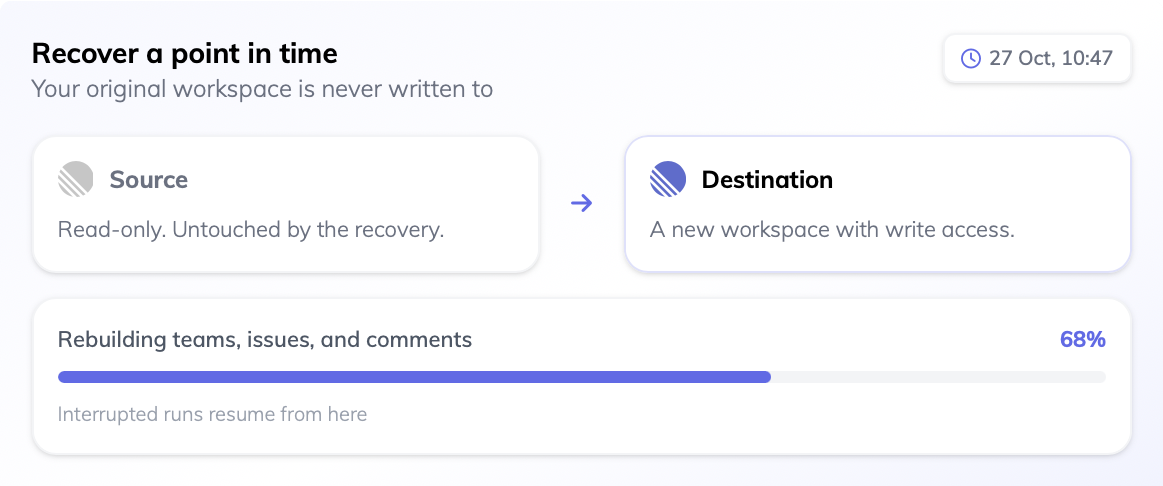
- Navigate to the backup summary page and open the point-in-time log you want to restore.
- Open the Restore tab and select or connect the destination Linear workspace. Restore destinations need a separate connection with write access; the connection used for backups remains read-only.
- Use a new, empty workspace whenever possible. If the destination already has teams, issues, projects, or initiatives, SimpleBackups asks you to explicitly confirm that you want to continue.
- For an encrypted backup, paste the matching RSA private key and, if applicable, its passphrase.
- Click Restore to Linear. You can leave the page while the restore runs; the dialog shows live progress, restored counts, and any individual items that could not be restored.
The restore recreates teams, workflow states, labels, initiatives, projects and milestones, cycles, issues and their relations, project and initiative updates, threaded comments, documents, and attachments. It preserves authorship and timestamps where Linear supports them, and matches people in the destination workspace by email for assignments and project memberships.
If a restore fails after making progress, select Resume restore to continue from where it stopped. Already restored records are skipped, so resuming does not create a second copy. For an encrypted backup, enter the private key again before resuming; SimpleBackups does not store it.
Requirements
SaaS app backups run on SimpleBackups' serverless infrastructure by default, which already includes everything needed. If you instead run this backup on your own connected server, that server must have Python 3 and pip installed — the recipe uses them to call the Linear API.
Limitations
Linear backups have the following limitations:
- Team access is controlled in Linear — the backup covers the teams your workspace has granted the SimpleBackups app access to. Workspace admins manage this from the app's settings in Linear; a team the app cannot see is not included in the backup.
- Whole accessible workspace only — a backup covers every team the app can access; per-team selection in SimpleBackups is not available yet.
- Embedded files are optional — attachment and external-link metadata is requested on every run, but optional metadata queries and file downloads can fail without failing the whole backup. When Embedded files is enabled, SimpleBackups attempts to download eligible Linear-hosted files; this increases backup size and duration.
- Issue history is not captured — the per-issue activity feed (state changes, reassignments) is not exported; the current state of every issue is.
- Workspace and team memberships are not created — existing people are matched by email where possible, but SimpleBackups does not invite people to the destination or recreate their workspace and team memberships. Matched people can still be assigned to restored records and projects.
- Some workspace settings are not recreated — templates, custom views, and project-status settings are not recreated. A restored project uses an existing destination project status with the same name, or falls back to one with the same type.
- Embedded files are not re-uploaded yet — even when an archive contains downloaded file bytes, SimpleBackups' current restore does not upload them into the destination. Attachments are restored with their original links, and Linear-hosted source URLs may not be accessible from the destination workspace.