
Appearance
Scheduling
Define when your backups run — from a simple daily preset to several schedules per backup.
Schedule options
Every backup uses one of the following schedule types:
| Option | When it runs |
|---|---|
| On demand | Never automatically. Runs only when you trigger it manually, via the API, or via a Trigger URL. |
| Hourly | Every hour, on the hour |
| Twice Daily | 01:00 and 13:00 UTC |
| Daily | 03:00 UTC |
| Weekly | Saturday at 02:00 UTC |
| Monthly | The 1st of each month at 01:30 UTC |
| Custom | A cron expression you define, evaluated in your Team's timezone |
Custom cron expressions
Choose Custom to schedule with a plain cron expression. For example, 0 20 * * 2 runs at 20:00 every Tuesday in your Team's timezone.
The displayed next-run times for a custom schedule always show the timezone they are calculated in, so you can confirm the expression does what you expect before saving.
Which options your plan allows
Two separate plan limits affect scheduling:
- Minimum backup interval — the shortest gap allowed between runs, which gets shorter on higher plans. Across multiple schedules, the shortest interval is the one measured. See the pricing page for the interval your plan allows.
- Per-preset availability — Basic, for instance, does not include hourly, twice-daily, or custom cron scheduling.
If you configure a schedule your plan does not allow, the backup is locked and will not run until you either relax the schedule or upgrade. The dashboard tells you exactly which limit you hit — for example "Your plan supports minimum 60 minute intervals. You configured 5 minutes." See Subscriptions.
Multi-scheduling
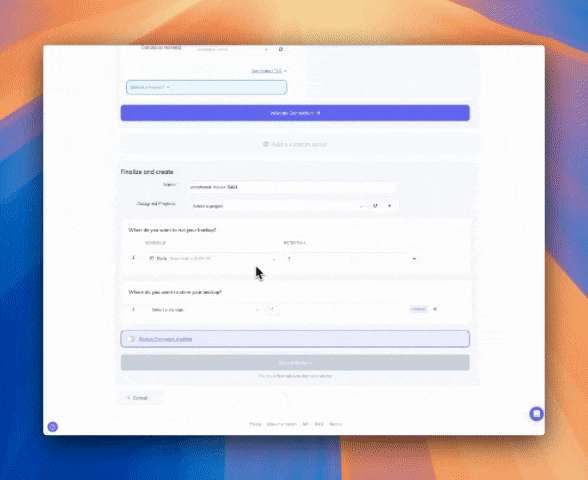
With multi-schedule you can attach up to four schedules to a single backup, each with its own retention. This lets one backup cover several recovery horizons at once instead of duplicating the job.
A typical strategy:
- Daily — keep 7 copies, giving you a week of recent recovery points
- Weekly — keep 4 copies, giving you roughly a month of coverage
- Monthly — keep 12 copies, giving you a year of history for long-term retention and compliance
How to configure multiple schedules
- Open a backup for editing, or start creating a new one
- Configure the backup details as usual
- Scroll to the Finalize and create section
- Find When do you want to run your backup? — this shows your current schedules
- Click the + button next to an existing schedule row to add another
- Pick a schedule type and set the retention for that schedule — the number of runs to keep for it
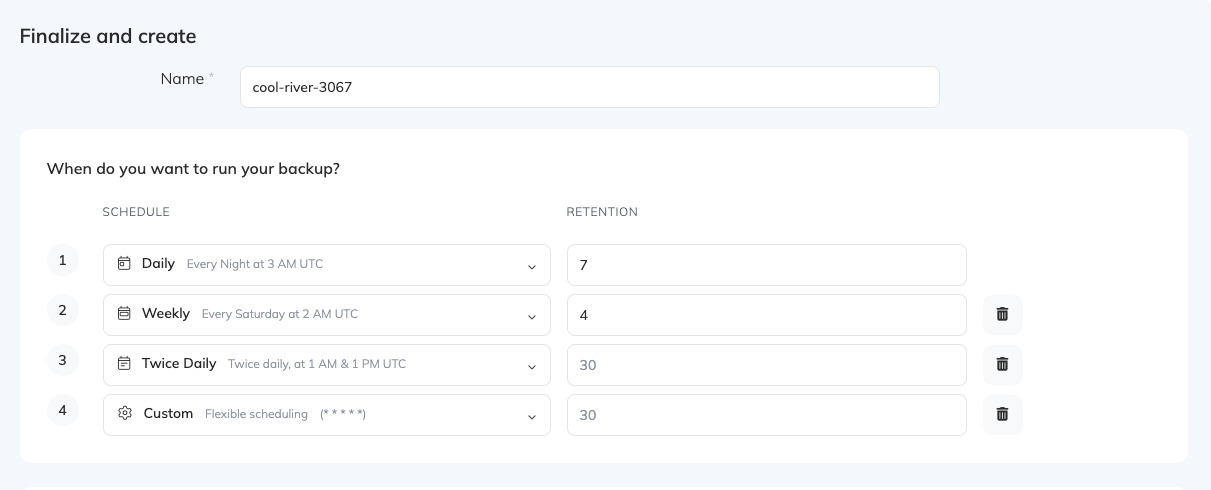
Each schedule rotates independently: a daily schedule set to keep 7 copies does not affect how many monthly copies you retain.
Custom cron schedules
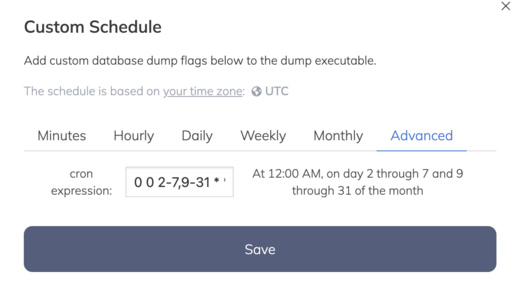
When you select Custom, enter your cron expression in the dialog and click Save. The expression is validated before it is accepted.
Overlapping schedules
When two of a backup's schedules would fire at the same time — a daily and a weekly landing on the same night, say — SimpleBackups never runs the same backup twice concurrently. What happens to the second run depends on the situation:
- Different schedule types, first run succeeds — the finished archive is copied to the second schedule's destination and recorded as that schedule's own run. This keeps each schedule's retention chain intact.
- Different schedule types, first run fails — the second run is skipped. There is nothing to copy.
- Same schedule type, or a single-schedule backup — the second trigger is skipped with "Cannot trigger another backup job as there is already a backup in progress".
The copy only happens if the first run started within a reasonable window for that frequency (10 minutes for hourly, up to 12 hours for weekly and monthly). Outside that window, the second run is skipped instead.
RetentionControl how many backup copies are kept and when older ones are rotated out.Backup automationTrigger backups from your own systems with the API or a Trigger URL.Deleting a schedule
Deleting a schedule removes it from your backup job, but it doesn't delete the backup files that schedule already created. Since retention rotation only applies to schedules that still exist, those existing backups stop rotating automatically once you delete the schedule, and they can build up in your storage over time.
To clean this up, visit your backup's overview page. SimpleBackups shows a banner when it detects backups from a deleted schedule, with an action to purge them. See Retention for more on how this works.