Appearance
AWS EC2
Automate Amazon EC2 server and volume snapshots on a custom schedule.
SimpleBackups connects to your AWS account through IAM credentials to create and manage EC2 snapshots automatically. This guide walks you through creating a least-privilege IAM policy, generating access keys, and linking your AWS account to SimpleBackups.
Create a custom EC2 policy for snapshots
- Connect to your AWS Console
- Head to the IAM/Policies management page
- Click Create policy
- Click JSON and paste the custom policy below:
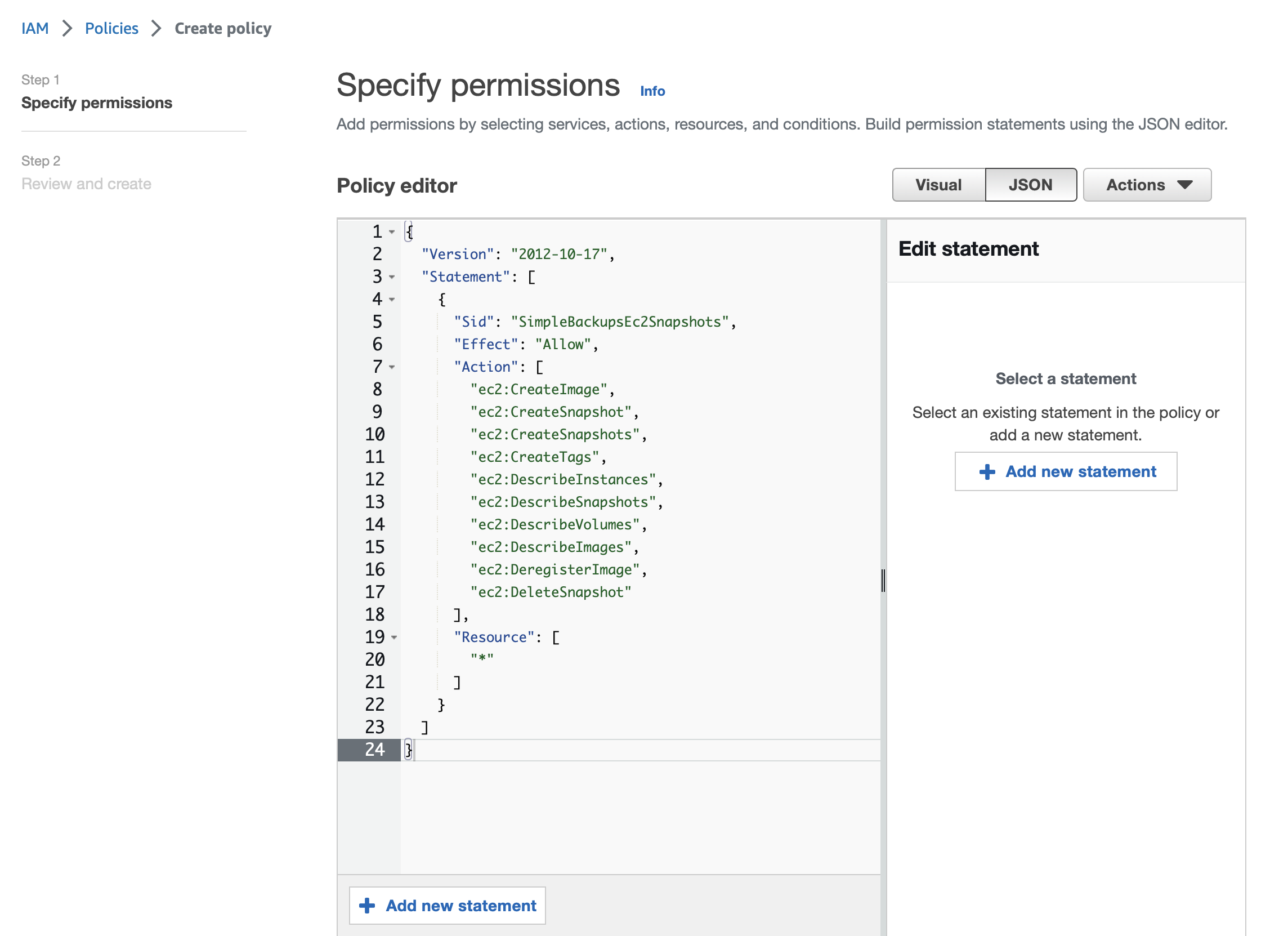
json
{
  "Version": "2012-10-17",
  "Statement": [
    {
      "Sid": "SimpleBackupsEc2Snapshots",
      "Effect": "Allow",
      "Action": [
        "ec2:CreateImage",
        "ec2:CreateSnapshot",
        "ec2:CreateSnapshots",
        "ec2:CreateTags",
        "ec2:DescribeInstances",
        "ec2:DescribeSnapshots",
        "ec2:DescribeVolumes",
        "ec2:DescribeImages",
        "ec2:DeregisterImage",
        "ec2:DeleteSnapshot"
      ],
      "Resource": [
        "*"
      ]
    }
  ]
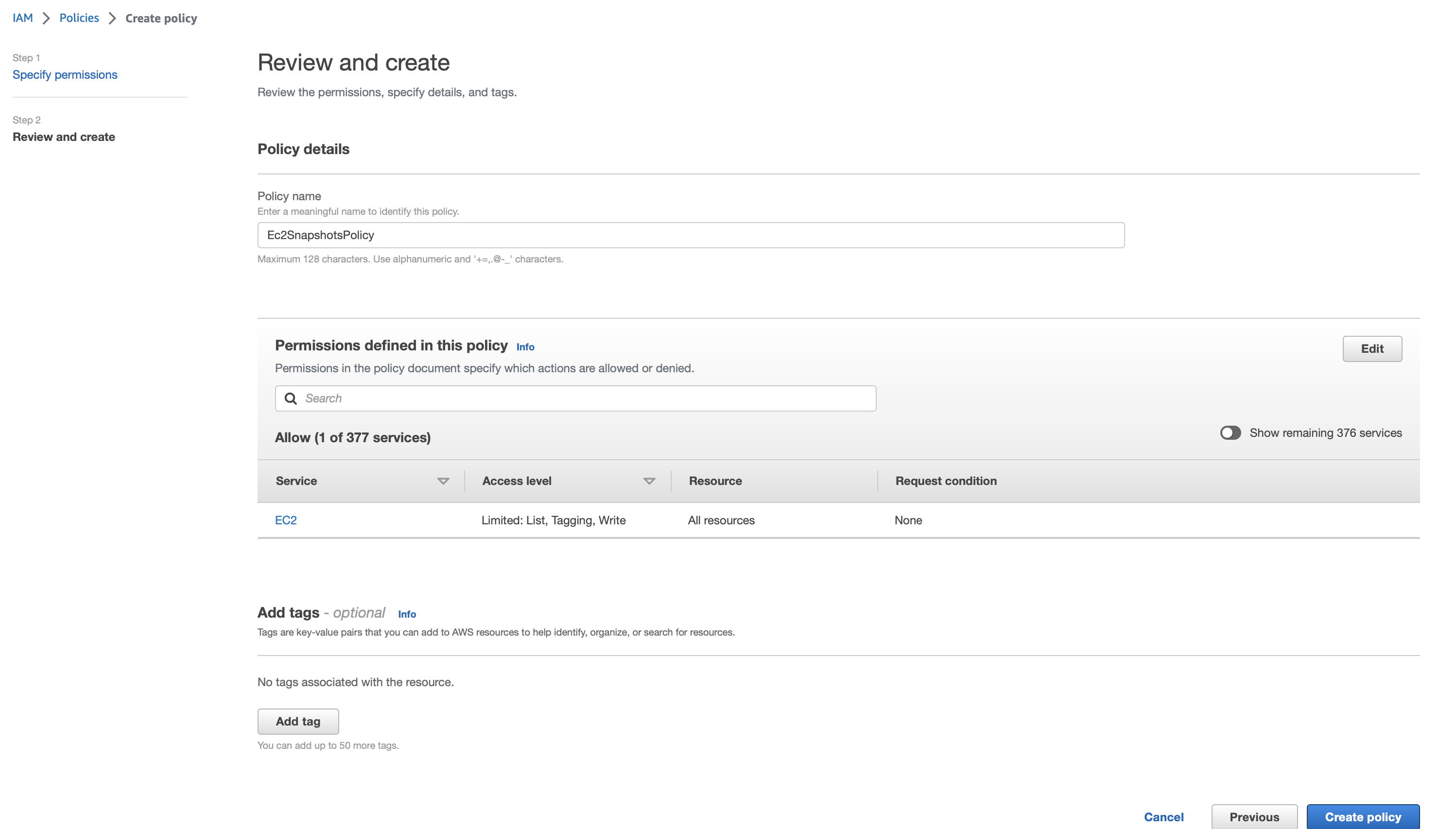
}- Give the policy a name (for example,
Ec2SnapshotsPolicy) and click Create policy
Create an EC2 user for snapshots
- Head to the IAM/Users management page
- Click Add users
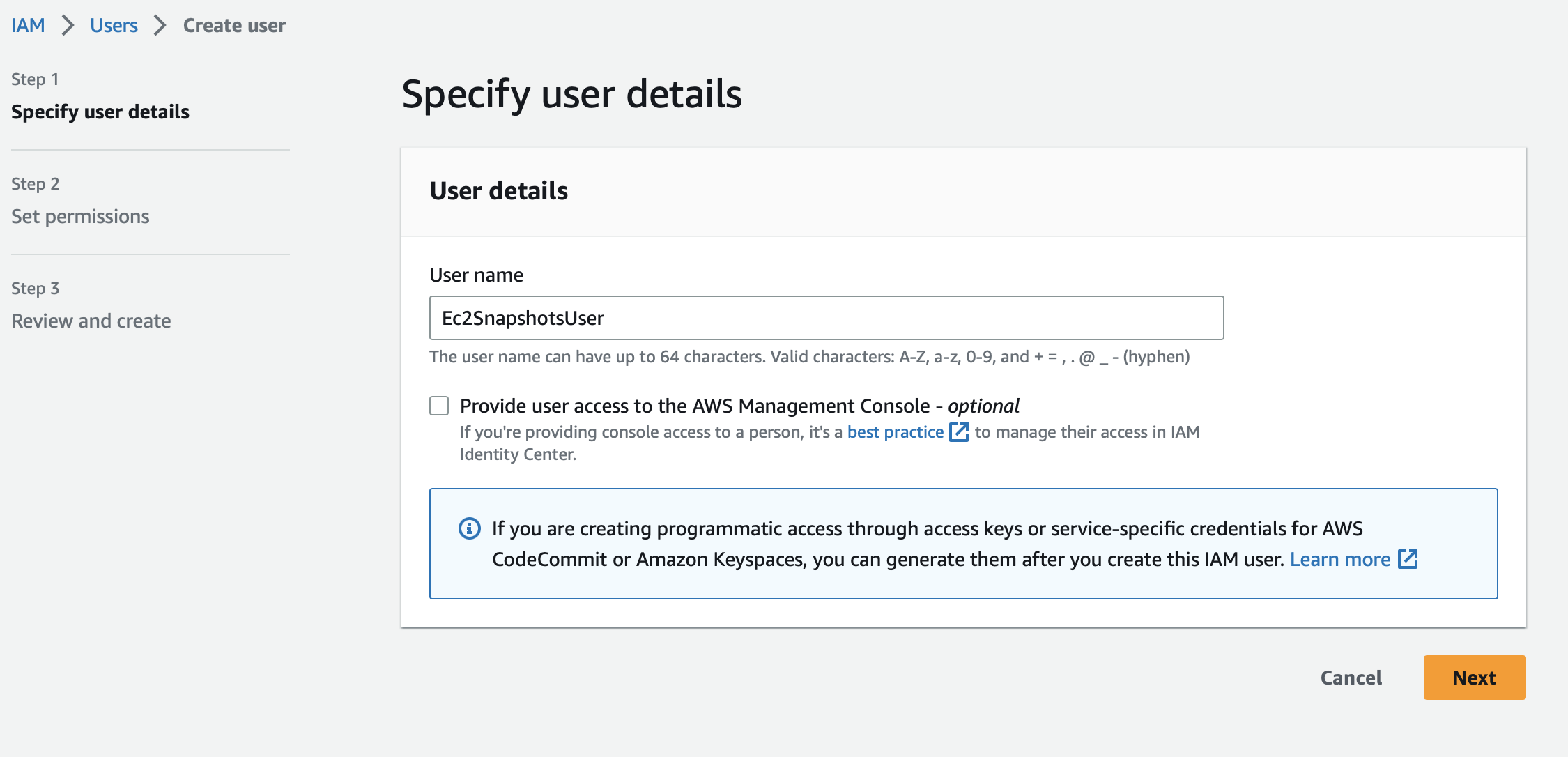
Step 1: Set user access
Define a name for your user, for example Ec2SnapshotsUser.
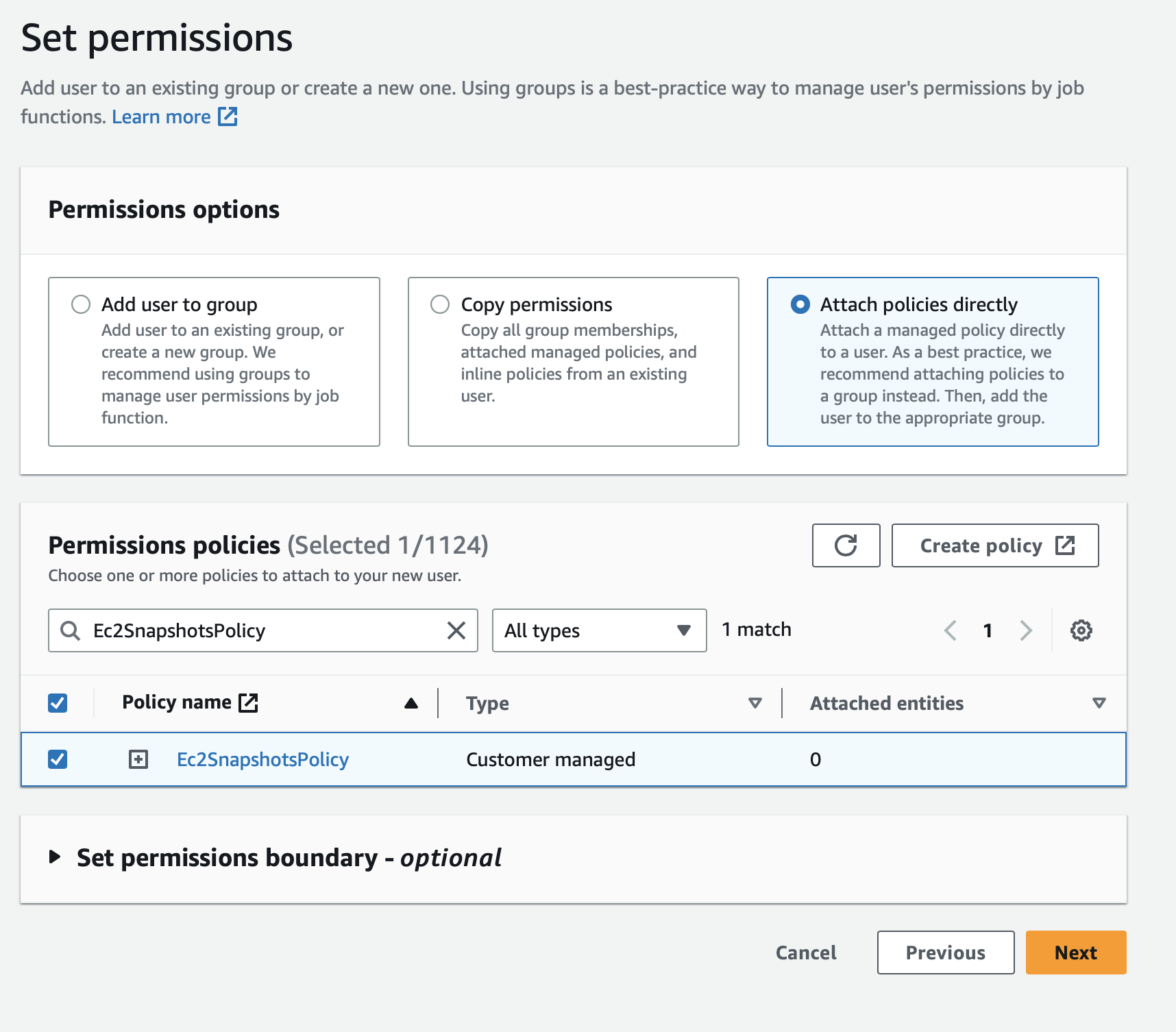
Step 2: Attach policy to user
Select Attach policies directly and choose the Ec2SnapshotsPolicy you created earlier.
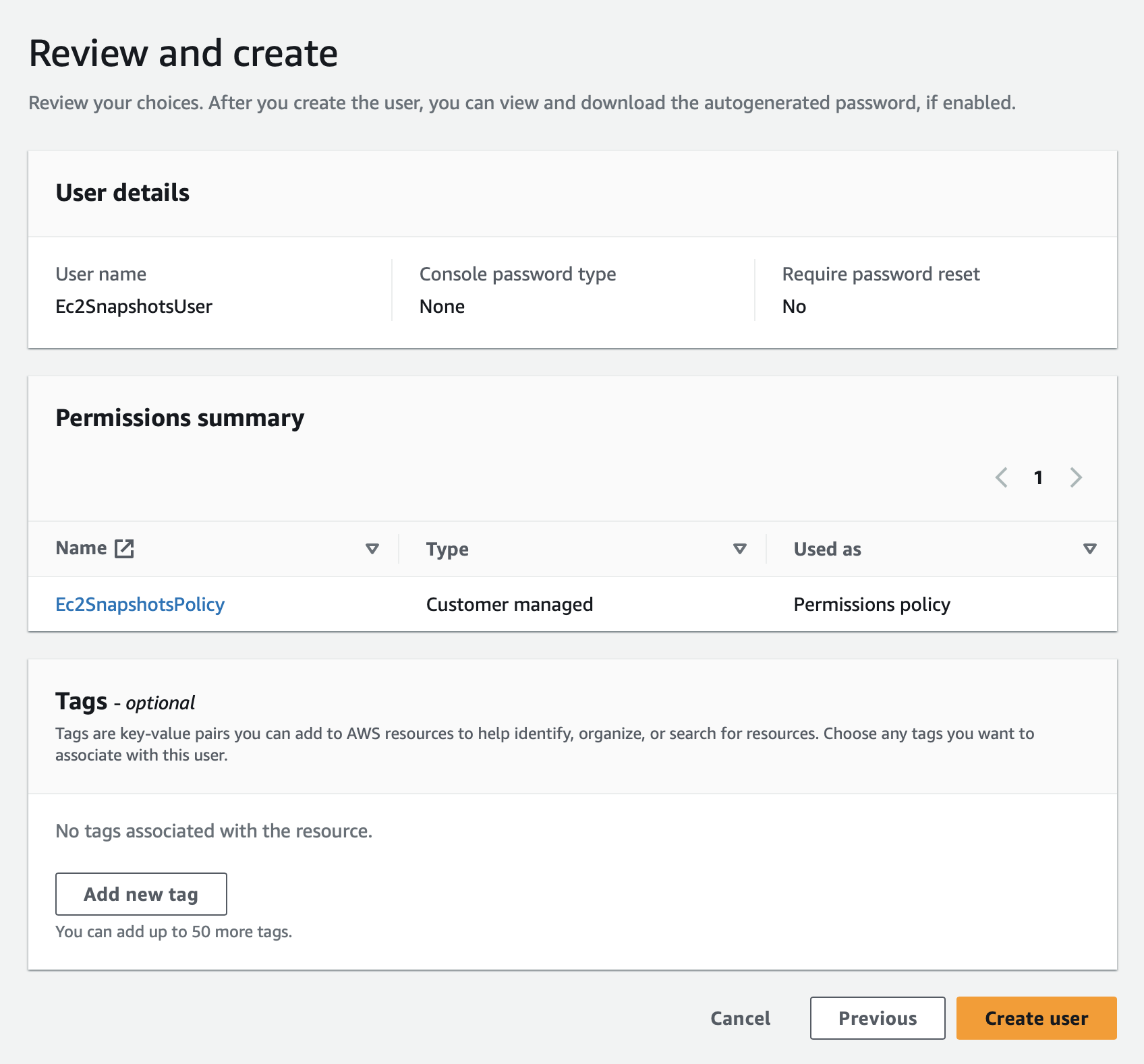
Step 3: Finalize user creation
Review the details and create the user.
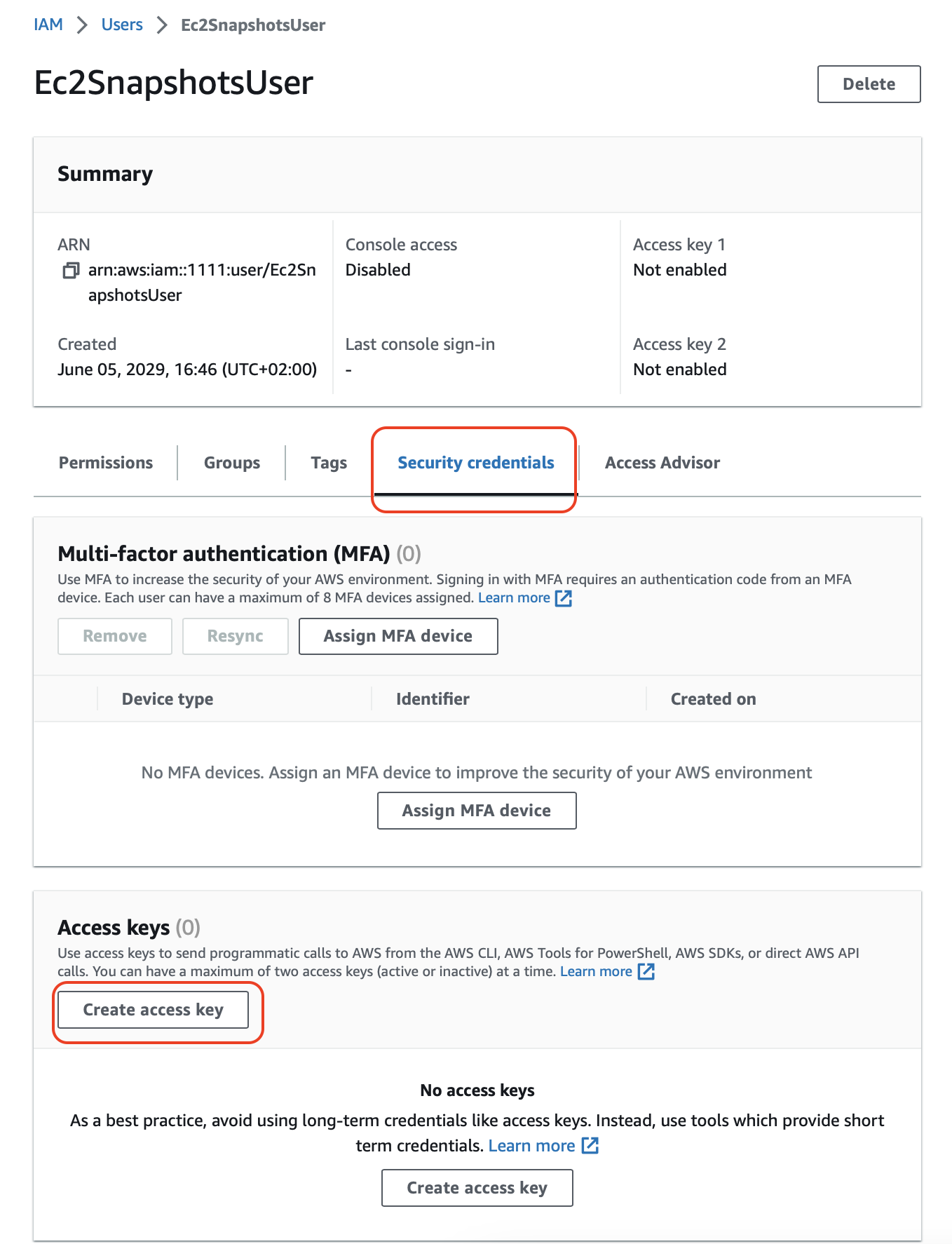
Step 4: Create access credentials
After the user is created, click View user (or search for the user and select it).

Click Security credentials, then Create access key.
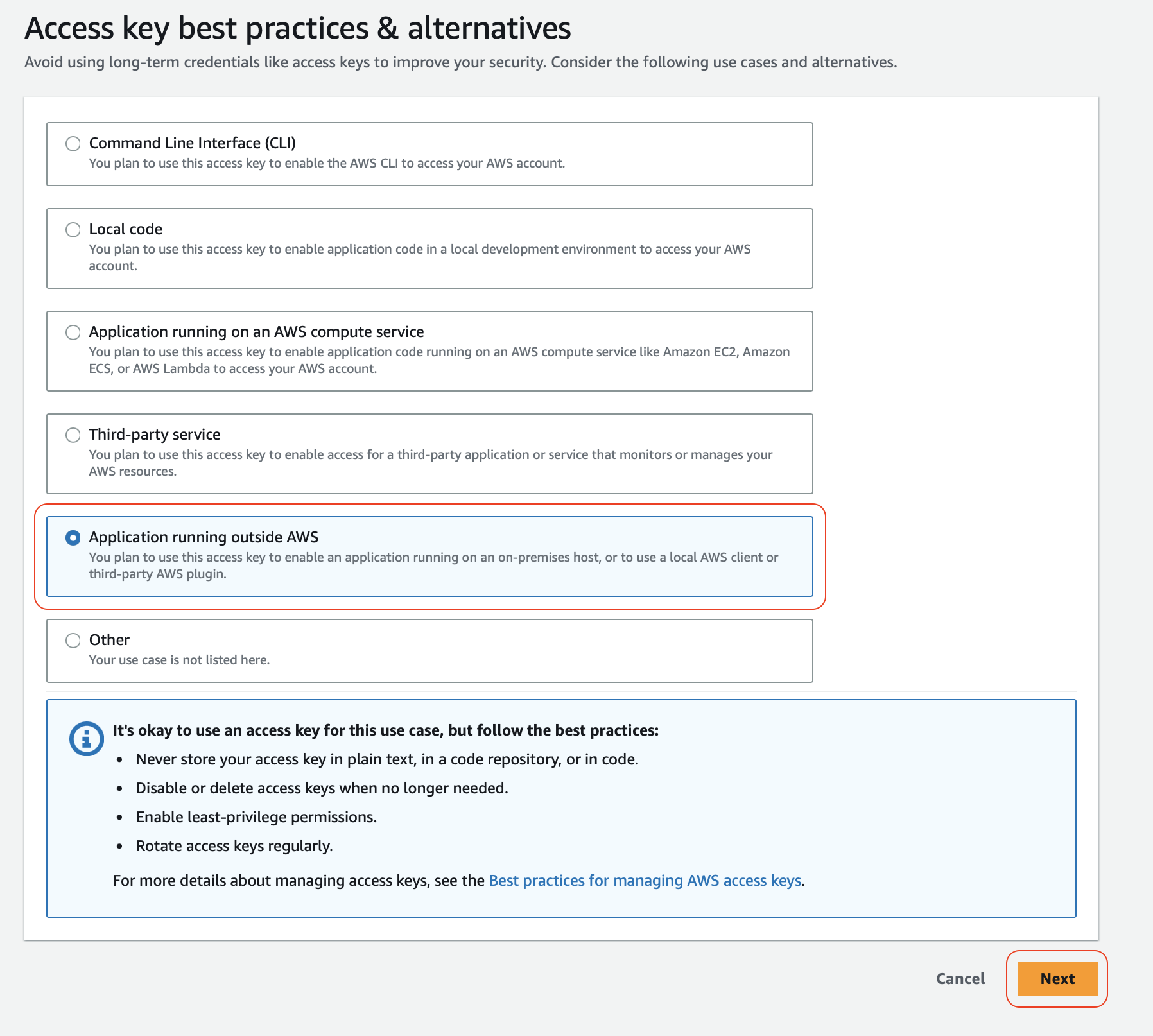
Choose Application running outside AWS, then click Next.
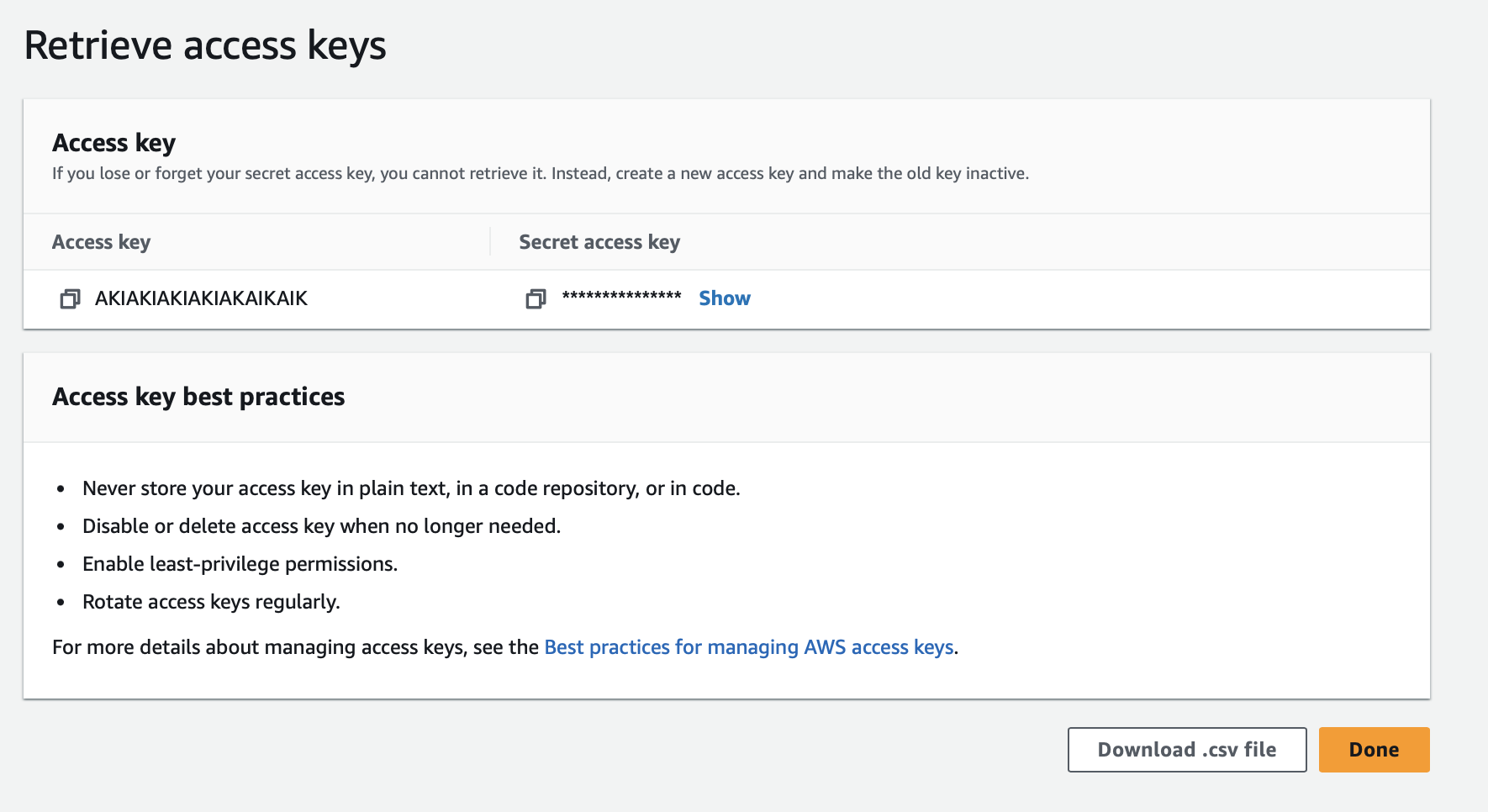
Click Create access key and copy both the access key and secret key.
Connect your AWS account to SimpleBackups
- Log in to your SimpleBackups account
- Head to the Snapshots/Create page
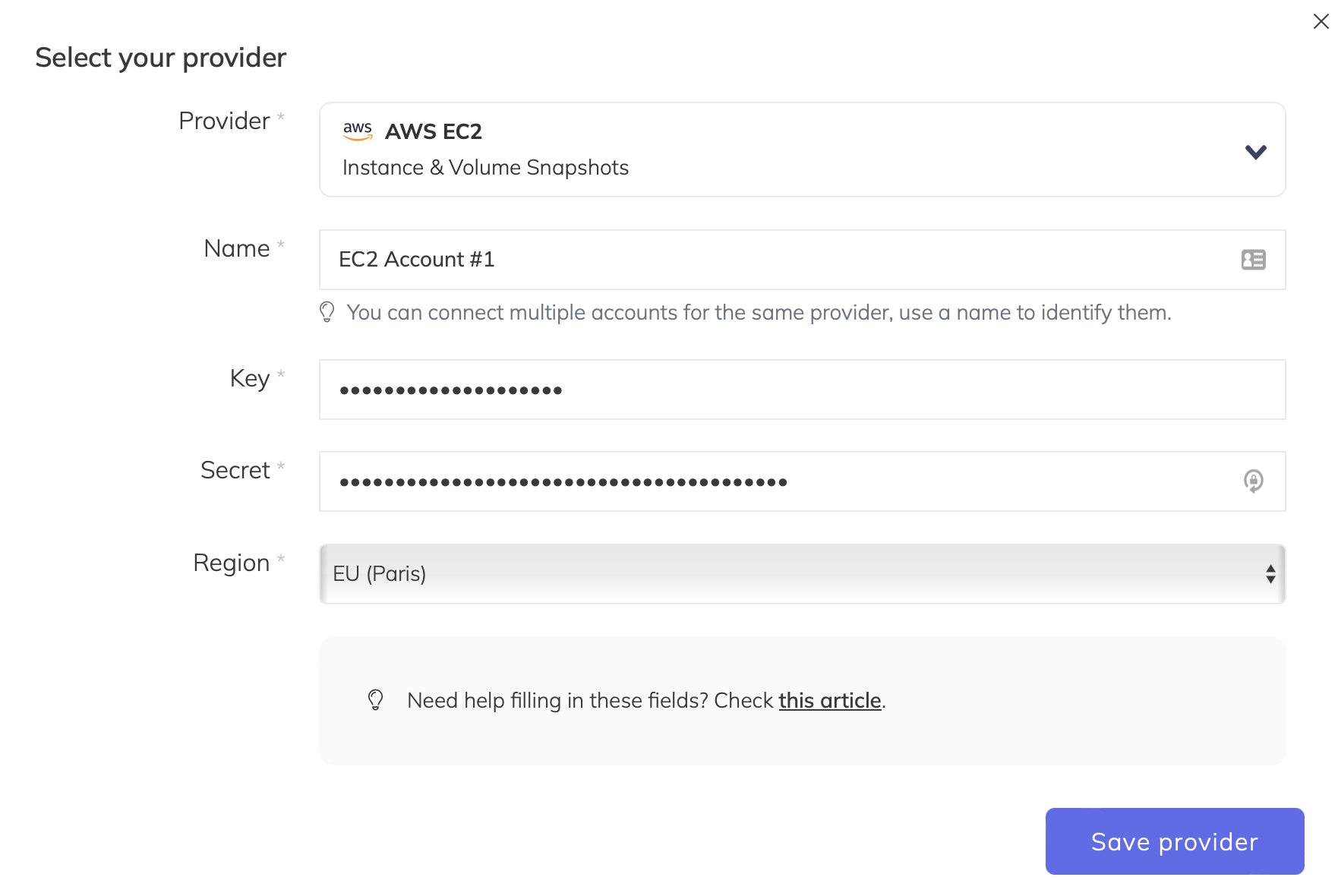
- Click Connect a new provider

Fill in the provider form:
- Provider: Select AWS EC2
- Name: An internal name for this connection
- Access Key and Secret: The credentials generated in the previous step
- Region: The AWS region where your resources are located. If you use multiple regions, repeat these steps for each region
Click Save.