
Appearance
AWS S3
Steps to connect your S3 storage to SimpleBackups
How to connect your AWS S3 to SimpleBackups
1. Create your AWS S3 Bucket
Skip this step if you already have an AWS S3 bucket.
- Sign in to your AWS Management Console
- Go to your AWS S3 bucket list and create a new bucket
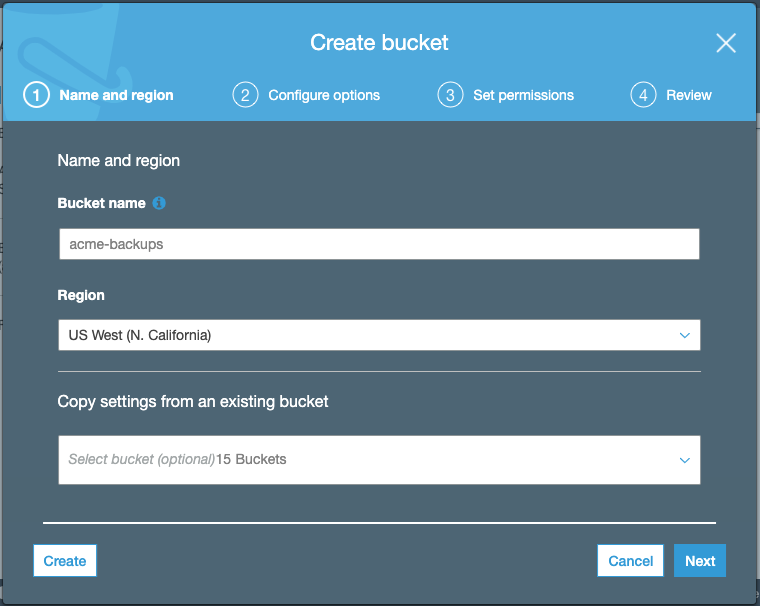
Keep default options for (2) Configure options, (3) Set Permission, review and create your bucket.
Information You'll Need In Step 3
- Your "Bucket" name, in this case "myacme-backups"
- Your "Bucket" Region, in this case "US West - N. California"

2. Create your AWS credentials
In order to give access to your newly created bucket, you'll need to provide credentials to SimpleBackups.
Creating an access key and a secret key for your Amazon S3 account requires some little work. SimpleBackups needs S3 keys that allow both, read and write permissions to be able to store and retrieve backups under your S3 account.
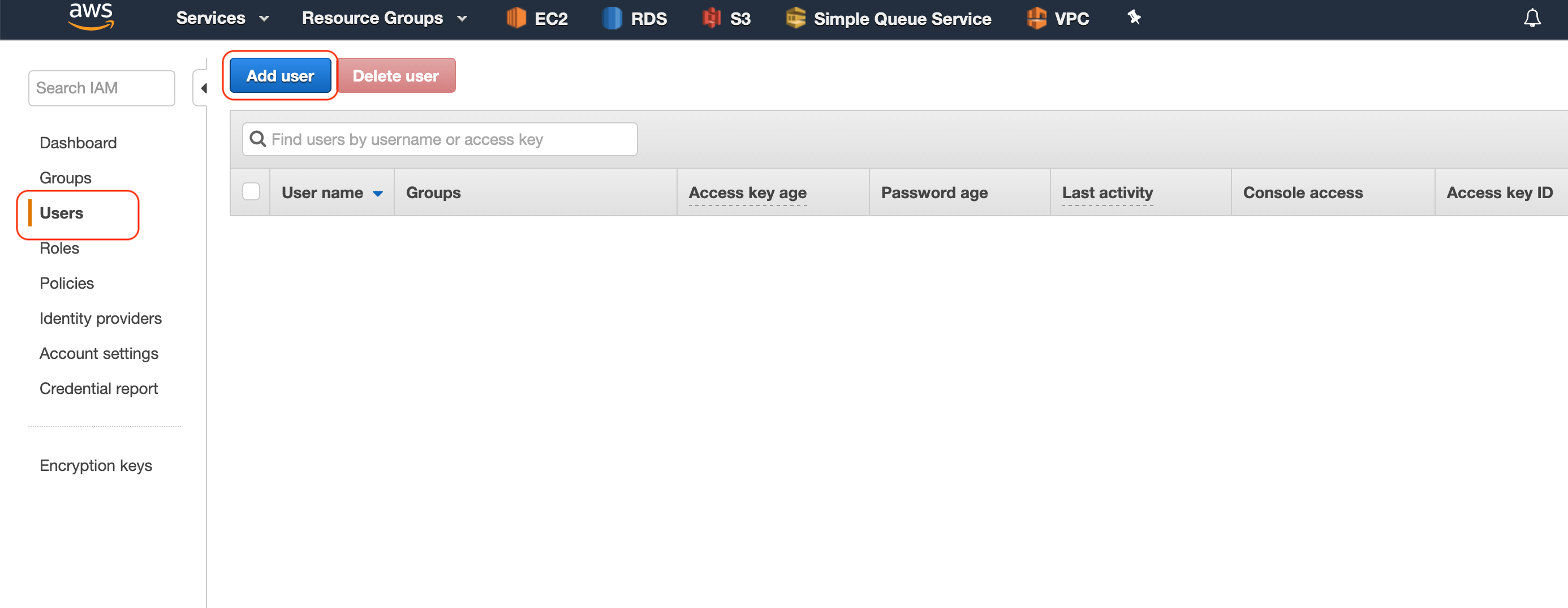
Step 2. Click Users from the left side bar then click Add user
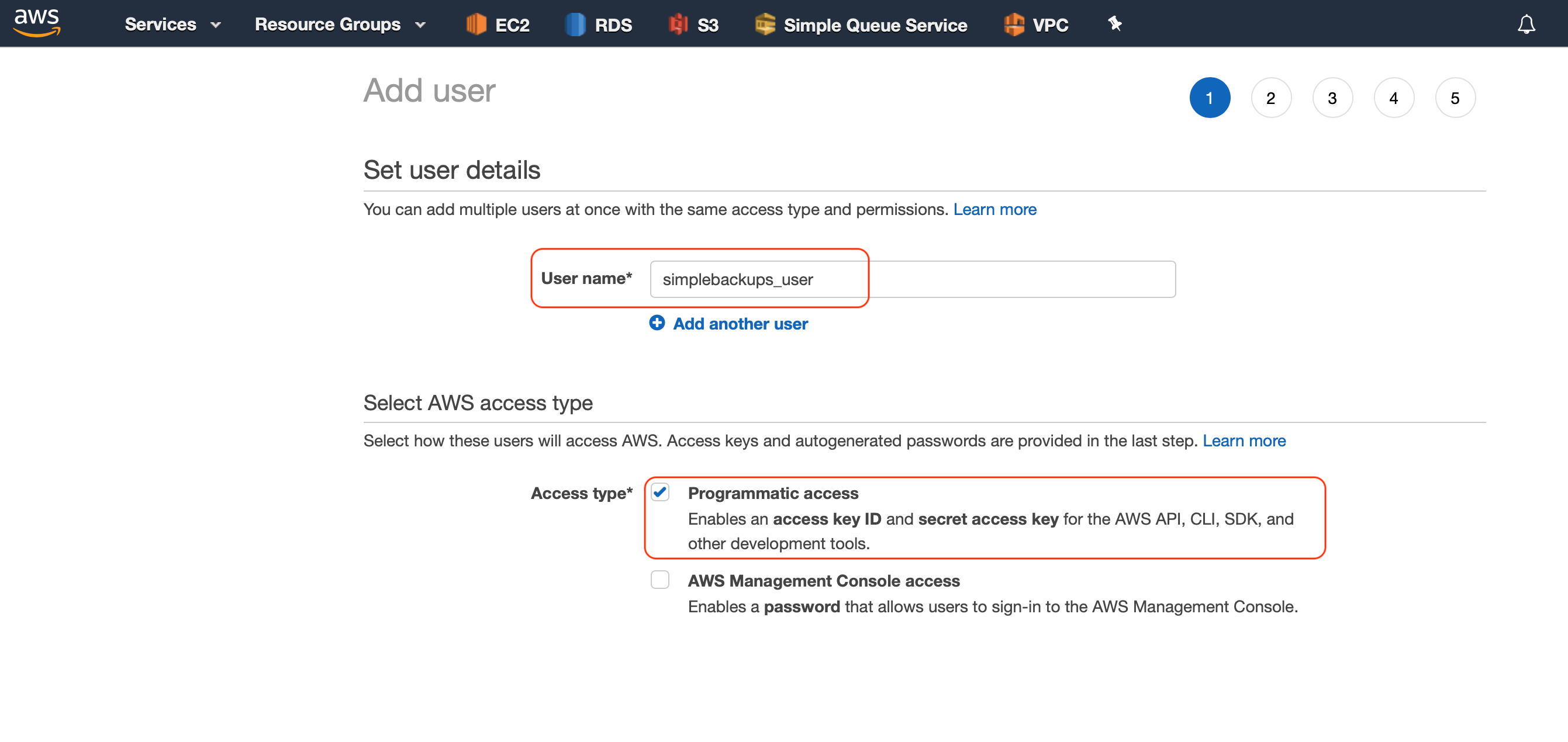
Step 3. Type in a user name and choose Programmatic access as shown then proceed
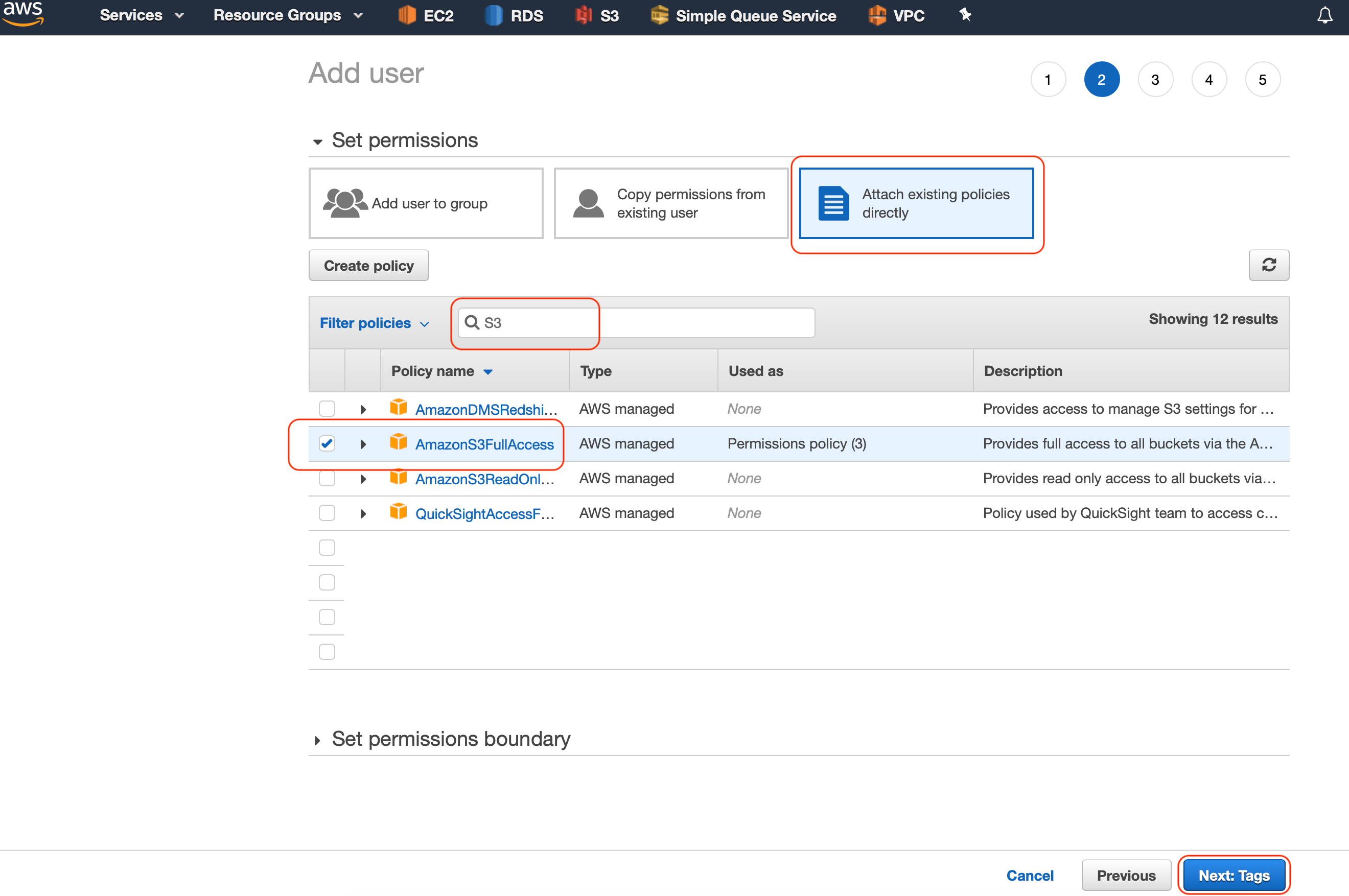
Step 4. Click Attach existing policies directly then filter by S3 as shown and choose AmazonS3FullAccess (this is discouraged, and not recommended actually, so please check at the end of this article for the minimum permissions needed).
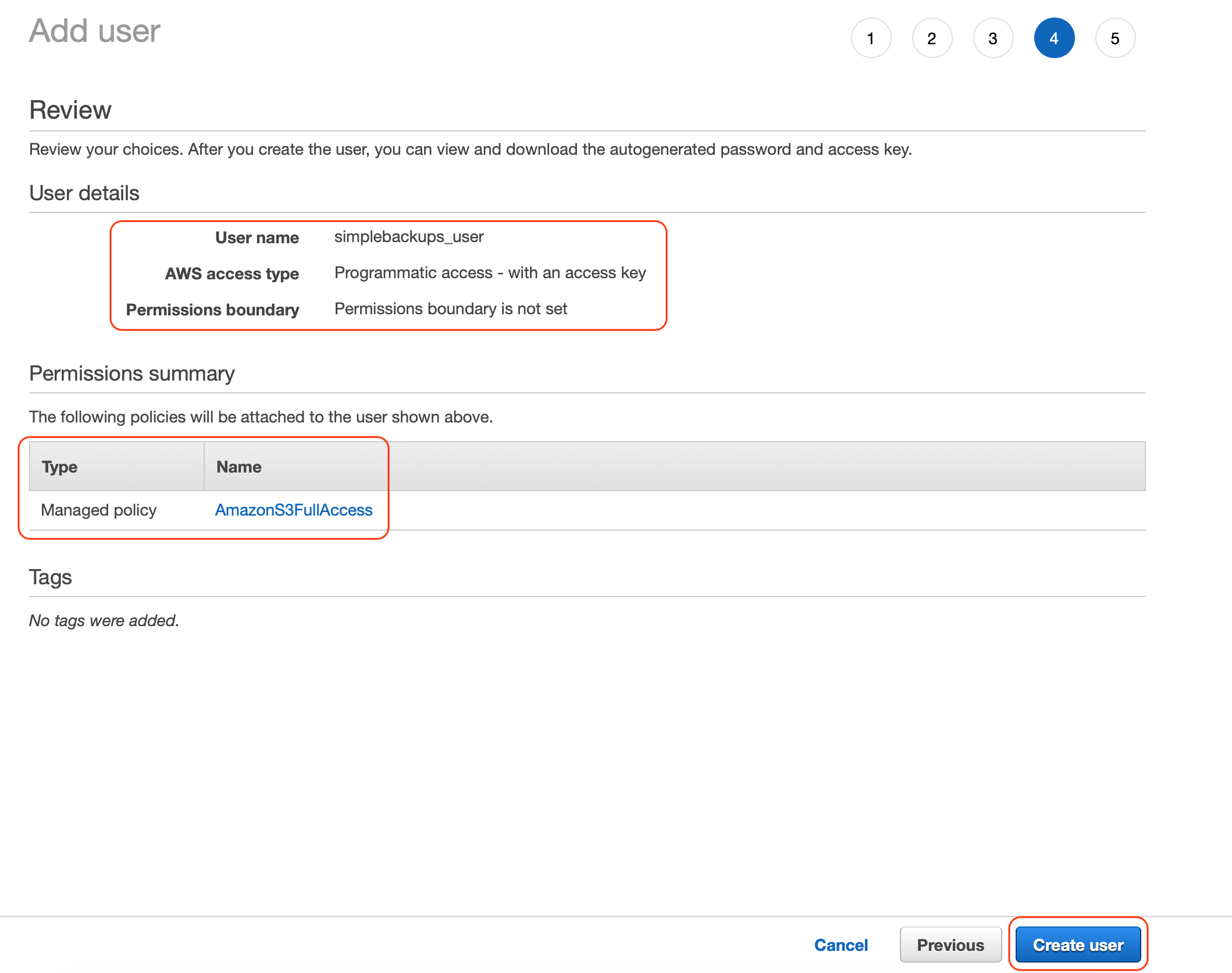
Step 5. Confirm you can see the highlighted policy and click Create user
Step 6. Finally you will see the newly created Access Key and Secret Key that allow full read and write to S3. Please use these two values when adding your storage to SimpleBackups
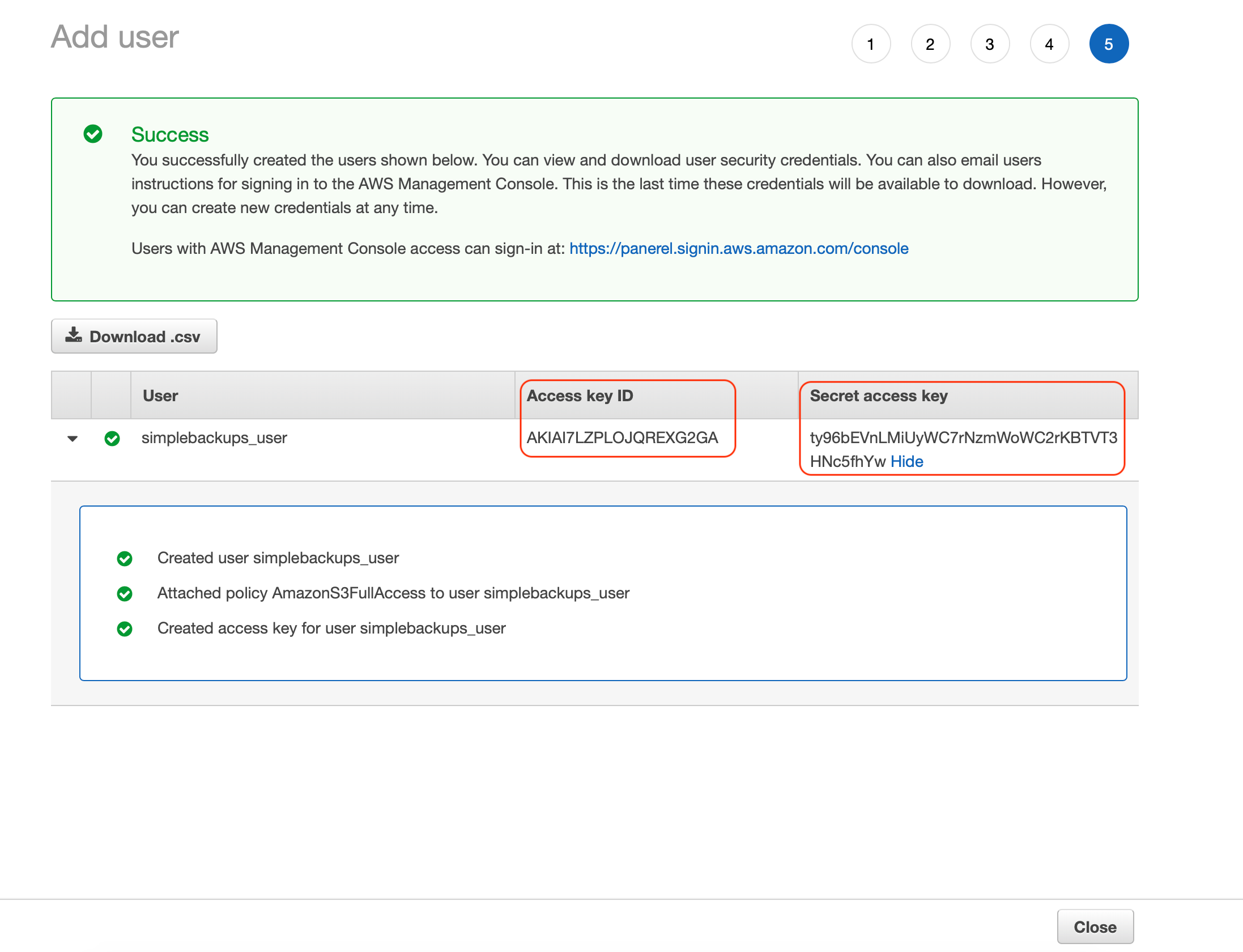
Information You'll Need In Step 3
- Access Key
- Secret
3. Connect your S3 bucket to SimpleBackups
- Log into SimpleBackups and head to the connect your storage page
- In the storage provider list select "Amazon S3 Storage", and fill in the form with your AWS credentials and newly created bucket information
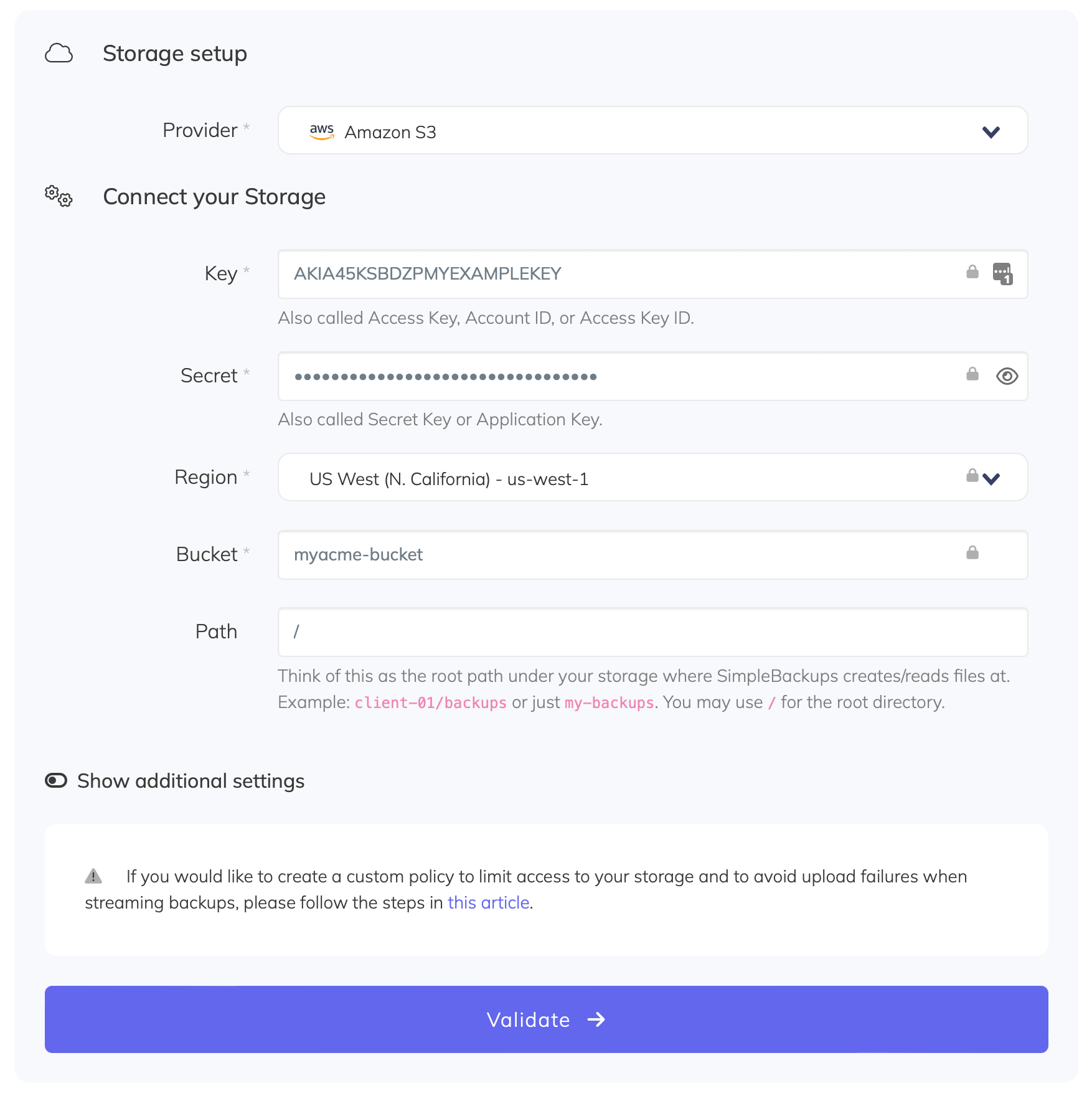
You'll have to input :
- Key: Access Key described in (step 2)
- Secret: Secret described in (step 2)
- Region: Bucket Region described in (step 1)
- Bucket: Bucket name described in (step 1)
- Give your storage a name (the bucket name is usually a good pick, but you can be creative) and click on "Save new storage".
Limit S3 Access / Scope via IAM policy
To create an S3 storage user for SimpleBackups, the following minimum permissions are required to be available on the backup bucket of your choice:
json
{
    "Version": "2012-10-17",
    "Statement": [
        {
            "Effect": "Allow",
            "Action": [
                "s3:ListBucket",
                "s3:DeleteObject",
                "s3:GetObject",
                "s3:PutObject",
                "s3:AbortMultipartUpload",
                "s3:ListMultipartUploadParts",
                "s3:ListBucketMultipartUploads"
            ],
            "Resource": [
                "arn:aws:s3:::MY_BACKUPS_BUCKET/*",
                "arn:aws:s3:::MY_BACKUPS_BUCKET"
            ]
        }
    ]
}
The policy above can be used to only allow SimpleBackups to work on the backups bucket of your choice.
Don't forget to change MY_BACKUPS_BUCKET to the actual buckets you create for backups.
Note #1
The following permissions are needed for cleaning up uncompleted uploads and save storage space.
- s3:AbortMultipartUpload
- s3:ListMultipartUploadParts
- s3:ListBucketMultipartUploads
Note #2
You should also add _s3:CopyObject_ permission to be able to use server-side copy if needed.
Note #3
SimpleBackups never sends an ACL header when writing to your bucket, so s3:PutObjectAcl is not required. This works with buckets that have ACLs disabled (the AWS default, "Bucket owner enforced") as well as with ACLs enabled.
Note #4
If you mark the storage as Object Locked in its additional settings and keep the backup retention at 0 (unlimited), SimpleBackups never deletes objects and s3:DeleteObject can be left out of the policy. See Connecting read-only storage bucket.