

Someone deletes a page. A workspace turns up empty on a Monday morning. You go looking for the undo button, and what you find next depends entirely on one thing: timing. Notion has real recovery tools, but each one has a clock attached, and once the clock runs out, the tools stop working. This article walks through what those tools cover, how to use them, and what to do when the window has already closed.
We run Notion backups every day for thousands of workspaces. The pattern we see is consistent: teams learn where Notion's recovery ends at the exact moment they need it to keep going. The point of this article is to move that discovery to now, when it costs nothing.
The direct answer
Restoring a deleted Notion page or workspace depends on timing.
- Deleted a page? It sits in Notion's Trash. Find Trash in the left sidebar, locate the page, and click Restore.
- Page still exists but the content changed? Use Page History: open the page, click the ··· menu, choose Page History, pick a version, and restore it. How far back you can go depends on your plan.
- Lost the entire workspace, or lost access to it? This is the case native tools cannot fix. If the workspace is wiped, or the account is compromised or suspended, Trash and Page History go with it. The only reliable way back is a proper off-site backup you took beforehand, one you can restore from independently of your Notion account.
Beyond those windows, recovery depends on copies you control. SimpleBackups automates off-site Notion workspace exports on a schedule you set, with retention you define, storage you own, and monitoring that tells you when a backup fails.
What Notion's built-in recovery actually covers
Notion gives you two real recovery tools, plus a hard limit past them.
Trash: for deleted pages
When you delete a page, database, or block, it goes to Trash rather than disappearing. From Trash you can restore it, and child pages come back with their parent.
Trash retention is not tiered by plan, which surprises most teams. Notion keeps deleted pages for 30 days on every plan, Free through Business. Only Enterprise workspace owners can change the window:
| Plan | Trash retention |
|---|---|
| Free | 30 days |
| Plus | 30 days |
| Business | 30 days |
| Enterprise | 30 days, customizable |
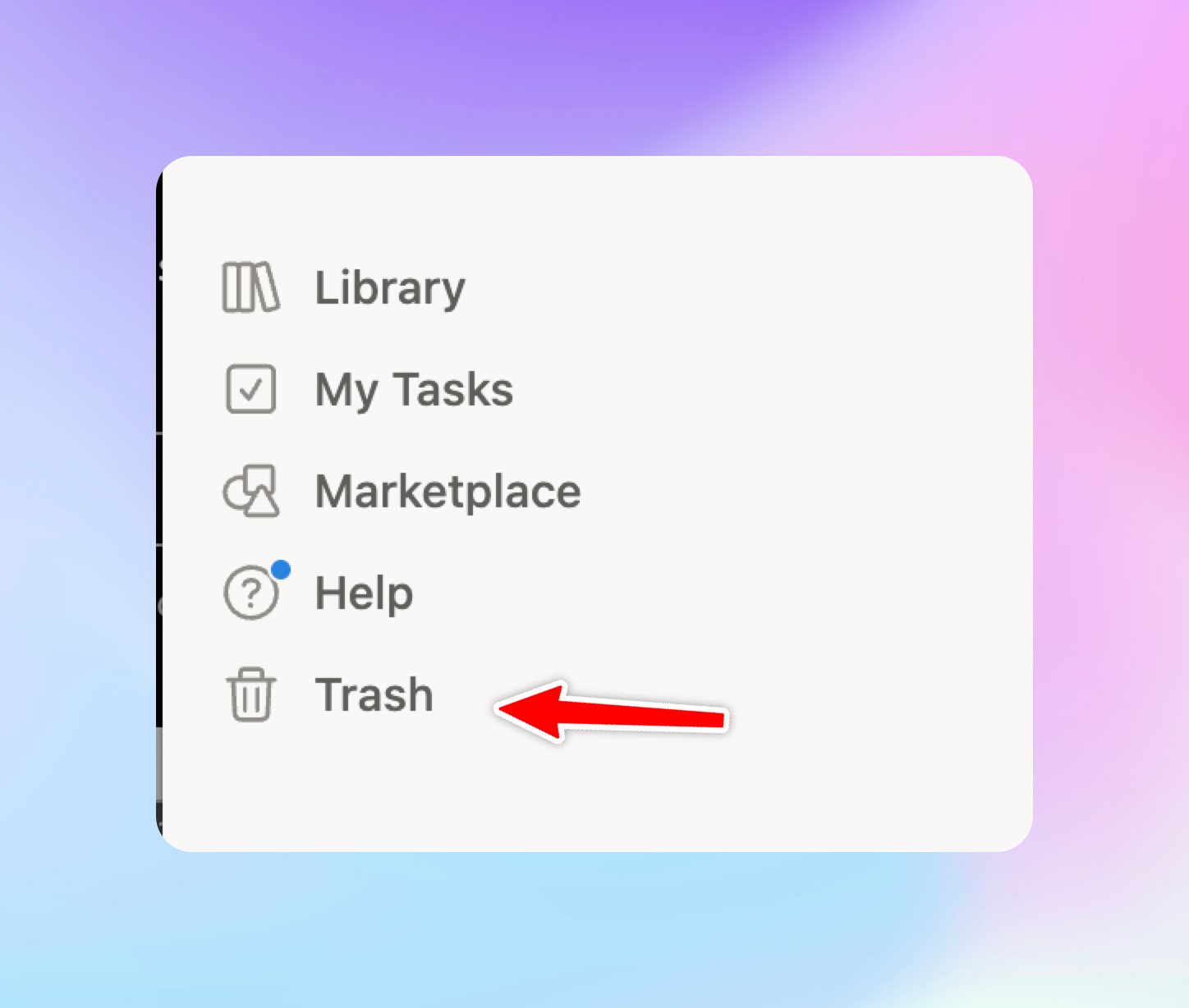
Two details matter. Trash operates at the page level, so a bulk-cleared workspace section may not surface as individual entries. And Trash is workspace-specific: if the account itself is compromised and the workspace is deleted, Trash goes with it.
Notion version history (Page History): for changed content
Notion's version history is called Page History in the product, which is why searching for "Notion version history" in the help centre can come up short. Same feature, two names, and Notion documents both under Delete & restore content rather than on a page of their own.
Page History captures earlier versions of a page that still exists. It is the fix for "someone overwrote this document" or "I edited this and made it worse." Open the page, click ···, choose Page History, select a version, and restore. Retention again varies by plan:
| Plan | Page History |
|---|---|
| Free | 7 days |
| Plus | 30 days |
| Business | 90 days |
| Enterprise | Unlimited |
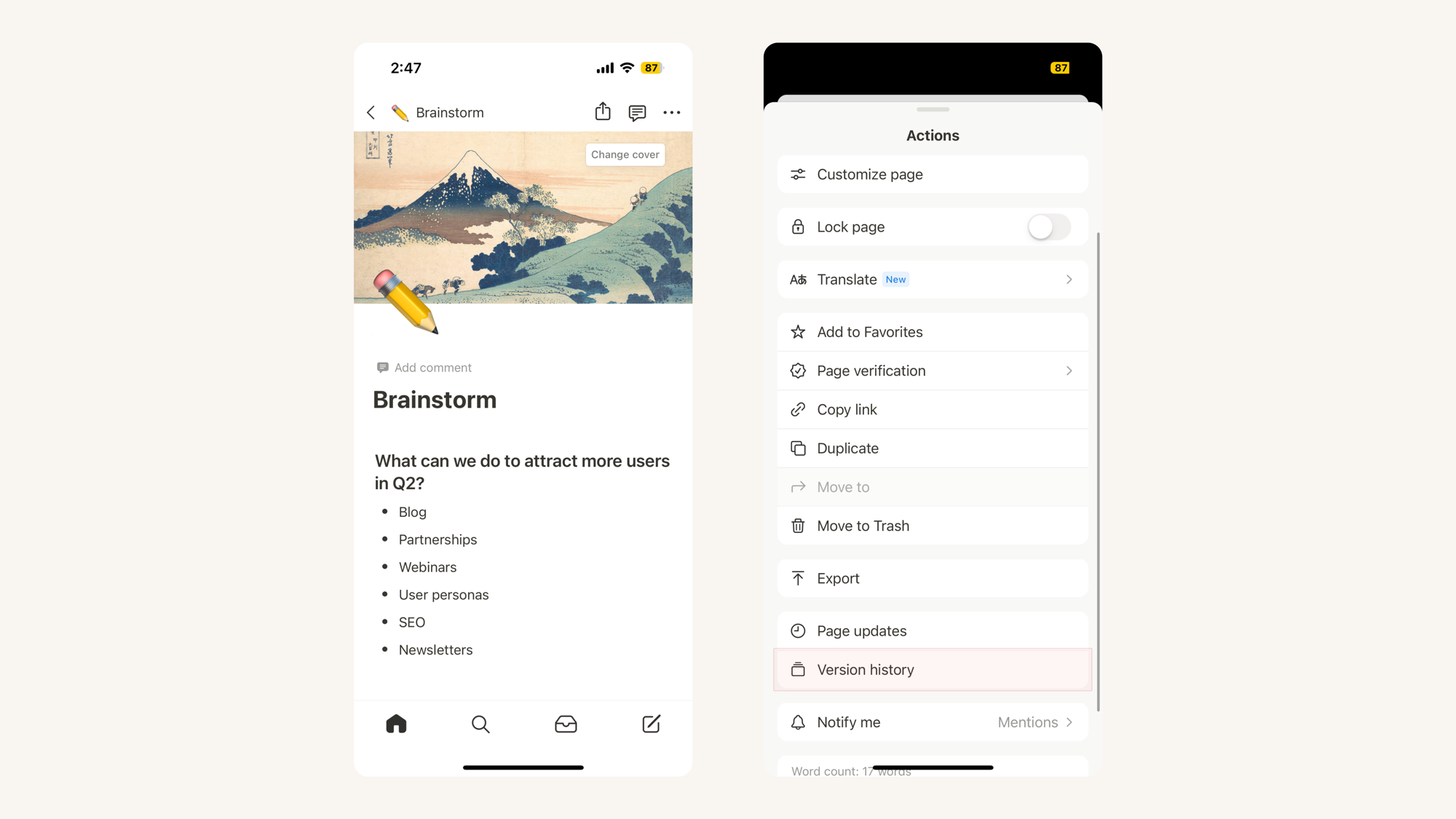
Page History is per-page. It does not help if the page itself was deleted (that is Trash), if you need to recover across many pages at once, or if you need to restore into a different workspace.
Where native recovery ends
Trash and Page History are the only real self-service tools. Everything past them, expired retention windows, a bulk-wiped workspace, or a lost account, has no recovery button. You can try reaching out to Notion support, but there is no SLA, no guarantee, and no dedicated team standing by to restore a lost workspace. Once the data is gone past its window, native recovery is over.
What both tools share is the important part: they are Notion-controlled limits you cannot extend. Off-site backups you control are a separate layer entirely.
Who needs more than Notion's native recovery
For solo users and small teams who catch deletions quickly and have no compliance obligations, native recovery is probably enough. Say that plainly, because most content in this space skips straight to selling you something.
You need more than native recovery if:
- Notion holds business-critical production data you cannot afford to lose, and you need a way to get it back no matter the cause: human error, an outage or issue on Notion's end, an account compromise, or a breach. If losing this data would hurt the business, you need a recovery path that does not depend on Notion.
- Multiple people have write or delete access to workspaces your team depends on
- Notion holds production documentation, customer data, internal runbooks, or intellectual property
- You are subject to ISO 27001, GDPR, SOC 2, or HIPAA and need documented backup procedures with audit trails
- You are on Free or Plus, where 7 to 30 days of history is too narrow for how your team actually works
- You have hit a provider-level problem: account suspension, credential loss, or a migration away from Notion
SimpleBackups fits technical founders, CTOs, and DevOps teams running workspaces where Notion holds operational data, not just notes.
5 things to evaluate before choosing a Notion backup approach
- A retention window you control. Notion's windows are fixed by plan. Check whether that window matches your real exposure, not your ideal one.
- Storage independence. Are copies stored somewhere other than your Notion account? A same-platform copy cannot help you if the account itself is inaccessible.
- Monitoring and alerting. Do you know when a backup job fails? Silent failures are how teams discover the gap at restore time, not setup time.
- Point-in-time restore. Can you restore to a specific snapshot, or only to the latest version? Point-in-time matters for slow disasters that degrade over days.
- Compliance evidence. Under ISO 27001, GDPR, SOC 2, or HIPAA, can the tool produce retention policies, encryption-at-rest evidence, and audit-ready logs?
How SimpleBackups covers the gap
SimpleBackups covers the space between Notion's native recovery and what teams actually need when recovery matters.
A real backup, not just an export. Notion's manual export gives you a folder of Markdown and HTML files. It is limited, it struggles on large workspaces, and there is no way to load it back in: you get files, not a restore. SimpleBackups captures the raw Notion data itself. Because the backup holds that underlying data, it can be restored through a proprietary restore mechanism straight back into a live Notion workspace, 1:1 with the original. This is the gap in most Notion backup tools: they let you export your data in some format and stop there, leaving the actual restore to you. SimpleBackups puts the data back into Notion, into your existing workspace or a fresh one, so you end up where you started instead of with a pile of files to rebuild by hand.
Off-site storage you own. Backup data flows from Notion directly to your chosen destination: Backblaze B2, AWS S3, Wasabi, Leviia, or any S3-compatible target. SimpleBackups never sees or stores it, with AES-256 end-to-end encryption using your own private key (BYOK).
Retention on your terms. Set the policy to match your requirements, not a fixed default. Rolling retention, point-in-time copies, and archival windows you define.
Monitoring that tells you when something breaks. The pattern is consistent: teams with native-only setups find out what is missing at restore time. SimpleBackups monitors every job and alerts on failure.
Compliance-ready. ISO 27001 certified since 2023, audited annually. Audit exports covering retention, encryption and restore history, which is what ISO 27001 and SOC 2 reviewers ask for. Belgium-based, EU/GDPR jurisdiction with a customer-chosen storage region.
One control plane. If your stack includes databases, servers, GitHub, and Notion, you do not need separate tools. SimpleBackups covers all of them.
Native recovery vs. automated off-site backups: an honest comparison
| Native Notion | SimpleBackups | |
|---|---|---|
| Trash retention | 30 days, most plans | Configurable |
| Page History | 7 to 90 days by plan | Scheduled exports |
| Storage location | Notion's servers | Your chosen destination |
| Monitoring | None | Alerting on failure |
| Compliance evidence | None | Audit exports available |
| Account dependency | Yes | No, copies stored independently |
Native recovery is zero-effort for the scenarios it covers, and it works within its windows. It falls short for anything outside them: documented retention for auditors, off-site copies independent of the Notion account, or recovery when the account itself is inaccessible.
Automated off-site backups are not the answer for every Notion user. If your workspace is notes and light project tracking, native tools are probably fine. If it is operational infrastructure, customer data, or anything that touches a compliance framework, the trade-off shifts. Draw the line clearly for your context.
A note on API limits
Every Notion backup tool works within the same API constraints. Custom database views (Kanban, Gallery, Timeline, Calendar), page width settings, and some granular permission settings are not exposed to any tool. The database data is captured; the view configuration is not. Any tool that does not mention this is not doing something technically better. It is just not telling you what you will find at restore time.
Why teams trust SimpleBackups for Notion
- ISO 27001 certified since 2023, audited annually. Backup, encryption, and retention practices are independently reviewed, not self-declared.
- AES-256 end-to-end encryption with a customer-owned private key (BYOK). Backup data flows server-to-storage; SimpleBackups never sees or stores it.
- Protecting data for 3,200+ teams, from indie SaaS to Fortune 500. From single-workspace setups to multi-environment production stacks.
- One-command restore from the CLI, REST API, and native MCP server. Restore paths are documented and testable before you need them, not improvised under pressure.
- Belgium-based, EU/GDPR jurisdiction with a customer-chosen storage region, including EU-only destinations (Leviia, Storadera, OVH) for data residency requirements.
Set up automated backups before you need to restore
If Notion holds anything you cannot afford to lose (team documentation, customer-facing content, operational runbooks) then the Trash window is not a backup policy. Our automated Notion backup service handles off-site workspace exports with monitoring, AES-256 encryption, and retention you set, on one control plane alongside your databases and servers. Set it up once.
For a deeper look at where native tools help and where they stop, read our full guide on how to back up a Notion workspace.
Keep learning
- The three types of data backup, and which one you need: why Trash and Page History are recovery features rather than backups, in the general case.
- What the 3-2-1 backup strategy actually asks of you: the rule that explains why a copy living inside the same account it protects does not count.
- How to back up a Linear workspace: Notion is rarely the only place a team keeps something it cannot rebuild.
FAQ
How long does Notion keep deleted pages in the Trash?
30 days, on every plan from Free through Business. Trash retention is not tiered the way version history is, and only Enterprise workspace owners can change the window. After 30 days, pages are permanently removed and no longer recoverable through self-service tools.
What is the difference between Notion Trash and Page History?
Trash catches deleted pages, whole pages that were removed. Page History captures earlier versions of a page that still exists, useful when content was changed or overwritten. If the whole page is gone, check Trash. If the page is there but the content is wrong, check Page History.
What happens if I accidentally delete an entire Notion workspace?
Workspace deletion is not recoverable through self-service. Contact Notion Support immediately at team@makenotion.com. Notion keeps internal backups and may be able to restore, but there is no documented SLA. Do not create a new account with the same email before contacting support.
Can I recover a Notion page deleted more than 30 days ago?
Through native tools, almost certainly not. Once the Trash window closes, pages are permanently deleted. Notion Support can sometimes help, but it is not a documented recovery path. The reliable answer is restoring from an external backup.
Does SimpleBackups back up Notion workspaces?
Yes. SimpleBackups schedules, automates, and monitors Notion workspace backups to your chosen storage destination (Backblaze B2, AWS S3, Wasabi, or any S3-compatible target). Restore via the CLI, REST API, or native MCP server, with retention and encryption under your control.