

You need to restore a Supabase database, and you're looking at the Dashboard wondering if the "Restore" button is even what you want. Maybe someone ran a destructive migration. Maybe you're cloning production to staging. Maybe something worse happened. The right move depends on one question you need to answer first: how was the backup created?
Three restore paths exist for Supabase databases. The Dashboard restore works only with native physical snapshots. pg_restore works with custom-format pg_dump files. A plain SQL dump restores differently still. Pick the wrong path and the operation either fails silently or restores the wrong data.
This article walks through all three paths, with the exact commands, the common errors for each, and how to confirm that what came back is actually what you expected.
When to use which restore path
The restore method has to match the backup method. That sounds obvious, but it trips people up because Supabase's native backup system operates entirely behind the scenes. You never see the backup file. It's a physical snapshot of the underlying Postgres volume, not a pg_dump, and it can only be restored through the Dashboard.
If you made a manual backup using pg_dump, the restore uses pg_restore (for custom-format dumps) or psql (for plain SQL dumps). The Dashboard has no way to ingest those files.
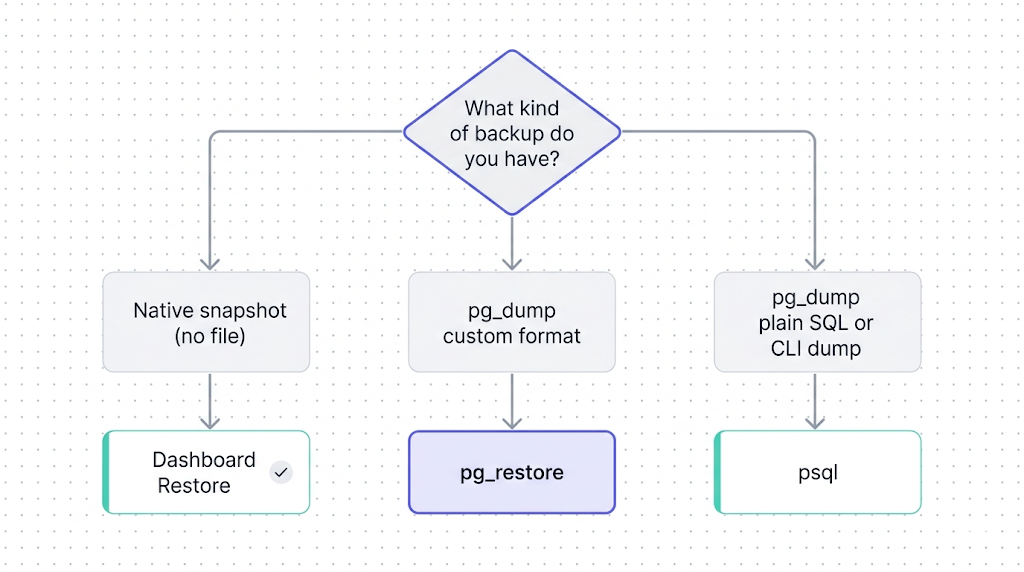
| Backup method | Restore method | Who controls it |
|---|---|---|
| Supabase native snapshot | Dashboard → Restore | Supabase |
pg_dump --format=custom | pg_restore | You |
pg_dump --format=plain | psql | You |
Supabase CLI (supabase db dump) | psql or pg_restore | You |
One more constraint worth knowing before you choose: the Dashboard restore replaces your entire database. There is no partial restore, no table-level restore, and no preview. If that's too coarse, the manual paths give you more control.
Restoring from the Supabase Dashboard
The Dashboard restore is the only way to recover from a native physical snapshot. According to Supabase's backup documentation, Daily Backups for Pro plans retain 7 days; Team retains 14; Enterprise retains 30. Free plans have no backups.
Before you start: the restore creates a new database cluster from the chosen snapshot. Anything written after that snapshot's timestamp is gone. Confirm that the timestamp is the one you want before you click anything.
Steps:
- Open your project in the Supabase Dashboard.
- Go to Settings → Database → Backups.
- You will see a list of available daily backup snapshots, each labeled with a timestamp.
- Click Restore on the snapshot you want to recover.
- Confirm the dialog. The operation kicks off immediately.
The dashboard shows progress. Depending on your database size, the process can take anywhere from a few minutes to over an hour for large projects. During this time the database is in a read-only or unavailable state. Do not try to run migrations or write data.
If your project is on the Free plan, there are no native snapshots to restore. Your only option is restoring from a manual pg_dump backup you created yourself, or starting fresh.
After the restore completes, verify your data before you route production traffic back. The "How to verify a restore worked" section below has a quick checklist.
Restoring with pg_restore from a pg_dump file
If your backup was created with pg_dump --format=custom, the restore tool is pg_restore. Plain SQL dumps (no --format flag or --format=plain) use psql instead. For the full background on both formats, see our PostgreSQL restore guide.
You will need the connection string for your Supabase project. Get it from Settings → Database → Connection string (select the direct connection, not the pooler, for pg_restore). It looks like:
postgresql://postgres:[your-password]@db.[project-ref].supabase.co:5432/postgres
Restoring a custom-format dump
pg_restore --host=db.[project-ref].supabase.co --port=5432 --username=postgres --dbname=postgres --no-owner --no-privileges --verbose dump-2026-04-21.dump
Flag notes:
--no-owner: skipsALTER TABLE ... OWNER TOstatements. Required for Supabase because the role names in your dump probably don't match the Supabase project roles.--no-privileges: skipsGRANT/REVOKE. Same reason.--verbose: logs each object as it's restored so you can see where it fails.-j 4: add this to parallelize the restore across 4 workers. Speeds up large databases.
Restoring a plain SQL dump
psql --host=db.[project-ref].supabase.co --port=5432 --username=postgres --dbname=postgres --file=dump-2026-04-21.sql
Postgres version mismatches cause silent failures and subtle data corruption. The pg_restore client must be the same major version as the Supabase project's Postgres version. Run pg_restore --version and compare against your project's Postgres version in Settings → Database. If they differ, install the matching client version.
For a step-by-step walkthrough of what each pg_dump option produces, the pg_dump and pg_restore guide with examples covers the format differences in detail. For the backup side of this operation, see how to back up Supabase Postgres.
Restoring via the Supabase CLI
The Supabase CLI handles the pg_dump and restore workflow directly if you prefer a single command surface. It wraps pg_dump for backups and feeds psql for restores.
Link your project first if you haven't already:
supabase link --project-ref [project-ref]
Dump the source database (if you haven't already):
supabase db dump --file dump.sql
This produces a plain SQL dump. To restore it to a target Supabase project:
psql --host=db.[target-project-ref].supabase.co --port=5432 --username=postgres --dbname=postgres --file=dump.sql
Note that the CLI's supabase db dump produces a plain SQL file, not a custom-format dump. You use psql to restore it, not pg_restore.
The CLI path is particularly useful when you want to move data between two Supabase projects, for example when promoting a staging database to production or seeding a development environment from a production snapshot.
What about Storage and Edge Functions?
A database restore, whether through the Dashboard or pg_restore, covers only the Postgres data. Two critical parts of your Supabase project sit outside Postgres entirely.
Storage: Supabase Storage files live in an S3-compatible backend, not in Postgres. The storage.objects table in your database contains metadata (filenames, paths, sizes) and those rows come back with a database restore. The actual file bytes do not. After a database restore, your app will have valid records pointing to files that no longer exist. This is the "broken image URL after restore" failure mode we see consistently.
For recovering the actual Storage objects, you need a separate Storage backup and restore process. See how to restore Supabase Storage objects.
Edge Functions: Function source code, deployment config, and secrets live on Deno Deploy infrastructure, completely separate from the Postgres cluster. A database restore does not touch them. If you lost Edge Function code, recover it from source control or redeploy from your local copy.
As the guide to what Supabase's native backup doesn't cover explains, these two gaps are the most common source of confusion after a restore: the database came back, but the application is still broken.
Common restore errors and how to fix them
pg_restore: error: query failed: ERROR: role "supabase_admin" does not exist
You tried to restore without --no-owner or --no-privileges. The dump includes role assignments that don't exist in the target project. Re-run with both flags.
ERROR: schema "public" already exists
The target database has existing schema. Either restore to a fresh Supabase project, or add --clean to pg_restore to drop and recreate objects before restoring. Use --clean only when you're certain you want to overwrite what's there.
pg_restore: [archive] input file does not appear to be a valid archive
You're trying to use pg_restore on a plain SQL dump. Plain SQL files need psql, not pg_restore. Check your dump format: if the file starts with -- PostgreSQL database dump, use psql.
Dashboard restore fails silently with no progress update
This sometimes happens when the backup snapshot itself is corrupted or when the project is in an inconsistent state due to a recent platform incident. Contact Supabase support directly with your project reference and the timestamp of the snapshot you tried to restore.
Project is paused and you can't restore
If your project is on the Free tier and it was paused for inactivity, the dashboard restore flow behaves differently from a normal restore. For the paused project recovery path, see how to recover a paused Supabase project.
After any restore operation that involved pg_restore or psql, your RLS (Row Level Security) policies and auth.users data need verification. The auth schema is included in native Dashboard restores. For manual pg_dump restores, the auth schema may not be captured depending on how the dump was created. Run \dt auth.* in psql to confirm.
How to verify a restore worked
Don't assume the restore succeeded because no error appeared. Run these checks before routing any traffic back to the restored database.
Row counts on critical tables: compare against what you know the state should be.
SELECT
  schemaname,
  tablename,
  n_live_tup AS estimated_row_count
FROM pg_stat_user_tables
ORDER BY n_live_tup DESC
LIMIT 20;
Check the latest timestamps: confirm recent data is present at the timestamp you expected.
SELECT MAX(created_at) FROM your_most_active_table;
Spot-check a known record: if you have a specific row you know should exist, query it directly.
Verify RLS policies are intact:
SELECT tablename, policyname, cmd, qual
FROM pg_policies
WHERE schemaname = 'public'
ORDER BY tablename;
Check extensions:
SELECT name, default_version, installed_version
FROM pg_available_extensions
WHERE installed_version IS NOT NULL;
If any of these fail, stop and investigate before going back to production. A partial restore that looks successful at the surface can hide missing data, broken foreign keys, or policies that didn't come back correctly.
What to do next
If you ran through a manual restore for the first time today, you now know how much of this is muscle memory. The actual restore is four commands. What takes time is the preparation: knowing which backup format you have, having the connection string ready, and running the verification queries afterward.
The part that catches teams off guard is realizing, after the Postgres restore, that their Storage files aren't back. If that happened to you, work through the Storage recovery path next. And if you want a video walkthrough of the full process, the Supabase backup and recovery guide video tutorial covers the end-to-end flow visually.
If scripting and scheduling Supabase Postgres backups off-site yourself sounds like a second job, SimpleBackups handles Supabase backups automatically with off-site storage and alerts when a run fails. See how it works →
Keep learning
- How Supabase native backup works — what the Dashboard actually backs up and what it doesn't
- What Supabase's native backup doesn't cover — the Storage and Edge Function gaps in full
- How to restore a PostgreSQL backup — the foundational pg_restore reference
- pg_dump and pg_restore guide with examples — complete format and flag reference
FAQ
Can I restore a Supabase backup to a different project?
Native Dashboard snapshots can only be restored to the same project. A pg_dump or Supabase CLI dump can be restored to any project by pointing the restore command at the target project's connection string.
Does restoring from the Dashboard overwrite my current data?
Yes. The Dashboard restore replaces the entire database cluster with the selected snapshot. All data written after that snapshot's timestamp is gone. There is no partial restore or preview through the Dashboard.
How long does a Supabase database restore take?
Supabase doesn't publish a specific SLA. For projects under 5 GB, most Dashboard restores complete in under 15 minutes. For pg_restore on manual dumps, time scales with dump size and the number of parallel workers configured.
Can I do a partial restore of specific tables?
Not with the Dashboard. With pg_restore you can restore individual tables using the -t flag: pg_restore --table=your_table_name dump.dump. Run it once per table you want to recover.
What Postgres version compatibility issues should I watch for?
The pg_restore client version must match the major Postgres version of the target database. Check your project's version under Settings > Database. Run pg_restore --version locally to confirm the client version matches.
Does a restore include my RLS policies and auth users?
Dashboard restores include RLS policies and the auth schema including auth.users. For pg_dump restores it depends on which schemas were captured. Run \dt auth.* in psql after any manual restore to verify the auth tables came back.
This article is part of The complete guide to Supabase backup, an honest, practical reference from the team that backs up Supabase every day.