

You restored your Supabase database. The SQL data is back, the dashboard looks right, the app connects. Then a user reports that every uploaded file is broken: 404s where images should be, empty document slots, missing avatars. The backup "worked," but half your application is gone. To restore Supabase Storage, you need a completely separate step.
This happens because restore supabase storage is a two-part job, not one. The database restore brings back the metadata rows in storage.objects. It does not bring back the actual file bytes, which live in a separate S3 backend that native Supabase snapshots never touch.
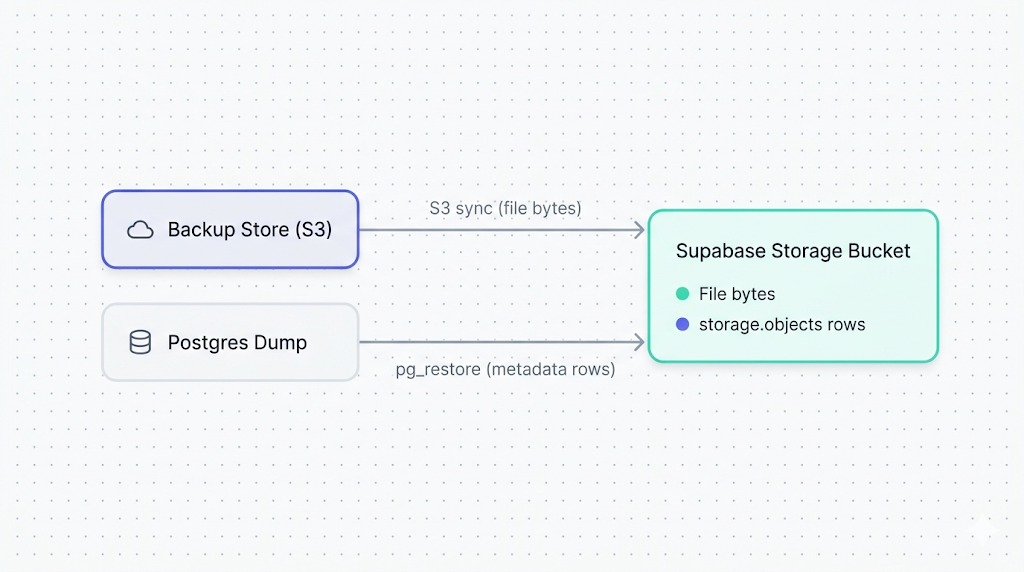
This guide walks through both parts: rehydrating file bytes into your buckets via the S3-compatible API, and restoring the storage.objects metadata so Supabase knows those files exist. By the end, you'll have a working restore path, a reconciliation check, and a verification step you can run from the terminal.
Why Storage restore is different from database restore
When Supabase runs a native backup, it takes a physical snapshot of your Postgres volume. That snapshot includes the storage.objects table: names, sizes, MIME types, bucket IDs, ownership, timestamps. It does not include the file bytes. Those live in a separate S3 backend that Supabase manages independently.
As we explain in how Supabase's native backup actually works, the Storage backend is architecturally decoupled from Postgres. Native snapshots don't cross that boundary. This is a deliberate design choice, not an oversight, but it has a real consequence at restore time.
The result: restore a native Supabase backup and your storage.objects rows come back intact, but the files they reference don't exist. Your app generates signed URLs, Storage resolves the metadata row, and returns a 404 from the S3 layer. The metadata exists; the bytes don't.
This is one of the most common gaps we cover in what Supabase's native backup doesn't cover. Storage requires an independent backup to be restorable. If you haven't taken one yet, read how to back up Supabase Storage buckets before continuing here.
What you need before you start
Before running any of the commands below, confirm you have:
A Storage backup in S3-compatible format. You'll need either a bucket-to-bucket sync (S3 prefix copy) or objects downloaded from your backup target. This guide assumes you're rehydrating from an S3-compatible store: Cloudflare R2, AWS S3, Backblaze B2, or similar.
A Postgres dump that includes the storage schema. If your backup tool captured the full database or at minimum the storage schema, you can restore the metadata table selectively. If you're restoring from a native Supabase backup, the storage.objects rows are already there, and you only need the file bytes.
AWS CLI (or a compatible tool) configured for Supabase's S3 endpoint. Supabase Storage exposes an S3-compatible API. You'll point the CLI at your project's Storage endpoint with standard S3 operations.
Your target project credentials. You'll need the Supabase project URL, the S3 access key and secret (from the Supabase dashboard under Storage settings), and the Postgres connection string.
A rough sense of bucket size. Restoring 100 MB is fast. Restoring 500 GB involves real bandwidth costs. Supabase projects live on AWS, so same-region transfers between an AWS S3 bucket and Supabase Storage are close to free. Cross-provider or cross-region transfers are not.
If you're restoring to a different project than the one you backed up, create the target buckets in the new project before running the commands below. Storage restore does not create buckets automatically. Restore operations against a non-existent bucket will silently fail or error depending on the tool.
Restoring files to a Supabase Storage bucket via the S3 API
This step puts the actual file bytes back into the bucket. Metadata comes after.
Configure AWS CLI for Supabase Storage
Supabase's S3-compatible endpoint follows this format:
https://<project-ref>.supabase.co/storage/v1/s3
Find your project-ref in the Supabase dashboard URL. The S3 access key and secret are under Project Settings > Storage > S3 Access Keys.
Set up a named profile so you don't paste credentials into every command:
aws configure --profile supabase-restore
# AWS Access Key ID: <your S3 access key>
# AWS Secret Access Key: <your S3 secret key>
# Default region name: us-east-1  # Supabase ignores this value; any string works
# Default output format: json
Rehydrate the bucket from your backup store
If your backup is in another S3-compatible bucket, sync it directly:
aws s3 sync s3://your-backup-bucket/supabase-storage-snapshots/2026-04-20/ s3://your-target-bucket/ --endpoint-url https://<project-ref>.supabase.co/storage/v1/s3 --profile supabase-restore
Replace:
your-backup-bucketwith your off-site backup bucket name.supabase-storage-snapshots/2026-04-20/with the prefix pointing to the snapshot you want.your-target-bucketwith the Supabase bucket name you're restoring into.<project-ref>with your Supabase project reference.
If your backup consists of local files downloaded from your backup store:
aws s3 cp ./local-storage-backup/ s3://your-target-bucket/ --endpoint-url https://<project-ref>.supabase.co/storage/v1/s3 --profile supabase-restore --recursive
Add --dryrun to preview what will be uploaded before committing. For large buckets, a dry run is worth the extra minute. Once objects land in Storage you can overwrite them, but you can't undo an upload that landed in the wrong bucket.
Restoring the storage.objects metadata table
With file bytes back in Storage, you need the storage.objects rows to match. This table tracks every object's name, size, MIME type, bucket ID, and owner. Without it, Supabase doesn't know the files exist.
If you have a full database backup via pg_dump --format=custom, restore only storage.objects:
pg_restore --host=aws-0-eu-central-1.pooler.supabase.com --port=6543 --username=postgres --dbname=postgres --schema=storage --table=objects --data-only --no-owner --no-acl dump-2026-04-20.dump
Flags explained:
--schema=storage --table=objects: restores onlystorage.objects, not the entire dump.--data-only: skips DDL. The table already exists in a live Supabase project; you want row inserts, not schema recreation.--no-ownerand--no-acl: skips permission statements that fail against Supabase's managed Postgres.
For the general database restore path, including connection string options and common errors with managed Supabase Postgres, see how to restore a Supabase database.
What lives where
The split between the Postgres layer and the S3 backend is what makes Storage restore a two-step job. Here's the breakdown:
| Layer | What lives there | Backed up by |
|---|---|---|
storage.objects table | File name, size, MIME type, bucket ID, owner, timestamps, metadata JSON | pg_dump of the storage schema |
storage.buckets table | Bucket name, public/private setting, file size limit | pg_dump of the storage schema |
| S3 backend | The actual file bytes | S3-compatible sync to off-site store |
Reconciling metadata with actual files
After running both restores, you may have a mismatch. The most common forms:
Orphaned metadata rows: storage.objects has a row, but no file bytes exist in the S3 backend. Users get a 404 on any URL that references that object.
Orphaned file bytes: a file landed in the S3 backend but has no corresponding row in storage.objects. The file is unreachable via the Supabase API.
The broken-image-URL case (metadata row exists, bytes missing) is the more dangerous one: your app generates signed URLs that look valid but return 404. Users report errors; you see nothing wrong in the database. Always run the reconciliation check after a restore. It is the only way to recover Supabase Storage objects that landed in one layer but not the other.
To surface mismatches, diff the S3 object listing against storage.objects:
# List all keys currently in the Storage bucket (S3 side)
aws s3 ls s3://your-target-bucket/ --endpoint-url https://<project-ref>.supabase.co/storage/v1/s3 --profile supabase-restore --recursive | awk '{print $4}' | sort > s3_objects.txt

# Export object names from storage.objects (Postgres side)
psql "postgres://postgres:<password>@aws-0-eu-central-1.pooler.supabase.com:6543/postgres" -c "COPY (SELECT name FROM storage.objects WHERE bucket_id = 'your-target-bucket') TO STDOUT;" | sort > db_objects.txt

# Find rows in DB with no matching S3 object (broken URLs)
comm -23 db_objects.txt s3_objects.txt

# Find S3 objects with no matching DB row (unreachable files)
comm -13 db_objects.txt s3_objects.txt
Any output from the first comm command is a broken URL waiting to surface in your app. Reupload those specific files, or delete the orphaned rows from storage.objects if you no longer need them.
Verifying the restore
Don't mark the restore complete until you've confirmed things work from the application layer, not just the database.
Test a signed URL for a private object. Pick a private file, generate a signed URL via the Supabase client or REST API, and fetch it:
curl -I "https://<project-ref>.supabase.co/storage/v1/object/sign/your-bucket/path/to/file.jpg?token=..."
You want HTTP/2 200. A 404 means the byte is missing. A 400 often means the metadata row exists but is misconfigured.
Fetch a public object directly. For public buckets:
curl -I "https://<project-ref>.supabase.co/storage/v1/object/public/your-bucket/path/to/file.jpg"
Run a row count sanity check:
SELECT bucket_id, COUNT(*) AS row_count
FROM storage.objects
GROUP BY bucket_id;
Compare against your expected counts from the backup manifest or last-known-good state. A mismatch is a signal, not proof, of a problem, but it's fast to run and worth doing.
What to do next
If you got here because something went wrong, a working restore is a good place to stop for today. Before the adrenaline fades: schedule a test restore on a staging project for next month.
The common failure we see in support is teams who restored once during an incident and never tested again. A restore that worked in April may not work in October if the backup process drifted: credentials rotated, bucket permissions changed, backup format version bumped. Regular restore tests are the only way to know.
If you're building a backup strategy from scratch, the short version: sync Supabase Storage to an off-site S3 bucket on a schedule, export pg_dump output for the storage schema separately, and test the Supabase bucket restore on a staging project quarterly.
If scripting and scheduling all this yourself sounds like a second job, SimpleBackups handles Supabase Storage backups off-site, with alerts when a run fails. See how it works →
SimpleBackups added native Supabase Storage support with direct bucket-to-bucket sync, which removes most of the custom scripting from the backup half of this equation.
Keep learning
- What Supabase's native backup doesn't cover — the full picture of what native snapshots miss, and why Storage is the largest gap.
- How to back up Supabase Storage buckets: the backup counterpart to this article.
- How to restore a Supabase database: the general database restore reference, for when you need to recover Postgres data alongside Storage.
- How Supabase's native backup works — the architecture behind why this two-step restore is necessary.
FAQ
Does restoring a Supabase database backup also restore my Storage files?
No. Native Supabase backups include the storage.objects metadata table but not the actual file bytes, which live in a separate S3 backend. You need to restore file bytes separately via the S3-compatible API.
Can I restore Storage objects to a different Supabase project?
Yes, but target buckets must already exist before you run the restore. Create matching buckets in the new project first, then sync your backup objects in via the S3-compatible API. RLS policies need to be recreated separately.
What happens if the storage.objects table and the actual files are out of sync?
Signed URLs for objects with metadata rows but no file bytes return 404. Objects with file bytes but no metadata row are unreachable via the Supabase API. The reconciliation step using comm to diff the S3 listing against storage.objects surfaces both cases.
How long does it take to restore a large Storage bucket?
Transfer time depends on bucket size and proximity to your Supabase project's AWS region. Same-region S3 transfers of 10 GB typically finish in minutes. Cross-region or cross-provider transfers of the same size can take 30 to 60 minutes.
Do I need to restore RLS policies on Storage separately?
If you ran pg_restore with --data-only, you skipped DDL and did not restore policies. Run the schema restore first without --data-only to include policies, then restore data. If restoring into a project with existing policies, --data-only is safer.
Can I selectively restore specific files or folders from a Storage backup?
Yes. Use --include with aws s3 sync to target a specific prefix. For selective storage.objects row restore, restore to a temporary table first, then insert the specific rows you need.
This article is part of The complete guide to Supabase backup, an honest, practical reference from the team that backs up Supabase every day.