

If you've read the Supabase docs on backups, you know your Pro plan includes daily snapshots with 7-day retention. What the docs don't say clearly: those snapshots don't include a single file from your Storage buckets.
Your images, PDFs, user uploads, export archives: none of it is in the native backup. If you restored from that snapshot today, every supabase.storage.from('avatars').getPublicUrl(...) call in your app would return a broken URL. The database rows would be there. The files wouldn't.
This is the largest uncovered surface in Supabase's backup model. This article shows you how to fill it: back up your Storage buckets using the S3-compatible API, back up the storage.objects metadata table alongside them, automate both on a schedule, and verify the result before you need it.
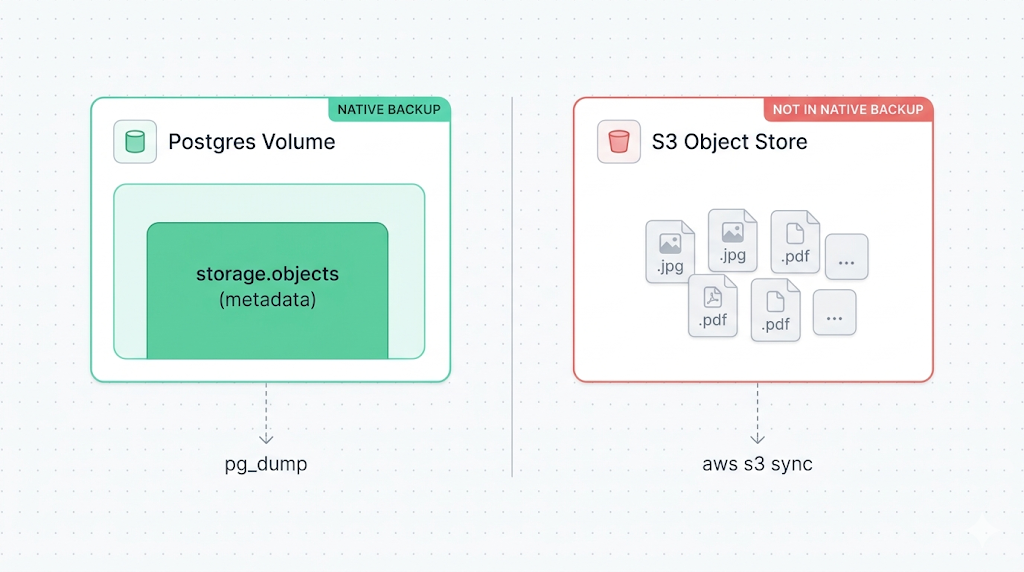
Why Storage isn't in the native backup
Supabase's native backup is a physical snapshot of the Postgres volume, not a logical pg_dump. That matters because your Storage files don't live on the Postgres volume. They live in an S3-compatible object store (on AWS, in the same region as your project), managed by a separate service Supabase calls the Storage server.
The Postgres volume holds a metadata table called storage.objects. It records the file name, bucket, owner, size, content type, and RLS policies for every object. But the actual bytes of the file are in S3, not Postgres. When Supabase snapshots your volume, it captures storage.objects (the index) but not the referenced files.
This is why a restore from a native backup produces a project where the database is intact, the storage metadata rows exist, and all the public URLs point at files that are gone.
Why trust this article
We run Supabase backups every day. The pattern we see consistently is teams discovering the Storage gap at the moment they needed the data back: after a bad migration, after accidental bucket deletion, after a project was paused. This article is the playbook we wish existed when we first hit the problem.
How Supabase Storage works (the S3 backend and storage.objects)
Supabase Storage is documented as S3-compatible, which means you can access your buckets using any tool that speaks the AWS S3 protocol: the AWS CLI, boto3, rclone, or the @aws-sdk/client-s3 Node.js package.
The endpoint is scoped to your project:
https://<project-ref>.supabase.co/storage/v1/s3
The split between the metadata table and the file bytes matters for backup strategy:
| Layer | What it contains | Where it lives | In native backup? |
|---|---|---|---|
storage.objects table | File metadata: name, bucket, owner, size, MIME type, RLS policies | Postgres volume | Yes |
| S3 object store | Actual file bytes | Separate S3 backend | No |
You need to back up both. Backing up only the files leaves you with bytes and no database records. Backing up only storage.objects leaves you with records pointing at missing files.
If you restore only storage.objects without restoring the actual files, every getPublicUrl() call returns a URL that resolves to your project's S3 endpoint, and then 404s. The URL pattern is correct. The file just isn't there. This is the "broken image URL" trap, and it's easy to miss in testing if you don't also check that file retrieval works.
Prerequisites: S3 credentials, AWS CLI or SDK, disk space
Before you can sync your Storage buckets, you need three things.
1. S3 access credentials for your Supabase project
In the Supabase dashboard, navigate to Storage > S3 Access. Generate an access key and secret. These credentials are scoped to your project and are different from your Supabase service role key.
Access Key ID:     <generated key>
Secret Access Key: <generated secret>
Region:            <your project region, e.g. eu-central-1>
Endpoint:          https://<project-ref>.supabase.co/storage/v1/s3
The S3 Access page path may differ by dashboard version. If you don't see it under Storage, check Project Settings > Storage.
2. AWS CLI (or equivalent S3-compatible tool)
# macOS
brew install awscli

# Ubuntu / Debian
apt install awscli

# Verify
aws --version
You can also use rclone, mc (MinIO client), or any SDK. The examples here use the AWS CLI because it's the most widely available.
3. Backup destination with enough capacity
If you're backing up to a remote object store (recommended), ensure the destination bucket is in a different cloud provider or region than your Supabase project. Supabase runs on AWS in the same region as your project. If that region has an outage, a backup in the same region may be unreachable.
Good destinations: Backblaze B2, Cloudflare R2, or an AWS S3 bucket in a different region from your project. The goal is geographic and provider diversity.
Backing up a bucket with the S3-compatible API
Configure a named AWS CLI profile for your Supabase project:
aws configure --profile supabase
# AWS Access Key ID: <your access key>
# AWS Secret Access Key: <your secret>
# Default region name: <your project region>
# Default output format: json
Then sync a bucket to your backup destination:
# Sync a single bucket to a local directory
aws s3 sync s3://your-bucket-name ./backup/storage/your-bucket-name --endpoint-url https://<project-ref>.supabase.co/storage/v1/s3 --profile supabase
The s3 sync command is incremental: it compares source and destination by size and last-modified timestamp, transferring only objects that are new or changed. For large buckets, subsequent runs are fast.
To back up all buckets in a single pass:
#!/usr/bin/env bash
set -euo pipefail

PROJECT_REF="<project-ref>"
ENDPOINT="https://${PROJECT_REF}.supabase.co/storage/v1/s3"
BACKUP_ROOT="./backup/storage/$(date +%F)"
PROFILE="supabase"

# List all buckets and sync each one
buckets=$(aws s3 ls --endpoint-url "$ENDPOINT" --profile "$PROFILE" | awk '{print $3}')

for bucket in $buckets; do
  echo "Syncing $bucket..."
  aws s3 sync "s3://${bucket}" "${BACKUP_ROOT}/${bucket}" --endpoint-url "$ENDPOINT" --profile "$PROFILE"
done

echo "Storage backup complete: $BACKUP_ROOT"
Make it executable and test a run before scheduling it:
chmod +x backup-storage.sh
./backup-storage.sh
Backing up the storage.objects metadata table
The file sync above handles the bytes. Now back up the metadata. The storage.objects table lives in the storage schema of your Supabase Postgres database.
You can dump it as part of a full database backup (see our guide to backing up Supabase Postgres), or dump only the storage schema for a lighter, storage-specific snapshot:
pg_dump --host=<your-db-host> --port=6543 --username=postgres --dbname=postgres --schema=storage --format=custom --file="storage-metadata-$(date +%F).dump"
Find your database host in Project Settings > Database > Connection string.
The storage schema contains two tables worth keeping: storage.buckets (bucket-level metadata: public/private status, file size limits) and storage.objects (per-file metadata). Passing --schema=storage to pg_dump captures both. You want both, or bucket configurations won't survive the restore.
The resulting dump records which files exist, what their access policies are, and what their public URLs should be. Pair it with the s3 sync output and you have a complete, restorable Storage backup.
Automating Storage backups on a schedule
Run both steps (file sync and metadata dump) from a cron job on a machine outside your Supabase project. Keeping the backup agent off the Supabase infrastructure means it still runs if something goes wrong with your project.
A combined script:
#!/usr/bin/env bash
set -euo pipefail

# Config
PROJECT_REF="<project-ref>"
DB_HOST="<your-db-host>"
DB_USER="postgres"
DB_NAME="postgres"
S3_ENDPOINT="https://${PROJECT_REF}.supabase.co/storage/v1/s3"
BACKUP_DIR="/var/backups/supabase/$(date +%F)"
PROFILE="supabase"

mkdir -p "${BACKUP_DIR}/storage" "${BACKUP_DIR}/metadata"

# 1. Back up all Storage buckets
buckets=$(aws s3 ls --endpoint-url "$S3_ENDPOINT" --profile "$PROFILE" | awk '{print $3}')

for bucket in $buckets; do
  echo "Syncing $bucket..."
  aws s3 sync "s3://${bucket}" "${BACKUP_DIR}/storage/${bucket}" --endpoint-url "$S3_ENDPOINT" --profile "$PROFILE"
done

# 2. Back up storage.objects metadata
PGPASSWORD="$DB_PASSWORD" pg_dump --host="$DB_HOST" --port=6543 --username="$DB_USER" --dbname="$DB_NAME" --schema=storage --format=custom --file="${BACKUP_DIR}/metadata/storage-$(date +%F).dump"

echo "Backup complete: $BACKUP_DIR"
Schedule it with cron. Running at 03:00 UTC daily avoids peak traffic hours for most projects:
0 3 * * * DB_PASSWORD='<password>' /opt/backup/backup-storage.sh >> /var/log/supabase-storage-backup.log 2>&1
Add a failure alert. If the script exits non-zero, send an email or ping a webhook. A silent failure at 03:00 UTC is indistinguishable from a successful run until you need the backup and find it's three weeks stale.
One thing to know about RLS: bucket policies and row-level security on storage.objects travel with the pg_dump. They're part of the metadata. But if you restore to a different project, the user IDs in those policies will reference users that don't exist in the new project yet. You'll need to remap them or temporarily disable RLS on restored objects before reassigning ownership.
Verifying your Storage backup
Running a backup script that exits zero is not the same as having a working backup. Verify the result.
Spot-check the file count:
# Objects in the live bucket
aws s3 ls --recursive s3://your-bucket-name --endpoint-url https://<project-ref>.supabase.co/storage/v1/s3 --profile supabase | wc -l

# Objects in the backup
find ./backup/storage/your-bucket-name -type f | wc -l
The counts should match after a completed sync. A discrepancy typically means a permissions issue on a subfolder or a bucket that wasn't listed.
Check backup freshness:
ls -lt /var/backups/supabase/ | head -5
A fresh directory timestamp means the job ran. Stale metadata means it silently failed.
Test a restore to a scratch project:
The most reliable verification is a restore to a separate Supabase project. Upload the synced files to a test bucket, restore the storage.objects dump to the test project's database, and verify that file URLs resolve correctly and the files are actually retrievable. Our guide to restoring Supabase Storage objects walks through that process end to end.
We run a restore test on a sample of backups each month. It's the only check that actually tells you whether the backup works.
What to do next
If you've run the combined script and confirmed the file count matches, you have a working Storage backup. Schedule it from a cron job on a dedicated server outside your Supabase project, and test a restore to a scratch project once a month.
The other surface not covered by Supabase's native backup is Edge Functions: source code, configuration, and secrets that run on Deno Deploy. If your application depends on Edge Functions, add those to your backup plan as well.
If scripting and scheduling all this yourself sounds like a second job, SimpleBackups handles Supabase Storage backups off-site, with alerts when a run fails. See how it works →
Keep learning
- What Supabase's native backup doesn't cover, the full picture of what the Postgres snapshot includes and what it misses
- How Supabase's native backup works, the physical snapshot model and why Storage sits outside it
- How to back up Supabase Postgres, the companion guide for database-level backup
- SimpleBackups Storage support announcement, the announcement of native Storage backup support in SimpleBackups
FAQ
Does Supabase's native backup include my Storage files?
No. Supabase's native backup is a physical snapshot of the Postgres volume. Storage files live in a separate S3-compatible backend and are not included. The storage.objects metadata table is captured, but the actual file bytes are not.
Can I use aws s3 sync with Supabase Storage?
Yes. Supabase Storage exposes an S3-compatible API at https://<project-ref>.supabase.co/storage/v1/s3. Point the AWS CLI at that endpoint using --endpoint-url and sync buckets as with any S3-compatible store. Credentials come from the S3 Access section of the Supabase dashboard.
How do I get S3 credentials for my Supabase project?
In the Supabase dashboard, go to Storage > S3 Access and generate an access key and secret. These are scoped to your project and differ from your Supabase API keys or service role key.
Do I need to back up storage.objects separately from the files?
Yes. The S3 sync captures file bytes; storage.objects holds metadata including file names, bucket assignments, and access policies. You need both to restore successfully. Files without metadata leaves the database unaware of them; metadata without files produces broken URLs.
What happens to public URLs if I restore Storage to a different project?
Public URLs include the project reference in the path. After restoring to a new project, the ref changes, so any hardcoded URLs in your application or database will need to be updated to the new project ref.
This article is part of The complete guide to Supabase backup, an honest, practical reference from the team that backs up Supabase every day.