

If you're here, you already know you should back up Supabase before a migration. The question is what exactly to back up, because the daily native snapshot is not enough and most teams only discover that at the worst possible moment: standing over a half-migrated table at 11:00 PM with no clean restore point from less than 22 hours ago.
This guide covers the complete pre-migration backup procedure for Supabase: which components to capture, how to take each one, how to test the restore before the migration runs, and what to do if the migration breaks production anyway.
Why "I have native backups" isn't enough before a migration
Supabase's daily snapshots are physical backups of the Postgres volume. They're designed for catastrophic recovery: hardware failure, region outage, accidental project deletion. They are not designed for the scenario you actually face before a migration.
Three problems make native backup the wrong tool here.
The RPO is up to 24 hours. If the daily backup ran at 03:00 and you run your migration at 14:00, the last clean restore point is 11 hours old. That's 11 hours of writes you'd lose if the migration corrupts the database and you need to roll back.
Storage is not in the snapshot. Supabase native backups capture the Postgres volume. The file bytes in your Storage buckets live in a separate S3-compatible backend and are excluded entirely. The storage.objects metadata table is in the snapshot, but the actual objects are not. As covered in what Supabase's native backup doesn't cover, a migration that reorganizes Storage references can leave you with broken image URLs and no way to restore the objects themselves.
You can't test a native restore yourself. If you want to verify that yesterday's snapshot restores to a staging project, you need to contact Supabase support. That's not a viable pre-migration rehearsal path.
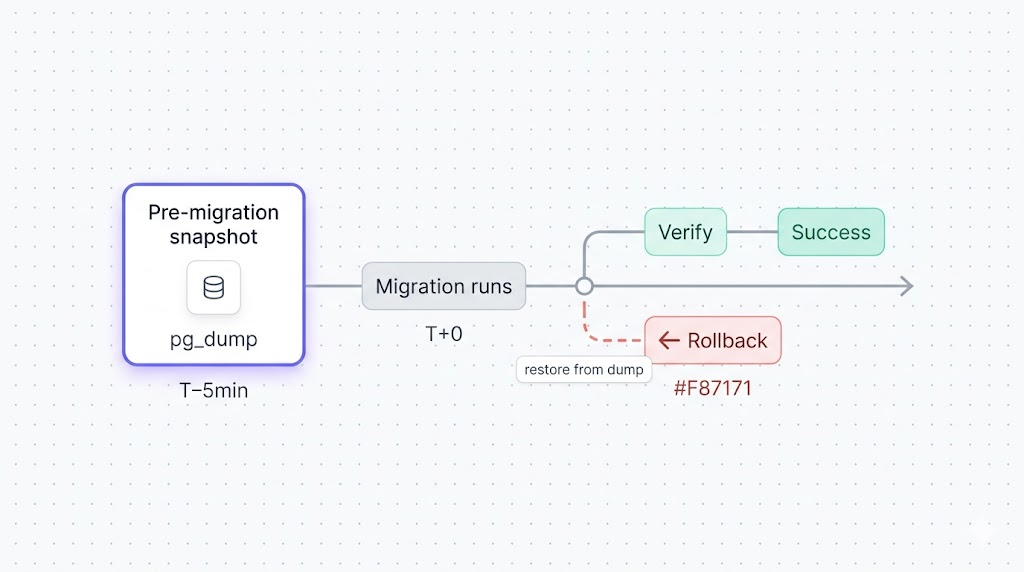
A pg_dump taken immediately before the migration solves all three: you control the timing, you restore it yourself, and you can verify it works on staging before you touch production.
For the complete picture of what native backup covers and what it doesn't, how Supabase native backup works is the full reference.
The pre-migration backup checklist
Work through every row before running the migration. "How to back up" is the command or procedure. "How to verify" is the check you run before declaring it done.
| Component | How to back up | How to verify |
|---|---|---|
| Postgres database | pg_dump via direct connection (port 5432) | pg_restore --list dump.dump shows expected tables; spot-check row counts |
| Storage buckets | Sync via S3-compatible API to a separate bucket | Count objects in destination vs. source; download 3–5 files to confirm bytes |
| Edge Functions | git commit of functions source, or supabase functions download | Confirm commit hash; verify config.toml is captured |
| RLS policies | Included in pg_dump by default (schema-level objects) | After restore, run \dp tablename in psql; verify expected policies |
| Secrets and env vars | Document values manually or export from dashboard | Read each secret back from a test that exercises it |
| Auth data (users, identities) | Included in the auth schema in pg_dump | After restore, verify auth.users row count matches production |
The Storage row is not optional. Supabase's native backup skips the actual file bytes entirely, so if your migration touches any column that stores Storage URLs or references, you need a separate Storage snapshot. The full Storage backup procedure is in how to back up Supabase Storage.
The native backup article has a section on each of these components if you want the full explanation of why they require separate handling.
Taking a full snapshot: database, Storage, and config
Connect via the direct connection, not the pooler
This is the mistake we see most often in support. Supabase exposes two connection paths: the pooler (port 6543, via PgBouncer) and the direct connection (port 5432, to Postgres directly).
pg_dump must use the direct connection (port 5432), not the pooler. PgBouncer uses transaction-mode pooling, which does not support the extended query protocol that pg_dump requires. If you connect via the pooler, pg_dump will either fail partway through or silently produce a corrupt dump.
Find your direct connection string in the Supabase dashboard under Project Settings > Database > Connection string. Select "Session mode" and copy the URI. It looks like:
postgresql://postgres:[password]@db.[project-ref].supabase.co:5432/postgres
Run the pre-migration pg_dump
pg_dump --host=db.[project-ref].supabase.co --port=5432 --username=postgres --format=custom --file=pre-migration-$(date +%F-%H%M).dump --verbose postgres
Flag notes:
--format=customcreates a binary dump that supports selective table restore, parallel restore, and compression. Don't use--format=plainfor a pre-migration backup; the file is larger and slower to restore from.--file=pre-migration-$(date +%F-%H%M).dumptimestamps the file. If you run multiple migrations in one day, you need to know which dump is which.--verboseprints each table as it dumps. If the command hangs, this tells you exactly where.
When the dump completes, verify it immediately:
pg_restore --list pre-migration-2026-04-22-1430.dump | head -50
You should see your table names, schema definitions, and extension entries. If the output is empty or shows only system tables, the dump is bad. Do not run the migration until you have a clean dump.
For the full pg_dump procedure including SSL flags, credential handling, and cron automation, how to back up your Supabase Postgres database walks through the complete setup, including the Supabase CLI path if you prefer that over direct pg_dump.
Back up Storage
The pg_dump captures the storage.objects metadata table, but not the file bytes. For pre-migration safety, sync your Storage buckets before the migration runs.
A minimal sync using the AWS CLI against Supabase's S3-compatible endpoint:
aws s3 sync s3://[bucket-name] s3://[backup-bucket]/pre-migration-$(date +%F)/ --endpoint-url=https://[project-ref].supabase.co/storage/v1/s3 --profile supabase
You'll need an S3-compatible access key from Supabase Storage settings. The full procedure, including access key setup and verification, is in the Storage backup guide linked in the checklist section above.
Export Edge Functions and secrets
If your migration changes any database schema that Edge Functions call (function signatures, table columns, RLS policies), export the current function source before the migration. If you already track Edge Functions in git, a commit before the migration is sufficient.
For secrets: Supabase does not expose a secrets export API. The practical approach is to document all environment variable names and their current values in a password manager or secrets manager before the migration. If you need to restore from the dump, you'll re-add secrets manually to the restored project.
Testing the restore on a staging project
Do not run the migration on production until you have confirmed the dump restores cleanly to a staging project. The test takes under ten minutes.
Test the restore before running the migration, not after. A restore test after a failed migration is damage control. A restore test before is confidence. You want to arrive at migration time already knowing the rollback path works.
Create a separate Supabase project for staging if you don't have one. Then run:
#!/usr/bin/env bash
# restore-test.sh: verify a dump restores cleanly to staging
# Usage: ./restore-test.sh <dump-file> <staging-host>
set -euo pipefail

DUMP_FILE="${1:?Usage: $0 <dump-file> <staging-host>}"
STAGING_HOST="${2:?Usage: $0 <dump-file> <staging-host>}"
STAGING_USER="postgres"
STAGING_DB="postgres"

echo "==> Restoring $DUMP_FILE to $STAGING_HOST"
pg_restore --host="$STAGING_HOST" --port=5432 --username="$STAGING_USER" --dbname="$STAGING_DB" --no-owner --no-privileges --verbose "$DUMP_FILE"

echo "==> Checking table counts"
psql --host="$STAGING_HOST" --port=5432 --username="$STAGING_USER" --dbname="$STAGING_DB" --command="SELECT schemaname, tablename, n_live_tup FROM pg_stat_user_tables ORDER BY n_live_tup DESC LIMIT 20;"

echo "==> Restore complete. Review table counts above."
Compare the row counts to production. If they match, the dump is clean and the restore path works. If counts diverge significantly, investigate before the migration runs.
For the full pg_restore reference including version-mismatch errors and partial restore options, restoring a Supabase database covers the common failure modes. The pg_dump and pg_restore guide with examples has a flag-by-flag breakdown if you need it.
Running the migration with a rollback plan
Once you have a verified dump and a tested restore path, run the migration. The rollback plan is not "figure it out if something breaks." It's a written procedure you execute in under five minutes.
Before the migration starts:
- Record the exact dump filename and the time it was taken.
- Write the restore command in a text file so you're not typing under pressure if something goes wrong.
- If the migration is long-running, consider putting affected tables in read-only mode or notifying users of a maintenance window.
Write the restore command before you start
An operator typing pg_restore flags under pressure, against a partially migrated production database, will make mistakes. Two minutes of preparation is worth more than any amount of post-incident heroics: write down the restore command, confirm the dump file, and verify the staging restore before you start.
Then run the migration and watch the output. The two failure modes:
The migration fails and rolls back automatically. Most schema changes in Postgres are transactional. If the migration fails mid-run, Postgres reverts the transaction, nothing changes, and you can fix and retry. This is the best outcome.
The migration completes but produces wrong results. Row counts change unexpectedly, queries that worked before now error, or foreign key relationships are broken. This is the case where you need the dump.
If either bad outcome occurs: restore first, investigate later. Don't spend twenty minutes diagnosing against a broken production database. Restore to the pre-migration state, confirm production is stable, then examine the failure on a copy of the broken state.
What to do if the migration breaks production
If you need to roll back:
Step 1: Restore the database. Point the restore command at production:
pg_restore --host=db.[project-ref].supabase.co --port=5432 --username=postgres --dbname=postgres --no-owner --no-privileges --clean --if-exists pre-migration-2026-04-22-1430.dump
The --clean flag drops existing objects before recreating them from the dump. The --if-exists flag prevents errors on objects that don't exist in the target. Together, they let you restore on top of a partially migrated database without manually cleaning up first.
Step 2: Verify the restore. Check your most important tables. Compare row counts to what you recorded before the migration. If the numbers match, production is at the pre-migration state.
Step 3: Restore Storage if needed. If the migration touched Storage references, sync back from the pre-migration snapshot:
aws s3 sync s3://[backup-bucket]/pre-migration-2026-04-22/ s3://[bucket-name] --endpoint-url=https://[project-ref].supabase.co/storage/v1/s3 --profile supabase
Step 4: Communicate. Let your team know production is at the pre-migration state and that you're investigating the failure. Don't retry the migration until you understand what went wrong.
What's recoverable: any data that existed before the migration, if you have the dump. What's not recoverable without the dump: writes that arrived between the dump and the failed migration. This is why the dump must be taken immediately before the migration, not an hour earlier.
What to do next
Run this checklist every time, not just for migrations you've flagged as risky. The migrations that break production are rarely the ones you expected to cause problems.
The short version of the workflow:
pg_dumpvia direct connection immediately before the migration.- Sync Storage buckets to a separate location.
- Verify the dump restores to staging.
- Write the rollback command before starting the migration.
- Run the migration and watch the output.
- If it breaks: restore first, investigate second.
If scripting and scheduling all of this yourself sounds like a second job, SimpleBackups handles Supabase Postgres, Storage, and Edge Functions backups off-site, with alerts when a run fails. See how it works →
Keep Learning
- How Supabase native backup works: the full picture of what the daily snapshot covers, what its retention limits are, and when it's sufficient.
- What Supabase's native backup doesn't cover: the components (Storage, Edge Functions, secrets) that need separate handling on migration day.
- How to back up your Supabase Postgres database: the manual pg_dump walkthrough with Supabase CLI and scheduling options.
- pg_dump and pg_restore with examples: every flag you'll need when a restore doesn't go cleanly.
FAQ
How long should I keep a pre-migration backup?
Keep the pre-migration dump until the migration has been stable in production for at least two weeks and the next Supabase native backup has a clean post-migration baseline. After both conditions are met, the dump can be archived or deleted.
Can I use Supabase's native backup to roll back a migration?
Not reliably. Native snapshots run once a day, so the most recent one is up to 24 hours old when you run a migration. You'd also lose every write between the snapshot and the migration. A pg_dump taken immediately before the migration is the correct rollback artifact.
What if my migration changes the schema and the old backup won't restore cleanly?
Use the --clean --if-exists flags with pg_restore to drop existing objects before recreating them from the dump. If errors persist, restore to a fresh staging project first, verify the data, then use selective table restores (pg_restore -t tablename) against production.
Should I pause writes during the backup?
For most migrations, no. pg_dump uses a consistent internal snapshot regardless of concurrent writes. Pause writes only when the migration requires a clean starting state, such as a backfill that would miss new rows arriving mid-run.
How do I back up RLS policies before a migration?
No extra steps needed. pg_dump includes RLS policies by default as schema-level objects. After a restore, run \dp tablename in psql to confirm the expected policies are present.
Do I need to back up Supabase Auth separately?
No. The auth schema, including auth.users and auth.identities, is part of your Postgres database and is captured in the standard pg_dump. Verify the auth.users row count matches production after any restore before going live.
This article is part of The complete guide to Supabase backup, an honest, practical reference from the team that backs up Supabase every day.